
Ramp out and ramp in a flight
Ramp out records the departure Hobbs and tach and takes the aircraft off the line. Ramp in records the return readings, puts it back, and moves the booking to Awaiting review. These two steps are what turn a plan into a billable flight.
For owners, admins, dispatchers, instructors, students and renters
Open the booking and use the button under the Dispatch section. Ramp out records the departure Hobbs and tach and takes the aircraft off the line. Ramp in records the return readings, puts the aircraft back, and moves the booking to Awaiting review. These two steps are what turn a plan into a billable flight.
Staff can ramp any booking. Everybody else can ramp the bookings they are on, and the maintenance they scheduled themselves, unless an admin has given them Ramp any flight out and in (see Let an instructor ramp any flight).
Reading the close-out#
The section shows four things, in this order:
-
Where the booking is, as a row of steps: Dispatch, In flight, Review, Billed. Done steps carry a tick, the live one is filled in, and anything still grey has not happened. Billed stays grey until a charge or invoice actually exists, signing off the review is not enough. A booking with no aircraft has three steps rather than four, because nothing ramps.
-
What has been recorded so far: the Hobbs and tach readings, the hours flown, the instruction time, and the times the aircraft actually left and came back. Nothing at all before it has flown.
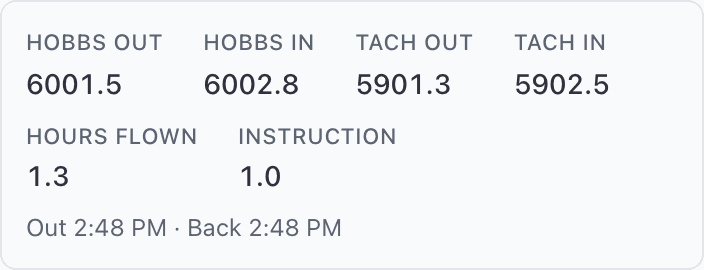
-
The one action it is waiting on, as a single button.
-
Everything else, folded away: who pays what, the training records, and the adjustments. Each says what it holds while it is shut ("2 payers, split recorded", "1 of 2 graded"), so a booking that needs nothing from you can be read without opening anything.
A folded card that has a problem in it opens itself and says so. That happens when the individual hours do not add up to what the aircraft flew, or the shares do not come to 100%, which are the two things the server will refuse to bill.
Ramp out#
Open the booking
The section headed Dispatch carries a Not started badge.
Press Ramp out
Both readings are already filled in from the aircraft's current Hobbs and tach.
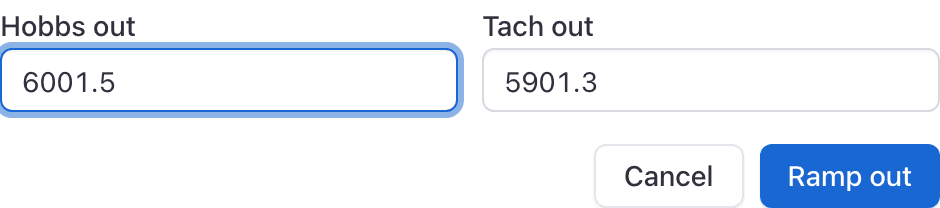
Confirm or correct the readings
Both are required. Readings carry one decimal place, for example 1014.2.
Press Ramp out
The badge becomes In flight, the aircraft is marked off the line, and a Ramped out line with both readings is written to the booking's timeline.
Ramp out is refused if the aircraft is already out on another booking, if the aircraft is grounded (maintenance is the exception), or if somebody on the booking is grounded.
If the aircraft is still out on another booking#
The message names the booking that still has it. That flight only needs to be ramped in; the next booking does not wait for anybody to sign off or for the flight to be billed. If its pilot has gone home without ramping in, anybody who can ramp that booking can do it for them: staff, or somebody given Ramp any flight out and in.
Ramp in#
Open the booking when the aircraft is back
The section now asks for the ending readings.
Press Ramp in
Hobbs and tach are pre-filled from the recorded out readings.
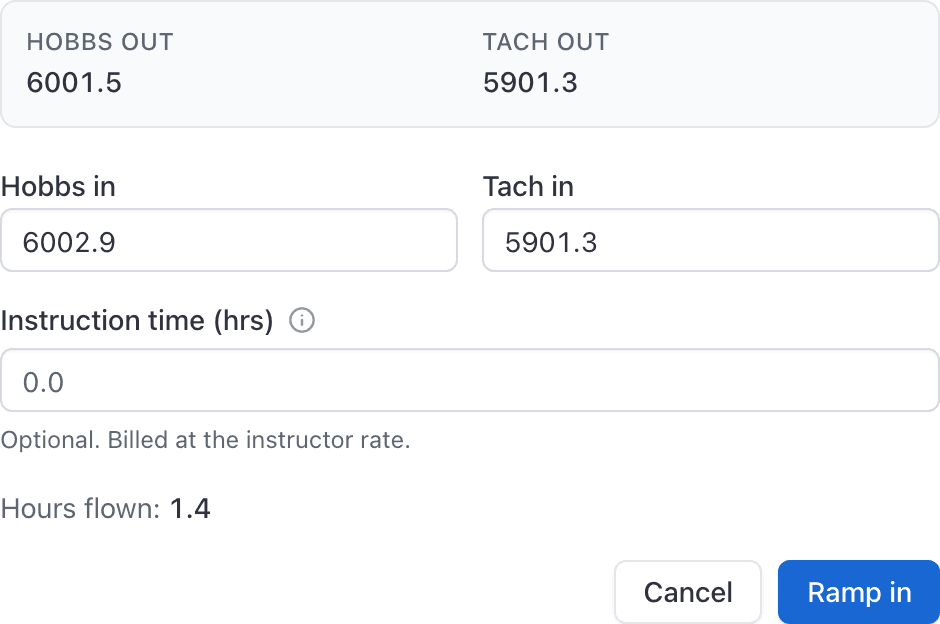
Type the ending readings
Hours flown is worked out and shown live as you type, so a mistyped digit is obvious before you save.
Press Ramp in
The aircraft goes back on the line and the badge becomes Awaiting review.
Ending readings below the recorded out readings are refused. The difference between out and in is what the flight is billed on, so a reading that runs backwards would produce a negative flight.
Instruction time on a dual#
The ramp in modal offers Instruction time (hrs). On a flight it is optional extra detail, billed at the instructor rate.
On a booking with no aircraft it is the only figure recorded, and it is required. The help text under the field changes to match. See Close out a ground lesson.
Let an instructor ramp any flight#
At an organization without a front desk, the instructor at the airport is often the one who sends aircraft out and brings them back, including on bookings they are not part of. An admin can allow that one person at a time:
Open People and choose the person
In the console, open their record and choose Permissions.
Turn on Ramp any flight out and in
It is under Scheduling. The change takes effect straight away.
They can then ramp out and ramp in any booking in the organization, and before anybody has signed off they can also correct the readings and split the flight between payers. They cannot sign a close-out for somebody else (each pilot still confirms with their own PIN), and they cannot edit, reschedule or cancel bookings they are not on.
Admins and dispatchers can already ramp any booking, so they need nothing here. The readings entered at ramp in are what the flight is billed on, so give it to people you would trust at the dispatch desk.
What locks once the aircraft is out#
From the moment a booking ramps out, its start time, its aircraft and its crew are frozen. They are part of the flight record now.
The Edit reservation button disappears from the web console entirely at that point. The one thing you can still change is when the aircraft is due back, by dragging the trailing edge of the block on the board. Hovering the block says so.
The overnight minimum notice#
If the booking spanned nights and your school charges a minimum per night away, the ramp in modal says so live, before you save, in plain numbers: how many nights, what the minimum is, and what the flight will bill instead of what was flown.
It is repeated at every close-out step until the invoice exists, because the person ramping the aircraft back in is often not the person who booked it. See Book a trip that keeps the aircraft overnight.
A booking with no meters#
Nothing ramps in a classroom. A Ground booking, or any booking with no aircraft, never sees these two steps. Its button reads Review times, it asks for instruction time only, and it goes straight from Not started to Awaiting review in one press.
This keys off the reservation type first, so a ground lesson booked sitting in an aeroplane still behaves that way.
If you entered the wrong reading#
Open the booking and choose Correct times, on the booking's own page in the console (under Adjustments) or in the app's actions menu. On a booking with no meters both call it Correct instruction time. In the console the panel beside the board is a summary: use Open the full booking at the foot of it to reach the close-out in full.
You can only correct the figures the booking already has. A flight ramped in on Hobbs alone offers Hobbs and nothing else, and a ground lesson offers its instruction time. This is a correction, not a way to record a flight nobody ramped, so it opens once the aircraft is back and not before.
Sign-offs do not close the door. On a solo booking you are the only person who signs off, so you would otherwise have one tap between entering a reading and being unable to change it.
Money closes it. Once the flight has been invoiced, or charged to a member's account ledger, the readings are fixed while that bill stands, because the bill describes hours the booking would stop claiming to have flown. Void the invoice (or reverse the ledger charge on the member's billing tab, using Reverse on the charge) and Correct times is available again.
If something is wrong with the aeroplane#
Report a squawk is in the close-out of any booking with an aircraft on it, on the booking's own page in the console, with the tail already filled in. It is there for everybody who can ramp the booking, which is the point: the Maintenance page is staff-only, so this is how the person who just flew it reports what they found. See Report a squawk.
Next: Sign off a flight with your PIN, which is what actually produces the invoice.
Moving the home base on ramp in#
If your school has turned on Update aircraft home base on ramp in under WebSettings → School → Joining & fleet, the ramp-in form includes a Home base picker. Choosing a location moves the aircraft before the meter readings are saved. Leave the setting off if every aircraft always returns to the same field.
Still stuck on this?
Email support@aerscheduler.com and tell us what you were trying to do. We answer.