
Change or cancel your booking
Open the booking and press Edit reservation. On the web, cancelling is limited to staff, technicians, and the instructor on the flight, so students and renters cancel from the iOS app or ask the front desk.
For students, renters, instructors and technicians
Open the booking from WebYou → Schedule and press Edit reservation. Cancelling on the web is limited to staff, technicians and the instructor on the flight, so if you are a student or a renter who booked yourself in, cancel from the AerScheduler iOS app or ask the front desk.
Edit a booking#
Open the booking
From WebYou → Schedule, from WebYou → Home, or by clicking it on the school calendar.
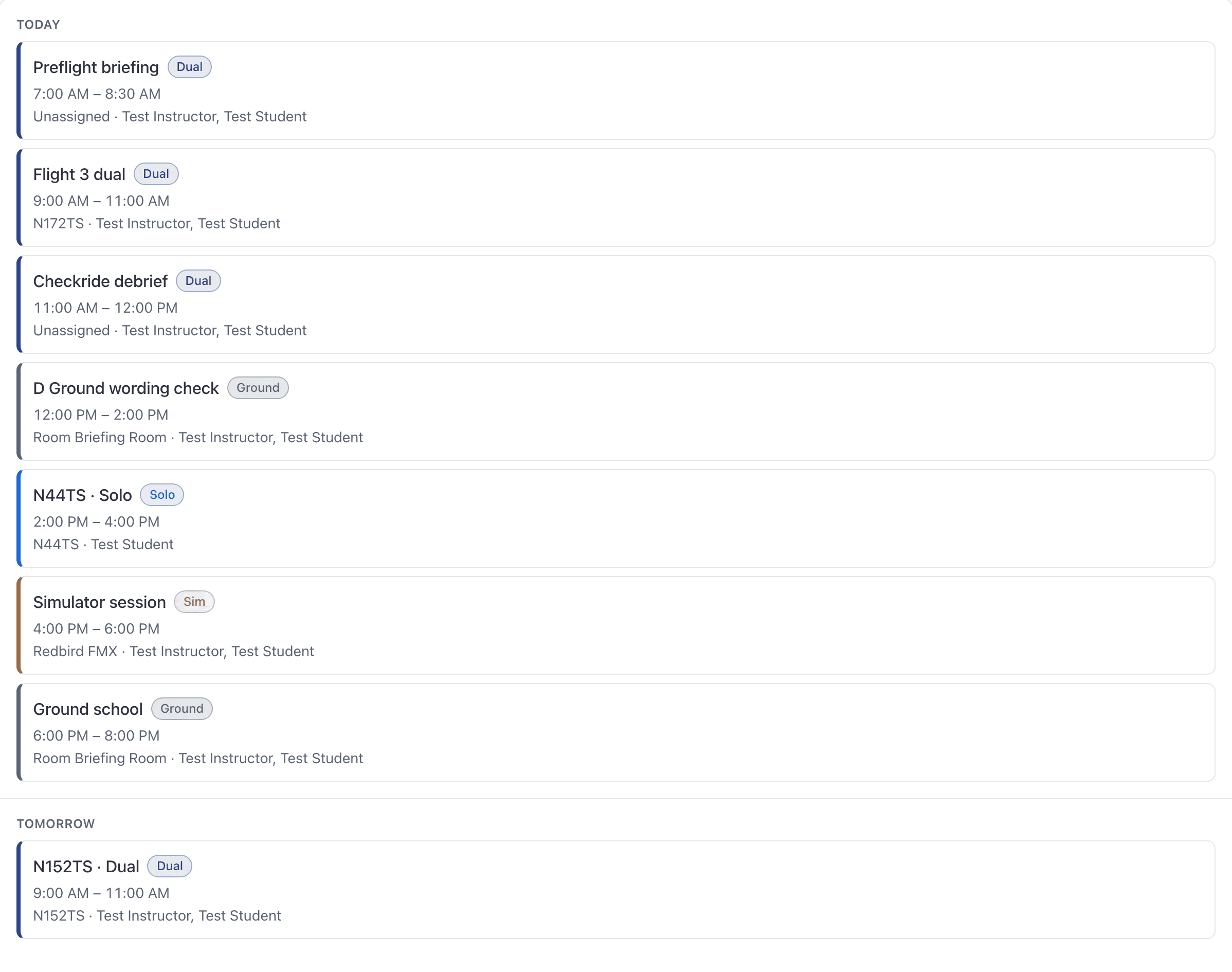
Press Edit reservation
In the panel's … menu, beside the close button. It is also a button on the booking's own page, which the panel links to with Open the full booking.
Change the aircraft, the times or who you are flying with
The times offered are still only the ones where the aircraft and everyone on the booking are free.
Press Save changes
Everyone on the booking is notified that it changed.
When editing stops being possible#
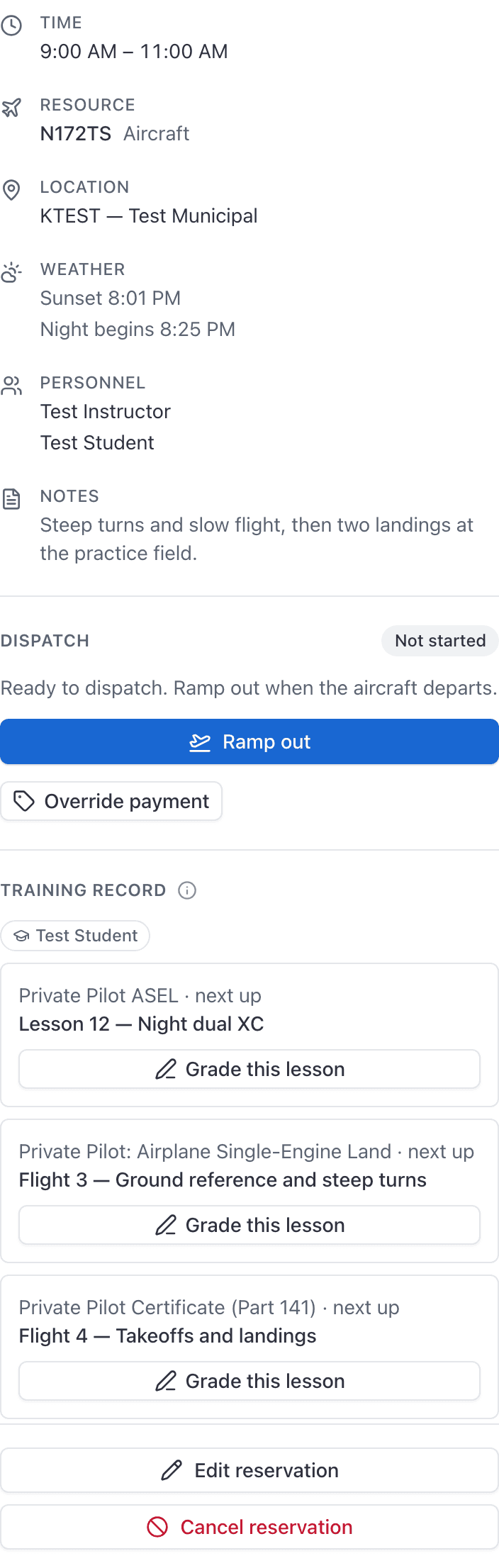
The Edit reservation button disappears once any of these is true:
- The aircraft has ramped out.
- The booking's end time is in the past.
- The booking has been cancelled.
If your school turned on a cancel and edit lock, editing can also be refused once the booking starts inside that window (for example, less than 24 hours out). The message names the hours and asks you to contact the front desk. Staff can still move it.
Running late and want to push the return time back? On the web you cannot edit at that point, because the time picker cannot offer sensible slots around a start that has already happened. Drag the trailing edge of the block on the calendar instead, or use the iOS app, which still lets you change the end time.
Why the edit form looks bigger than the one you booked with#
Editing always opens the full dispatch form, with a Title field and every person picker, even for a student. The form you booked with was the narrowed self-serve version.
That is also the only way to add a second person to a booking you made yourself: book it, then edit it.
You can only take yourself off a booking#
Saving an edit replaces the crew with whoever is in the pickers. Students and renters may add or remove themselves, and no other student or renter. Trying to remove a classmate is refused:
You can only take yourself off this booking. Ask an instructor or the front desk to remove someone else.
The instructor is not covered by that rule. You can still change which instructor you are flying with on your own booking, which is what Step 3 above is for.
Instructors on a booking can change anyone's seat on it, and so can staff.
Cancel a booking#
Open the booking and press Cancel reservation
It is in the panel's … menu, in the block's … menu on the calendar, and on the booking's own page.
Pick a reason type
A fixed list: Weather, Aircraft maintenance, Aircraft unavailable, Instructor unavailable, No-show, Student or renter unavailable, Rescheduled to another time, Booked in error.
Say what happened
The note is required, up to 200 characters. Your school's cancellation report counts the reason types and reads the notes.
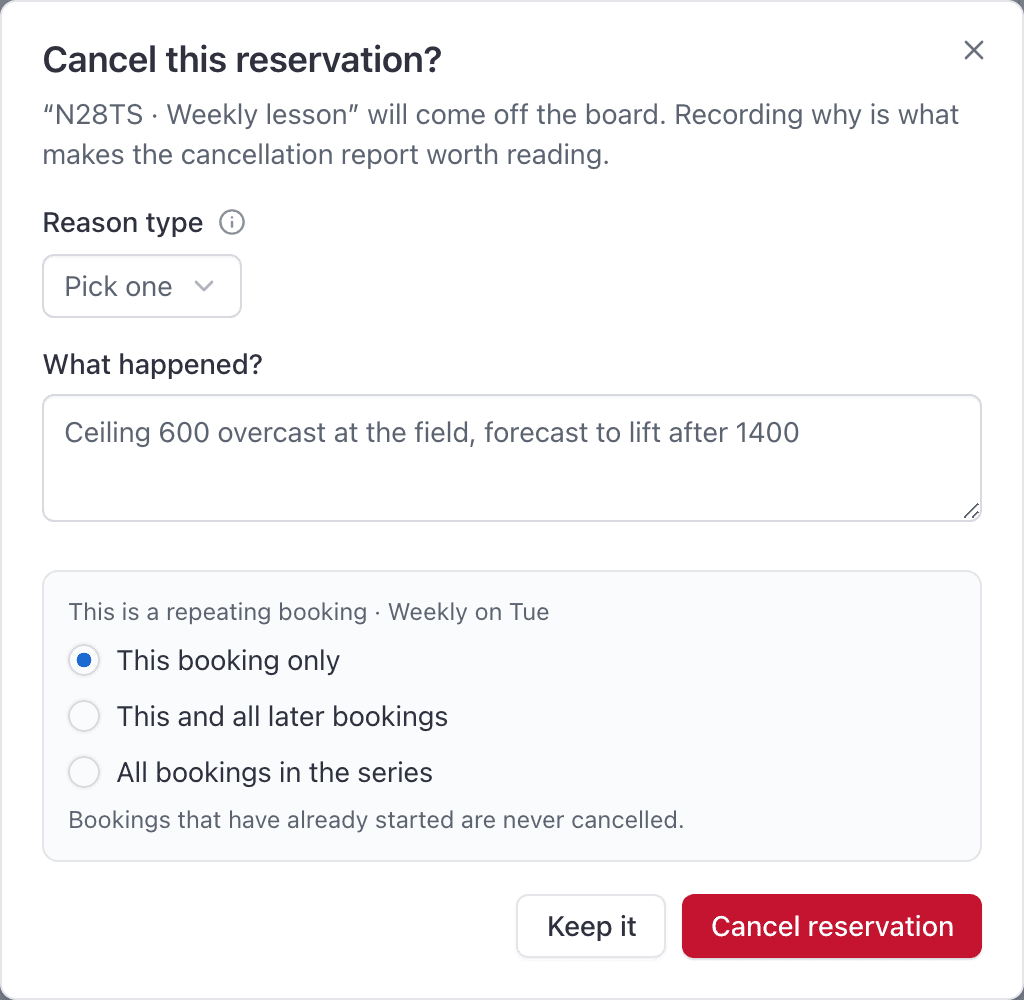
Press Cancel reservation
The booking comes off the board and everyone on it is notified.
A booking that has already ramped out cannot be cancelled. It has flown, so it needs closing out instead.
If there is no Cancel button#
Cancelling is allowed for staff, for technicians, and for whoever created the booking.
The web console cannot see who created a booking, so it only shows the button to staff, technicians and the instructor on the flight. If you booked yourself in and there is no button:
- Cancel it from the AerScheduler iOS app, which does know you created it.
- Or ask the front desk.
Cancelling one of a repeating series#
Cancelling any booking in a series adds a choice: This booking only, This and all later bookings, or All bookings in the series.
Bookings that have already started are never cancelled, whichever option you pick.
Drag to reschedule on the calendar#
You can move a booking you are on by dragging it on the school calendar, the same as dispatch does. Hovering a block first tells you whether it can be moved. See Move a booking to a new time or a different aircraft.
Still stuck on this?
Email support@aerscheduler.com and tell us what you were trying to do. We answer.