
Book a reservation from the dispatch board
How the front desk books a flight, a lesson, a sim session or a room for somebody else, and what happens the moment you press Book reservation.
For owners, admins and dispatchers
On WebCalendar, press New reservation, or click the empty slot you want in the lane you want. Pick the type, the aircraft, the people and the time, then press Book reservation. The booking is on the board immediately and everyone on it is notified.
Before you start#
The form can only offer what exists. Make sure the school has:
- At least one aircraft, simulator or room set up, under Aircraft or Facilities.
- The people you want to assign on the roster, under People, with the right roles.
- For a guest flight, the guest's email address. That is where their invoice goes.
Book from the New reservation button#
Press New reservation
Top right of WebCalendar. There is also a global + in the top bar that opens the same form.
Type a title
Something a dispatcher can read at a glance, such as "Pattern work in N12345". Titles are capped at 50 characters.
Pick the type, then the resource
The type decides which resource picker you get. See Which reservation type should I use?
Assign the people
Instructor, students, renters, or the guest's name, email and phone.
Pick the date, start and end
Only times when the resource and everyone assigned are free are offered.
Press Book reservation
The modal closes onto the board with the new block in its lane.
Book by clicking an empty slot#
Faster, and it fills three fields for you. Click empty space in a lane on the day board, a column on the week board, or a cell in the month grid. The form opens with the date, the hour you clicked (starting on the hour, ending an hour later) and that lane's resource already set.
Clicking a room lane sets the type to Ground and a simulator lane sets it to Sim.
Pick the type and the resource#
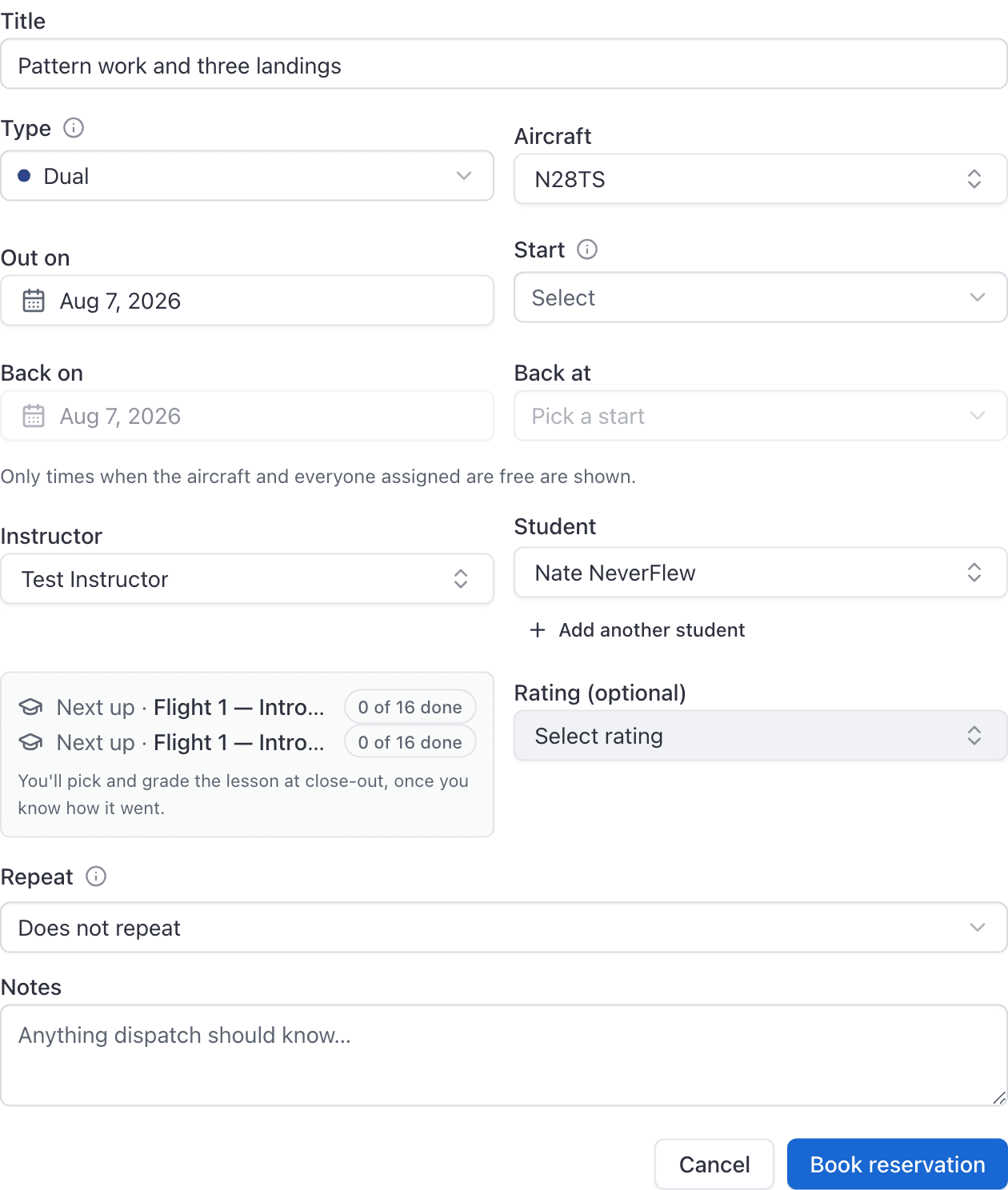
If the aircraft you pick is grounded or carrying open squawks, an airworthiness notice appears above the time picker.

Assign the people#
Each type caps how many people fit on each side. A dual takes one instructor and up to four students; a rental takes up to four renters; a solo takes exactly one pilot.
On a Solo, the form shows Instructor and Student as optional until you pick one, then hides the other seat. Solo means sole occupant: an instructor with a student is a Dual. A short note under the picker says so.
If the student is enrolled on a course, a grey Next up strip appears under the people row with the lesson the syllabus suggests. When they are on more than one course, only the first line shows until you expand the rest. Nothing is committed there; you pick and grade the lesson at close-out.
On a booking where several people are billed, the order matters. The first person listed on a side is the leading payer: they are the one billed when your school's rules say one person pays, and they take the odd cent on an uneven split.
When nobody has the role yet#
A new school often has nobody to pick. When a booking needs a student, instructor or renter and nobody in your organization has that role, the field says so: "Nobody in your organization is a student yet." Owners and admins get two choices right in the list:
- Make myself a student (or instructor, or renter) adds that role to you and puts you in the seat. Your other roles stay.
- Invite a student opens the invite form with that role ticked.
People you invited who have not joined yet show in the list under Invited, hasn't joined yet, greyed out. You cannot book them until they accept. Only owners and admins see them.
Pick a time when everyone is free#
The Start dropdown lists 15-minute marks only, and only inside the window where the resource and every person on the booking are simultaneously free. Picking a start fills in an end an hour later, backing off if the free window is shorter.
That is why the list sometimes goes short: adding a fourth person to a lesson intersects their calendar in too. Take somebody off and more times reappear.
If nothing is free that day, the dropdown is empty and a Next available link appears with a date and time. Clicking it jumps the form to that slot.

Rating, repeat and notes#
Rating is optional and records what the flight was for.
Repeat turns one booking into a series of real, separate bookings. See Set up a lesson that repeats every week.
Notes are capped at 200 characters. The web form does not count them for you, and anything longer fails when you press Book reservation.
What happens after you book#
- The block appears on the board straight away.
- Everyone on the booking is sent an in-app notification, an email and a push, subject to their own notification preferences. You are not notified, because you are the one who booked it.
- Anyone with Google Calendar connected gets a calendar event titled with the aircraft and type, located at the airport address, with who is on the booking in the description.
- A
Bookedline is written to the booking's timeline.
If the booking is refused#
The server names what is wrong. It never quietly trims a booking down to what would fit.
| Message | What it means |
|---|---|
<name> does not meet currency requirements. | A medical, flight review or checkout is not current. Adding a current instructor can clear it, if the currency rule allows flying with one. |
<name> is grounded. | An admin has grounded that person. The reason is not shown, because it may be personal. |
<name> is grounded for unpaid invoices. Paying them lifts it. | Exactly what it says. |
Resource is grounded. | The aircraft is grounded. Only Maintenance can be booked on it. |
A solo has one pilot. | Two people on a solo. Book a dual. |
The <plan> tier can book up to N days ahead. | That member's membership plan has a booking window. |
Bookings at this school can be at most… | Your school set a max reservation length under Booking preferences. |
<name> already has N upcoming bookings… | Your school capped upcoming bookings per member. Shorten a repeating series or cancel one first. |
This booking would keep the aircraft overnight | Multi-day bookings are off. See overnight trips. |
Nothing can be booked more than 365 days ahead. The date picker stops you before the server has to.
Full list, with the way past each one, in Why was my booking refused?
Still stuck on this?
Email support@aerscheduler.com and tell us what you were trying to do. We answer.