
Book your own flight or lesson
Pick Solo, choose the aircraft, then pick a start time from the list. Only times when you and the aircraft are both free are offered.
For students and instructors
Go to WebYou → Book, or click an empty slot on the school calendar. On the web you are already on the booking, so there is no title to write. On iPhone, Create Reservation has a Title field; if you leave it blank the board shows Solo Flight (or Rental, Dual, and so on).
Before you start#
You need a role that puts you in a booking: instructor, student, renter or technician. Owner, admin and dispatcher are not booking roles, so an admin who is also an instructor books as the instructor.
If your school has turned on Require payment method before self-book, save a card under WebYou → Profile → Payments first.
Where to book#
Two doors, one form.
- WebYou → Book opens the form as a page. After you book you land on your own schedule.
- WebCalendar then a click on empty space opens the same form in a modal titled Book yourself in, with that slot and that lane already filled in. The modal closes back onto the board.
The Type dropdown only offers the kinds of booking your roles allow. A student sees Dual, Solo, Shared flight, Ground and Sim. A renter sees Rental and Shared flight. A technician sees Maintenance only. If the type you wanted is missing, ask your school to add the matching role to your account.
Book a solo#
Set the type to Solo
It is already the default for a student.
Pick the aircraft
Grounded tails are flagged in the picker and again in a notice underneath it.
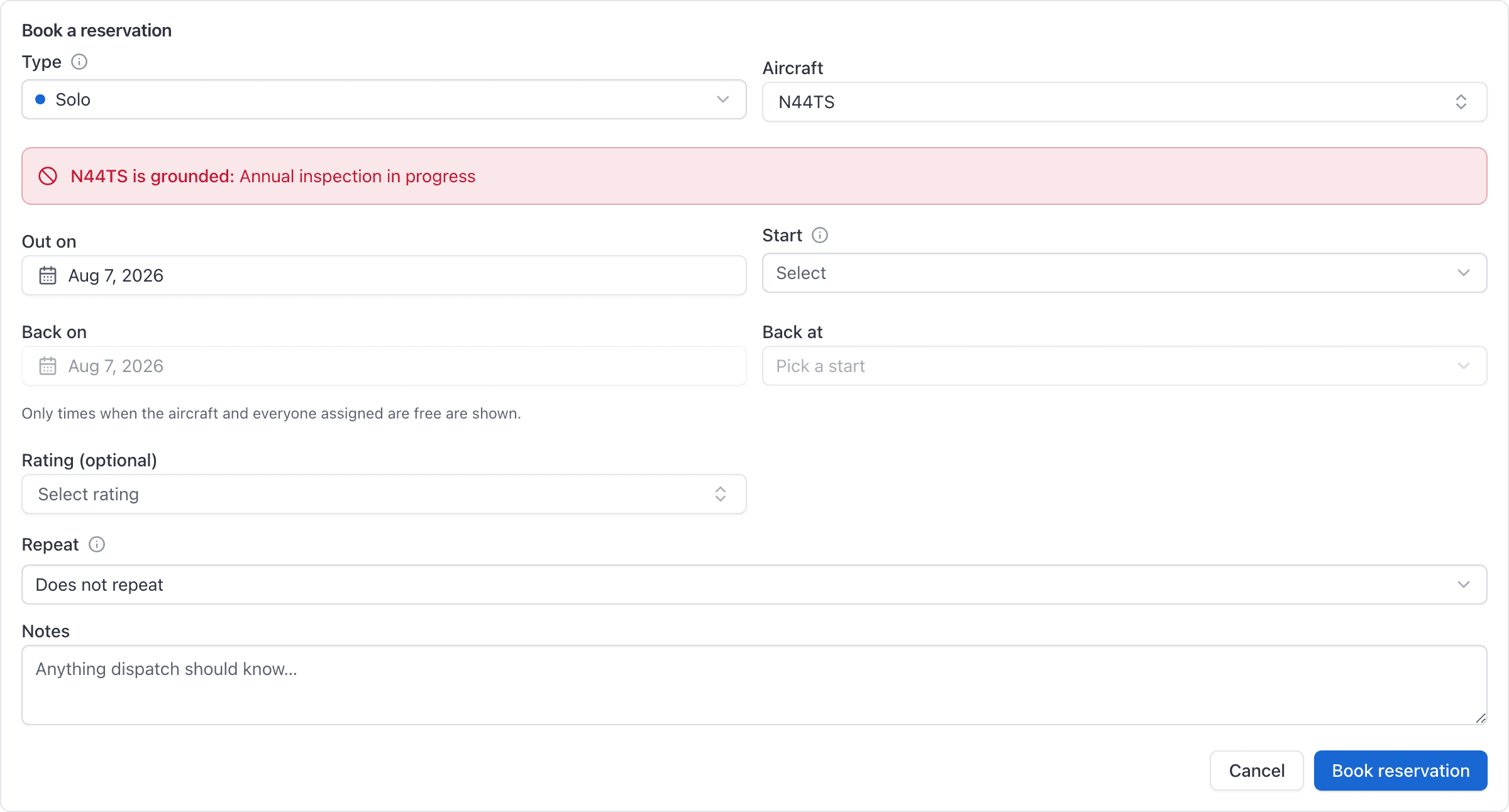
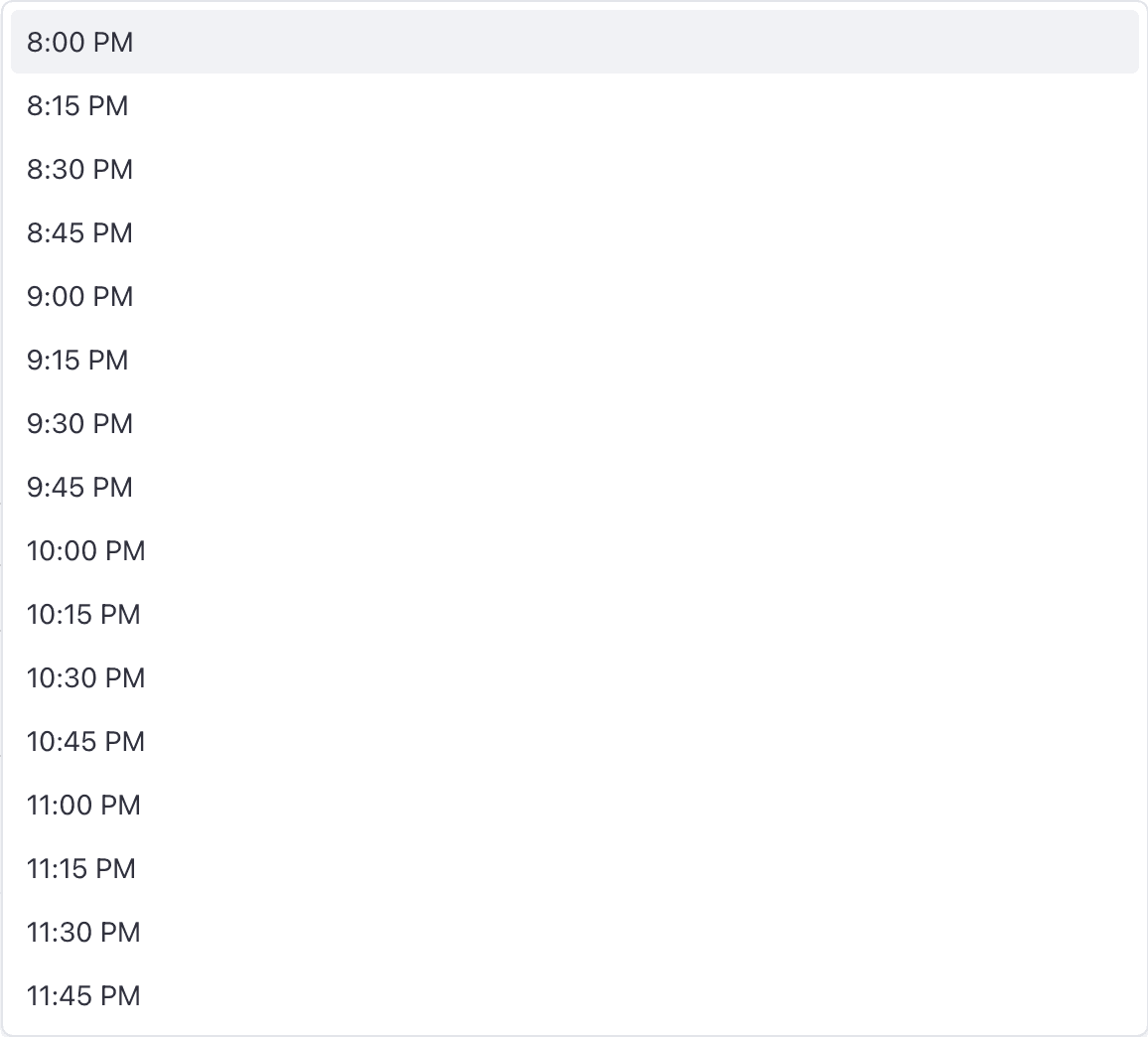
Pick the date, then the start time
Only 15-minute marks where you and the aircraft are both free are listed. Picking a start fills in an end an hour later, shortened if the free window is shorter.
Add a rating and notes if you want
Both optional. Notes are limited to 200 characters.
Press Book reservation
You land on WebYou → Schedule with the booking on it.
What the aircraft notices mean#
The picker reports what the aircraft's record says right now, which for you is whether it is grounded and why. A grounding is a stop: the server refuses every type except Maintenance on a grounded aircraft.
Open squawks are not shown to students, renters or instructors. They are a staff and technician view, so the front desk sees them on the dispatch form and you do not.
A solo carries one pilot#
Solo means sole occupant, so the booking holds exactly one person. If you want an instructor with you, that is a dual, and the server says so:
A solo has one pilot. Book a dual if an instructor is flying with a student.
Booking a dual, a rental, or a room#
The rest of the form works the same way. What changes is the counterpart picker.
Dual. Pick your instructor. Instructors you are assigned to are sorted to the top and
marked Your instructor, but every instructor at the school stays selectable, so check
with them first if they are not one of yours. The times offered narrow again, because now
the aircraft, you and the instructor all have to be free at once.
Rental. Renters see the aircraft they are checked out on. With none at all, the page says you are not checked out on any aircraft and asks you to speak to your school.
Ground and Sim. The resource field relabels itself to Room or Simulator. The counterpart picker is optional here, labelled Instructor or Student depending on which seat you are in.
If you hold both instructor and student roles#
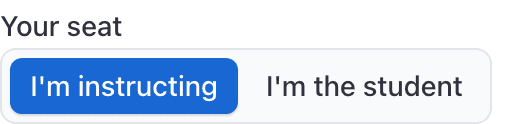
On a Dual, Ground or Sim booking a Your seat toggle appears: I'm instructing or I'm the student. Picking one flips the counterpart picker to the other side and clears anyone you had already chosen.
What the Book page cannot do#
The self-serve form seats one person: you. There is no Add another student or Add another renter control on it, so two renters splitting a cross-country cannot book themselves in together. Ask the front desk, or book it and then edit it, since editing opens the full dispatch form.
After you book#
- The booking appears on your schedule and on the school's board straight away.
- It is titled automatically from the aircraft and the type, for example
N172TS · Solo. Members never get a title field. - Anyone else on the booking is notified.
If you cannot book yet#
| What you see | What to do |
|---|---|
Nothing to book yet | Your account has no booking role. Ask an admin to add student, renter, instructor or technician under People. |
You're not checked out on any aircraft | Ask your school to approve you on the fleet you can fly. |
Add a payment method before booking | Save a card under You, then Profile, then Payments. |
No open times on this date for everyone selected | Use the Next available link, try another aircraft, or take somebody off the booking. |
More refusal messages, and the shortest way past each, in Why was my booking refused?
Still stuck on this?
Email support@aerscheduler.com and tell us what you were trying to do. We answer.