
Set up a lesson that repeats every week
A repeat creates a real, separate booking for every date, so each one can be ramped, reviewed and invoiced on its own. Every repeat has an end, and if one date conflicts none of them are booked.
For owners, admins, dispatchers, instructors, students and renters
Fill the booking in first, including the start and end times, then open Repeat and pick a preset. A repeat creates a real, separate booking for every date, so each one is ramped, reviewed and invoiced on its own. If any one date clashes, none of them are booked.
Fill in the first booking first#
The Repeat control builds its options from the date and time you have already chosen, so it has nothing to offer until they are set. Pick the type, the resource, the people, the date, the start and the end, and only then open Repeat.
Pick a repeat preset#
Open the Repeat dropdown, above Notes. The presets are written from your chosen date, so booking Monday 9 March gives you a list like this:
- Does not repeat
- Daily
- Weekly on Monday
- Every 2 weeks on Monday
- Monthly on the second Monday
- Monthly on day 9
- Annually on March 9
- Every weekday (Monday to Friday)
- Custom…
One extra entry, Monthly on the last Monday, appears only when your date really is the last of that weekday in the month.

Build a custom repeat#
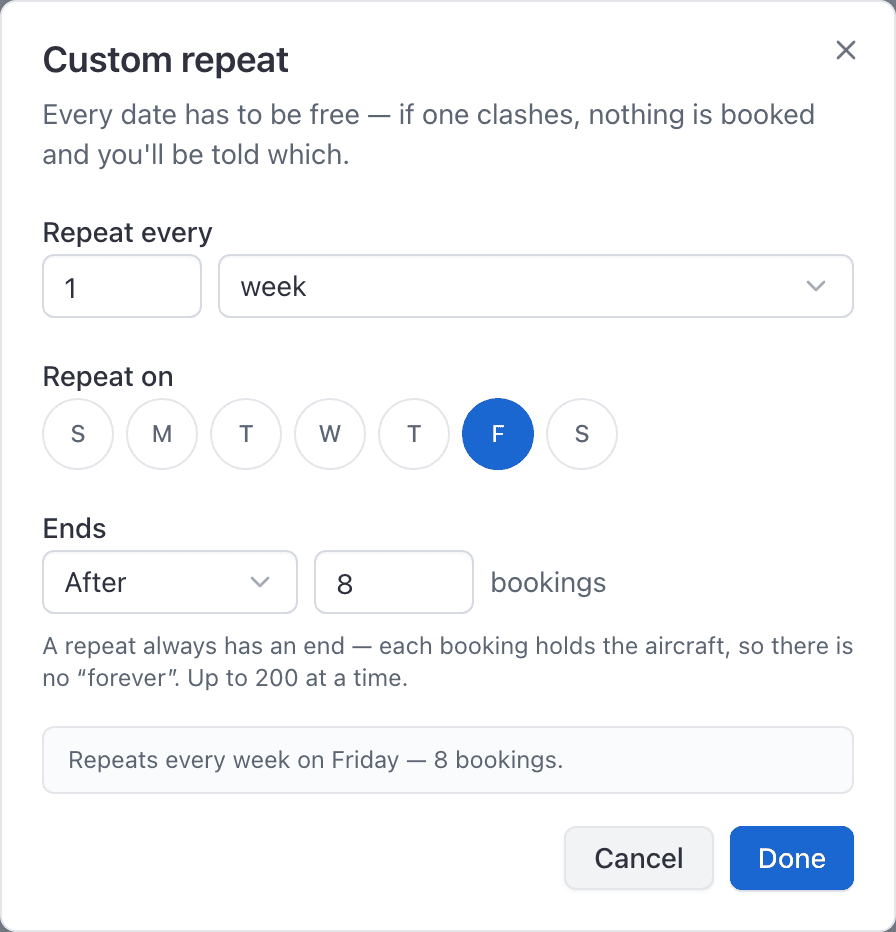
Pick Custom at the bottom of the list to open the custom repeat dialog. It lets you set:
- The interval, for example every 3 weeks. The interval is capped at 12.
- Several days a week at once, for a Tuesday and Thursday lesson.
- Which sense of monthly you mean: the same date each month, or the same weekday of the month.
- Where the series ends: after a number of bookings, or on a date.
Read the summary line before you book#
Under the control, AerScheduler writes back what it is about to do in plain language, with
the number of bookings it will create. Something like Repeats every week on Monday and a
count of 12.
Read it. It is the only place the count appears before the bookings exist.
Press Book reservation and the toast reads Repeating booking created.
How many bookings you get#
There is no "repeats forever". Every occurrence holds a real aircraft for a real hour, so a repeat that never ended would block the fleet indefinitely. These limits apply:
| Limit | Value |
|---|---|
| Bookings created at once | 200, or your school's max upcoming bookings if that is lower |
| How far out a daily or weekly repeat runs | About 400 days |
| How far out a monthly repeat runs | About 3 years |
| How far out a yearly repeat runs | About 10 years |
If the school has set a max upcoming bookings rule under Booking preferences, a repeat that would push the member over that cap is refused. Existing upcoming bookings count toward the same limit, so a member with 5 already held and a school cap of 20 can only create a series of 15 more. The Repeat control will not offer an “After N” count above the school limit.
If one of the dates conflicts#
The whole series is all or nothing. If one of twelve Tuesdays clashes with something
already on the board, nothing at all is booked and the error names up to five of the
clashing dates, ending with Nothing was booked.
Clear the conflict, shorten the series, or move the time, then book again.
Changing or cancelling a repeat later#
Two things to know before you commit to a cadence.
Editing one booking edits only that booking. Open it, press Edit reservation in the panel's … menu, change what you need. The rest of the series is untouched.
The repeat rule itself cannot be changed. The Repeat control is offered when you create a booking and not when you edit one. To move a lesson from Mondays to Wednesdays, cancel the series and book it again.
Cancelling asks what you mean: this booking only, this and all later bookings, or all bookings in the series. Bookings that have already started are never cancelled, whichever you pick. See Cancel a booking and record why.
Still stuck on this?
Email support@aerscheduler.com and tell us what you were trying to do. We answer.