
How scheduling works in AerScheduler
The dispatch board, the five ways to look at it, and the life of a booking from booked through ramp out, ramp in, sign-off and invoice. Read this first if the rest of the section assumes something you have not seen yet.
For owners, admins, dispatchers, instructors, students, renters and technicians
Your whole schedule is one page. The Calendar link in the left nav opens a board titled The Ramp, which shows every booking your school has for the day, week or month you are looking at. Each booking then walks the same path: booked, ramped out, ramped in, signed off, invoiced.
The board, and what it shows#
WebCalendar opens WebThe Ramp at
/schedule. It is the whole organization's schedule, not just yours. Every member can
see it, on purpose, so nobody books over a flight they could not see.
What changes by role is which lanes are drawn and what you can act on:
- Owners, admins, dispatchers, instructors and students see aircraft, simulator and room lanes.
- Renters and technicians see aircraft lanes only.
A red now-line is drawn across today so you can see at a glance what is out. The
counter on the right reads something like 47 reservations, and switches to
12 of 47 matching once you start filtering.
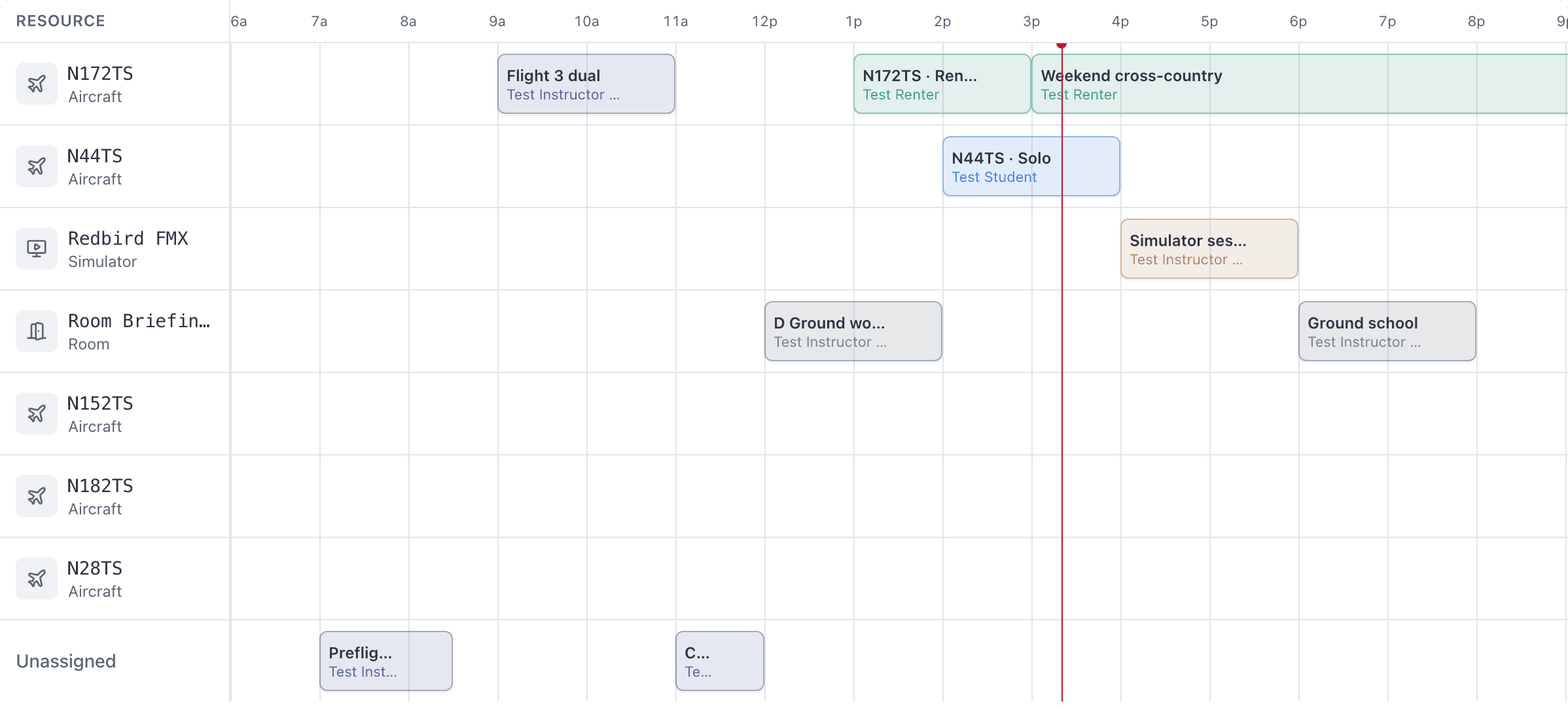
Cancelled bookings are not drawn on the board at all. To find one, use the Cancellations report or open the booking's own link. The iOS app's Reservations list does include them, under its Canceled filter.
The life of a booking#
Every booking carries a status badge in its detail panel. The badge is the fastest way to see where a flight is stuck.
| Badge | What has happened | What happens next |
|---|---|---|
| Not started | It is booked. The aircraft is still on the line. | Ramp out when it leaves. |
| In flight | Ramped out. The departure Hobbs and tach are recorded. | Ramp in when the aircraft is back. |
| Awaiting review | The return readings are in. | Every pilot on it signs off with their PIN. |
| Reviewed | Everyone has signed off. | The invoice is raised automatically. |
| Billed | The invoice exists. | The payer pays it. |
| Paid | Settled. | Nothing. |
A booking with no aircraft, such as a ground lesson in a classroom, skips the ramp steps entirely. See Close out a ground lesson.
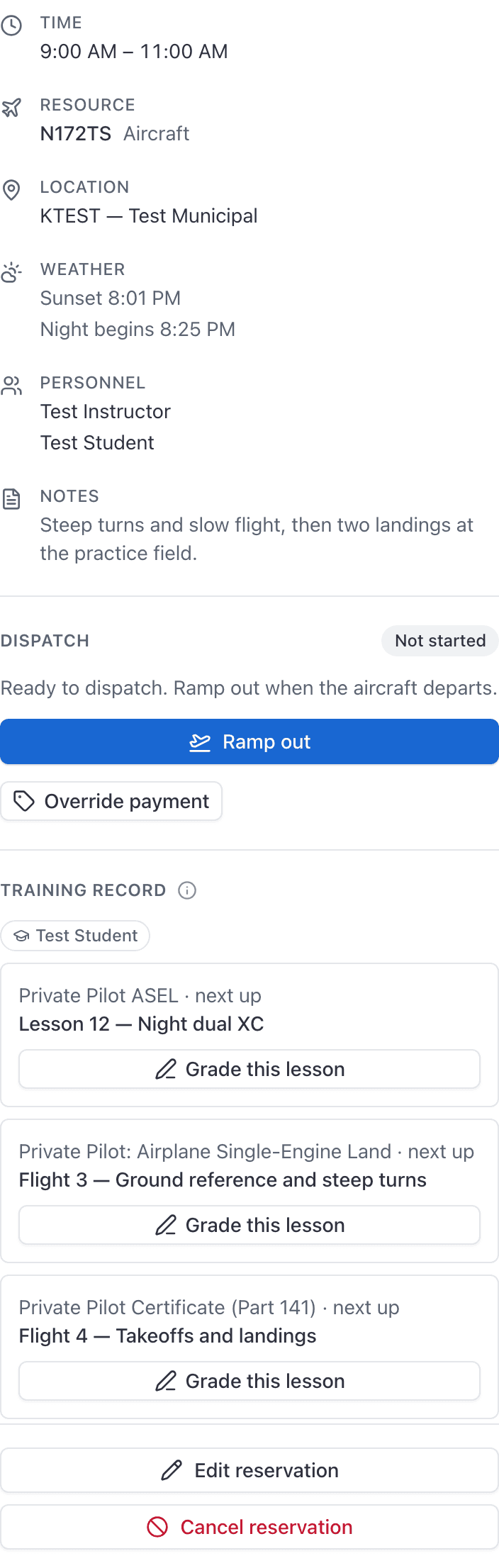
The detail panel also carries a timeline of what happened to the booking: Booked, Ramped out, Ramped in, Signed off, Invoiced, Paid, Cancelled, Last edited.
The panel and the booking's own page#
The panel beside the board is a summary. It answers what the flight is and offers the one thing the booking is waiting for right now, in the button at the foot of it: Ramp out, Ramp in, Confirm review, and so on. Editing and cancelling are in its … menu, beside the close button.
Everything else about a booking lives on its own page, which Open the full booking at the foot of the panel goes to: the readings, who pays what, corrections and hand-typed rates under Adjustments, Report a squawk, the lesson grade, and the invoice. It has a real URL, so it can be bookmarked and sent to a colleague.
Day, week, month and list#
Four ways to look at the same bookings.
| View | What it draws |
|---|---|
| Day | Rows are resources (aircraft, simulators, rooms), columns are hours. |
| Week | Seven columns, one per day, with a time grid down the side. |
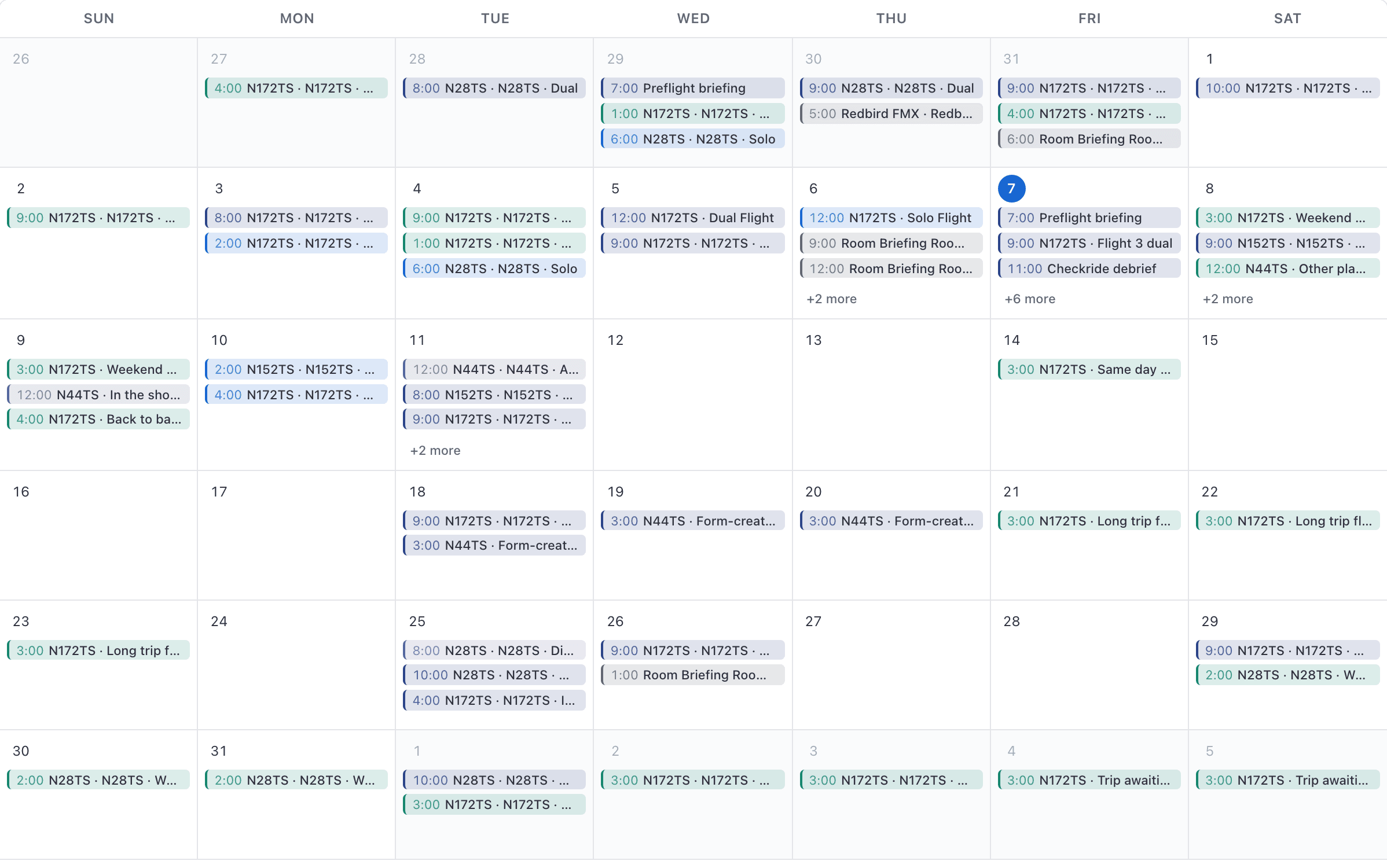
| Month | A grid of whole weeks, up to three bookings per day, then a +N more link. |
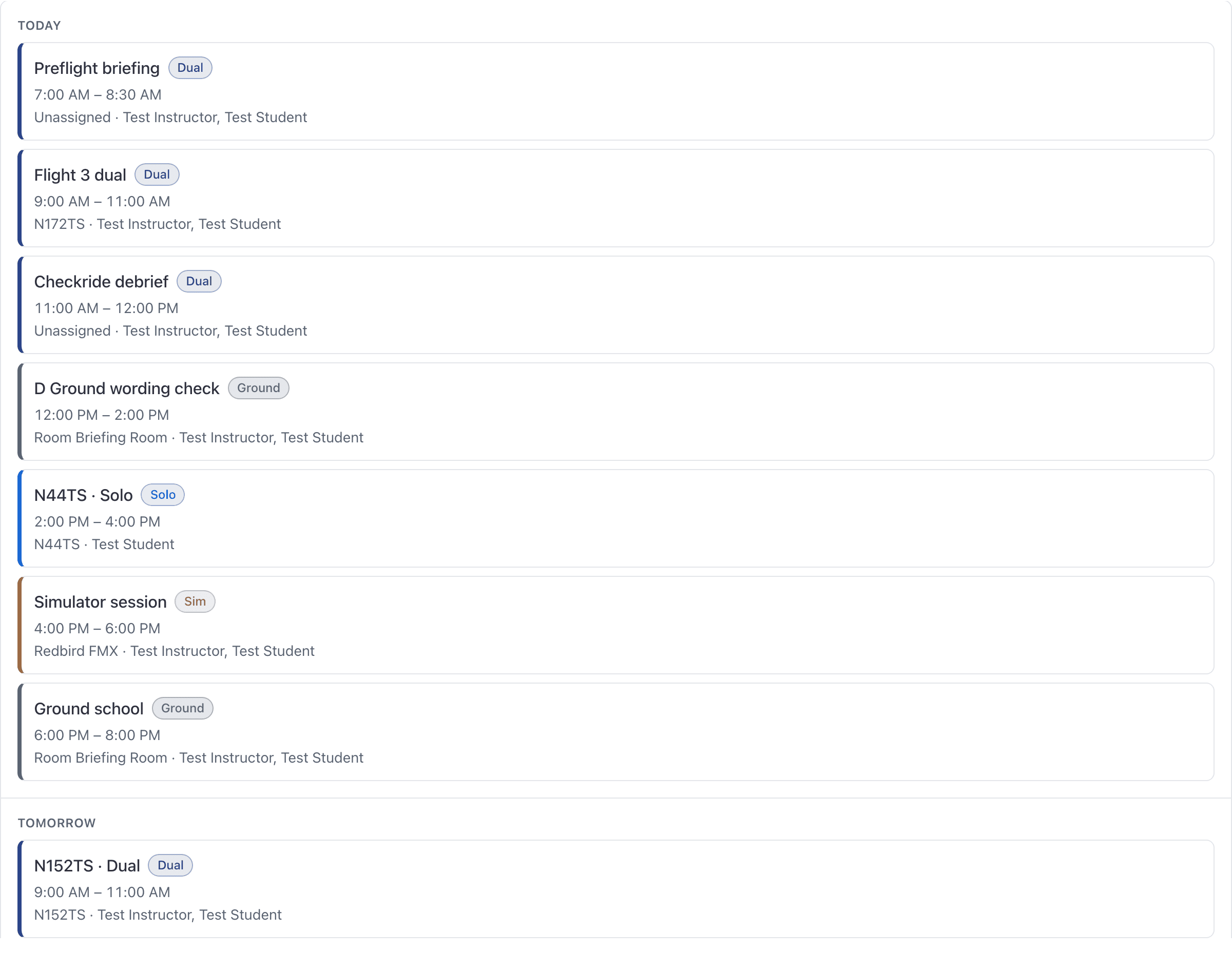
| List | The same bookings as a plain vertical list instead of a grid. |
Use the Month / Week / Day tabs to switch, the arrows either side to step forward and back, and Today to come home. There is a date picker in the header if you need to jump somewhere specific.
The Board / List toggle is a desktop control. On a narrow screen you always get the list, because a resource grid on a phone is unreadable.
Rows are resources, and one row is the catch-all#
On the day board every row is a thing you can book: a tail number, a simulator, a room. The row you click is what the new booking is for. Clicking a room lane opens the form already set to Ground and a simulator lane already set to Sim. Clicking an aircraft lane leaves the type alone, because six of the eight types book an aircraft.
The last row is the catch-all. It is labelled Unassigned when it holds bookings with no resource at all, and Other when it also holds bookings whose lane is not drawn on your board, such as a room booking seen by a renter.

Where to find your own bookings#
The board is the whole school. For just your own flights:
- WebYou → Schedule lists the bookings you are on, grouped by Today, Tomorrow and then by weekday. Group by in the list's toolbar regroups them by status, resource, person or type, and Then by adds a second level, such as each day split by resource. The board's List layout has the same control. It shows the next 30 days; the When filter switches to this week or the past 30 days. A technician sees the maintenance they scheduled.
- WebYou → Home shows your next reservation and the ones coming up.
Opening a booking from either place gives you the same detail panel as the board, so you can ramp out, ramp in and sign off from there.
The calendar in the app#
The app is the same account, narrowed to what a pilot needs away from a desk: the calendar, your reservations, creating a booking, and the view-reservation screen with its progress stepper (Ramp out, Ramp in, Review times, Completed).
The app's calendar has one header on every view. The month is the large title; tap it to jump to a date. Beside it, the view button picks how the calendar is drawn:
| View | What it draws |
|---|---|
| Year | Twelve small months. Tap one to open it. |
| Schedule | Every day with a booking as a list, scrolling back and forward. Each day's date stays at the top while its bookings scroll under it. |
| Day | One day's hours, with each booking's time and who is on it. |
| Week | Seven days side by side, Sunday first. |
| Month | The whole month. In its List style, the chosen day's bookings sit underneath. |
| By resource | One row per aircraft, simulator and classroom, hours across. A grounded aircraft says Grounded in red and its row is hatched. |
Day and Month have styles, on the button in the top-right group. Day can be Single Day, Multi Day (two days side by side) or List; Month can be Compact, Stacked, Details or List. Day and By resource show the week across the top, with a dot under each day that has a booking; tap a day, or swipe the week, to move.
Tap a month on Year, or a day on Month or Week, and the calendar zooms into it. The button at the top left then reads ‹ October (or the year, or the view you came from) and takes you back. Open the calendar from Home, or pick a view yourself, and that button is plain Back.
Filter, in the same group, offers Only mine and the reservation types. A type you untick fades on the calendar rather than disappearing, so you can still see the time is taken. More filters narrows the resources, the instructor and the location.
Correcting a reading after the fact and overriding a booking's rates are on both surfaces. The app calls them Update Details and Override Payment; the console calls them Correct times and Override payment, on the reservation panel.
Where to go next#
The eight types, what each one books, and who may be on it.
How the front desk books for somebody else.
For students, renters, instructors and technicians.
Why most filters dim instead of hiding.
Join standby, set standing preferences, or be suggested a cancelled slot that fits how you fly.
Still stuck on this?
Email support@aerscheduler.com and tell us what you were trying to do. We answer.