
Every setting, and what it changes
A map of the Settings screen: what lives on each tab, who can open it, and which other part of the product each setting affects.
For owners and admins
WebSettings is one page with a left rail of fifteen sections in four groups: School, Billing, Connections and Security. The gear icon in the topbar only appears for admins and owners, and nobody else can open the page.
The fifteen sections#
| Group | Section | What it holds |
|---|---|---|
| School | Organization | Name, contact details, logo, join code, time zone |
| School | Booking preferences | Four rules about who can book what |
| School | Booking links | Public slug, embed hosts, guest calendar visibility, and branding for /book pages |
| School | Groups | Named sets of aircraft and of people |
| School | Document types | The categories members file documents under |
| School | Airworthiness Directives | AD applicability tracking for your fleet |
| Billing | Plan | What you pay AerScheduler |
| Billing | Billing | What your members pay you, through Stripe |
| Billing | Memberships | Club and FBO membership tiers and dues |
| Billing | Instruction rates | Named instruction types and their hourly rate |
| Billing | Cost splitting | How a shared booking divides between payers |
| Billing | Currency rules | Medicals, flight reviews, checkouts and their expiry |
| Connections | Integrations | QuickBooks Online |
| Connections | API keys | Keys for your own software. Enterprise plan only |
| Security | Security | Organization deletion and a scheduled deletion's cancellation |
The section you are on lives in the page's address, so a link or a bookmark to one section works.
School → Organization#
| Setting | What it changes | Default |
|---|---|---|
| Organization profile (name, phone, email) | Your school's name and contact details, used on invoices, emails and the join page | Name from the setup wizard, contact details blank |
| Logo | Replaces the AerScheduler mark in the school switcher, and appears to members across the app | None. PNG, JPG or SVG up to 5 MB |
| Join code | The code people enter to join your school. Read-only, with a copy button | Generated by AerScheduler, and it cannot be changed from the console |
| Time zone ("Where you fly from") | What time a 9am lesson actually is for everybody, and the zone your booking emails and push notifications are stamped in | Unset, which makes the schedule fall back to each person's device zone |
School → Booking preferences#
School-wide booking behaviour. Most switches are off by default.
| Setting | What it changes |
|---|---|
| Instructors can override reservation prices | Gives instructors Override payment on a booking, on either surface. Not limited to their own bookings. Admins, owners and dispatchers can always override |
| Members can only book approved resources | Students and renters can book only the aircraft they are approved on. Approve them from the aircraft (Approve members) or from their profile (Compliance → Approved aircraft). Instructors are not restricted, admins and dispatchers can still assign anybody to any resource, and classrooms are unaffected. Simulators are checked, the same as aircraft |
| Require payment method before self-book | Students and renters need a card on file before booking themselves. Owners, admins and dispatchers can still book anyone, instructor-led bookings are unaffected, and it only applies when Stripe billing is on |
| Flying day | Local hours when same-day bookings are allowed (default 6:00 AM to 10:00 PM). Per-plane override on the aircraft edit screen |
| Allow multi-day bookings | Lets a booking keep a resource overnight, overriding flying day hours until it is back |
| Cancel and edit lock | Hours before start when members cannot cancel or edit. Front desk, instructors, and technicians can still override |
| Late-cancel fee | Optional fee (Stripe) so a member can still cancel inside the lock by agreeing to pay. Staff cancels never charge |
| Max upcoming bookings | Caps how many future bookings one student or renter may hold, including every date in a repeating series |
| Max reservation length | Caps how long a single booking may run |
| Minimum credit to self-book | Account ledger only. Block self-book unless the billed member's balance is at least this (staff still override) |
| Maximum owing to self-book | Account ledger only. Block self-book once they owe more than this |
| Minimum credit to dispatch | Account ledger only. Checked at ramp-out, not at book. Leave blank to skip |
| Maximum owing to dispatch | Account ledger only. Block ramp-out once they owe more than this |
Currency checks at book (medical, flight review, checkouts) are always enforced when you configure currencies under Compliance. They are not a toggle on this tab.
See Booking rules and settings for the full story, including account ledger book and dispatch gates.
School → Booking links#
Public discovery-flight requests: the school slug, whether guests may request, which
websites may embed /book, guest calendar visibility, and the guest-page look. The
public pages themselves live under More → Booking links. See
Let guests request a discovery flight without an account.
School → Groups#
Named sets of aircraft (Trainers, Complex, IFR-capable) and named sets of people. Currency rules are written against them, and reports can filter by fleet group. None exist until you make them.
School → Document types#
The categories members file documents under, each with Admin upload only, Has an expiry date, Warn this many days ahead (30 by default) and Active. Covered in Track medicals, certificates and other documents, including the two edits with a bigger blast radius than they look.
Billing → Plan#
Your AerScheduler subscription: $20 per month per aircraft, the aircraft count, the monthly total and the status (Card needed to start, Trial, Starts on a date, Active, Paused or Legacy plan). Simulators and rooms are free.
A 14-day free trial starts at signup, and adding a card during setup is what starts it. Nothing is charged until the trial ends. While it runs, this tab shows the date of the first charge and a Manage billing button, which opens Stripe's billing page: that is where you change the card or cancel. Cancel before the trial ends and you pay nothing.
Owners and admins get an email three days before the trial ends, with the date and what the plan will cost for your fleet. With a card on file the plan simply carries on and the card is charged. A school that started its trial without a card (signups before October 8, 2026) sees a Subscribe button instead; if its trial ends without one, the schedule pauses for everyone at the school, but nothing is deleted: subscribing turns it straight back on with every flight, person and aircraft where you left them.
If a monthly charge is declined, every owner and admin gets an email from AerScheduler with a Pay button that settles that month with any card, no sign-in needed. Until it is paid the schedule pauses for everyone. Owners and admins who sign in see Your payment didn't go through and an Update payment method button, which opens Stripe's billing page to change the card for future months; everyone else sees Access paused. Stripe tries the card again on its own (the email gives the date), and each declined try sends another email. Nothing is deleted, and everything comes back the moment the payment goes through.
Billing → Billing#
What your members pay you. Owner only: an admin who is not the owner can edit these fields and be refused on save.
| Setting | What it changes | Default |
|---|---|---|
| Stripe Connect (payouts) | Connects your own Stripe account, so close-outs become invoices or card top-ups, with payouts to your bank | Not connected |
| Billing enabled | Turns charging on. Stays off until payouts are connected. Saves as soon as you flip it | Off |
| How members pay | Invoice each booking (Stripe invoice per visit) or Account ledger (running member balance). Guests always get a visit invoice. Owner only; saves on confirm | Invoice each booking |
| Card fee on account top-ups | Optional percent and/or flat when members Add funds by card (ledger mode only). Cash/check at the desk stay dollar-for-dollar | Off |
| Late fees | Optional percent of amount owing and/or flat fee, plus grace days, posted once a month on ledger balances that stay negative (ledger mode only) | Off |
| Default instructor rate | The hourly instruction rate used when a rating has none of its own | $0 |
| Service fee percent and label | An optional percentage added to each payer's bill, with the label the payer sees | No fee, labelled "Service Fee" |
| Overnight minimum | Least billable time per night an aircraft is kept away. Out Friday, back Sunday is two nights. A booking back the same day is never affected | Blank, so nothing extra is charged |
| Ground members with unpaid invoices | Grounds a member automatically once they reach this many unpaid invoices (invoice mode) | Off |
| Dispatchers can manually generate invoices | Lets a dispatcher raise a one-off invoice outside a reservation, from the app | Off |
| Instructors can manually generate invoices | The same for instructors, independently of the dispatcher grant | Off |
See Turn on invoicing and card payments, Choose invoice or account ledger, and Who can do what in billing.
Billing → Memberships#
Club and FBO membership tiers with join fees and monthly dues, and optionally a booking window per tier. A plan can be attached when you invite somebody and when you accept a join request. Every membership control disappears at a school with no plans, which is most schools. See Set up membership dues.
Billing → Instruction rates#
Named instruction types (Private, Instrument, Commercial) with a default hourly instructor rate.
Billing → Cost splitting#
How a shared booking's cost divides between the people on it, with each person getting their own invoice. With no rules, one person is billed for the whole booking. See Set up cost splitting.
Billing → Currency rules#
Requirements like a medical, a flight review or an aircraft checkout: what expires, how it expires (a fixed date, a number of days or months after sign-off, or with the documents), which aircraft groups it covers and which member groups it applies to.
Connections → Integrations#
School-wide connections. Today that means QuickBooks Online, which syncs paid invoices as Sales Receipts. Owner only. Personal connections such as Google Calendar live on your own profile instead. See Send paid invoices to QuickBooks.
Connections → API keys#
Keys for your own software to talk to AerScheduler, each scoped to one role: admin, dispatcher, instructor, student, renter or technician.
Security#
Last in the rail on purpose. See Delete your school.
| Setting | What it changes | Default |
|---|---|---|
| Delete this organization | Owner only. Schedules permanent deletion in 30 days. Admins and owners can cancel from the same card while the countdown runs | Off |
Settings that are not in Settings#
Four things an admin goes looking for on this page and does not find.
| Setting | Where it actually lives |
|---|---|
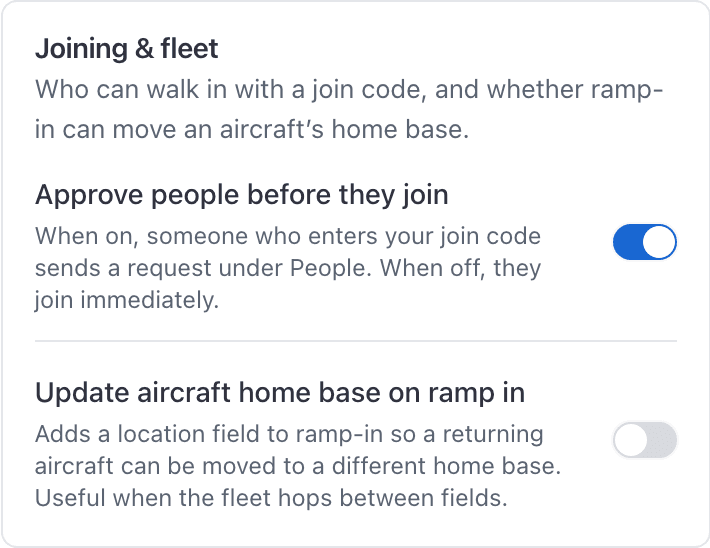
| Approve people before they join | WebSettings → School → Joining & fleet, or the booking rules step on the dashboard during setup |
| Locations (an airport or site) | WebFacilities → Locations, first in the rail. Add, edit and remove. The app can only add one |
| Update an aircraft's home base on ramp in | WebSettings → School → Joining & fleet |
Both joining and home-base-on-ramp-in live on the School tab itself now:
Email and push notification categories all live under Notification settings.
Still stuck on this?
Email support@aerscheduler.com and tell us what you were trying to do. We answer.