
Split a booking's cost between several people
Set one rule per booking type deciding how the aircraft time and the instruction divide between the people on board. Each person then gets their own invoice.
For owners and admins
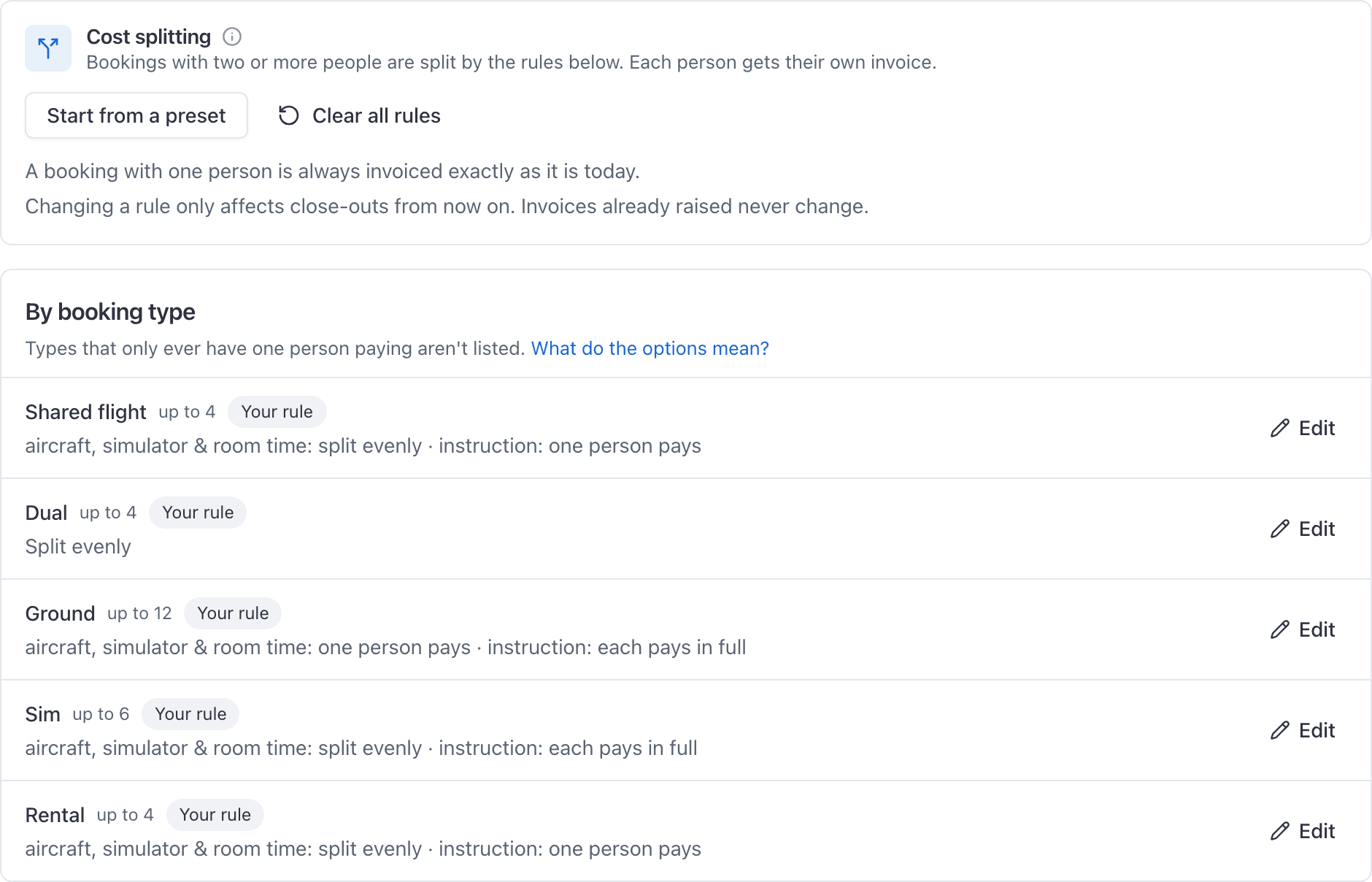
Go to WebSettings → Cost splitting. For each booking type you set one rule for the aircraft time and one for the instruction, deciding how each divides between the people on board. At close-out every payer then gets their own invoice for their own share.
What a rule is#
A booking has exactly two charge lines:
- Aircraft, simulator & room time: what the machine cost for the time it ran.
- Instruction: the instructor's time, including any briefing.
A rule says how each of those two divides between the payers. Rules are set per booking type, so dual can behave differently from a shared rental, and a rule naming a booking type beats the organization-wide default.
The five ways to divide a charge#
| Option | What it does | What has to be filled in at close-out |
|---|---|---|
| One person pays | The whole charge lands on one payer | Nothing |
| Split evenly | The charge is divided equally between the payers | Nothing |
| Each pays their own time | Each person is charged for the hours they personally flew | Individual Hobbs out and Hobbs in per person |
| Set shares | Each person is charged a percentage you set | Share % per person, totalling exactly 100 |
| Each pays in full | Every person is charged the whole amount | Nothing |
Four of those divide one charge. The fifth does not.
Each pays in full is not a split#
Start from a preset#
If nothing is configured, the status card offers Set up cost splitting. Pick the preset closest to how you operate: Flight school, Flying club, FBO or Partnership. It fills in every booking type, and you can then change any of them.
Two other controls are worth knowing:
- What do the options mean? opens a reference with a worked money example of each option.
- Clear all rules removes the lot and puts you back to one person paying.
Set a rule for one booking type#
Click Edit on the booking type
The summary shows one row per booking type that can hold more than one person, with its current rule in plain English.
Choose an option for the aircraft time
Choose an option for instruction
They are independent. Splitting the airframe evenly while charging instruction per head is a normal combination.
Read the worked example, then save
The example is calculated by the same engine that prices the real close-out, so it is what your members will actually be charged.
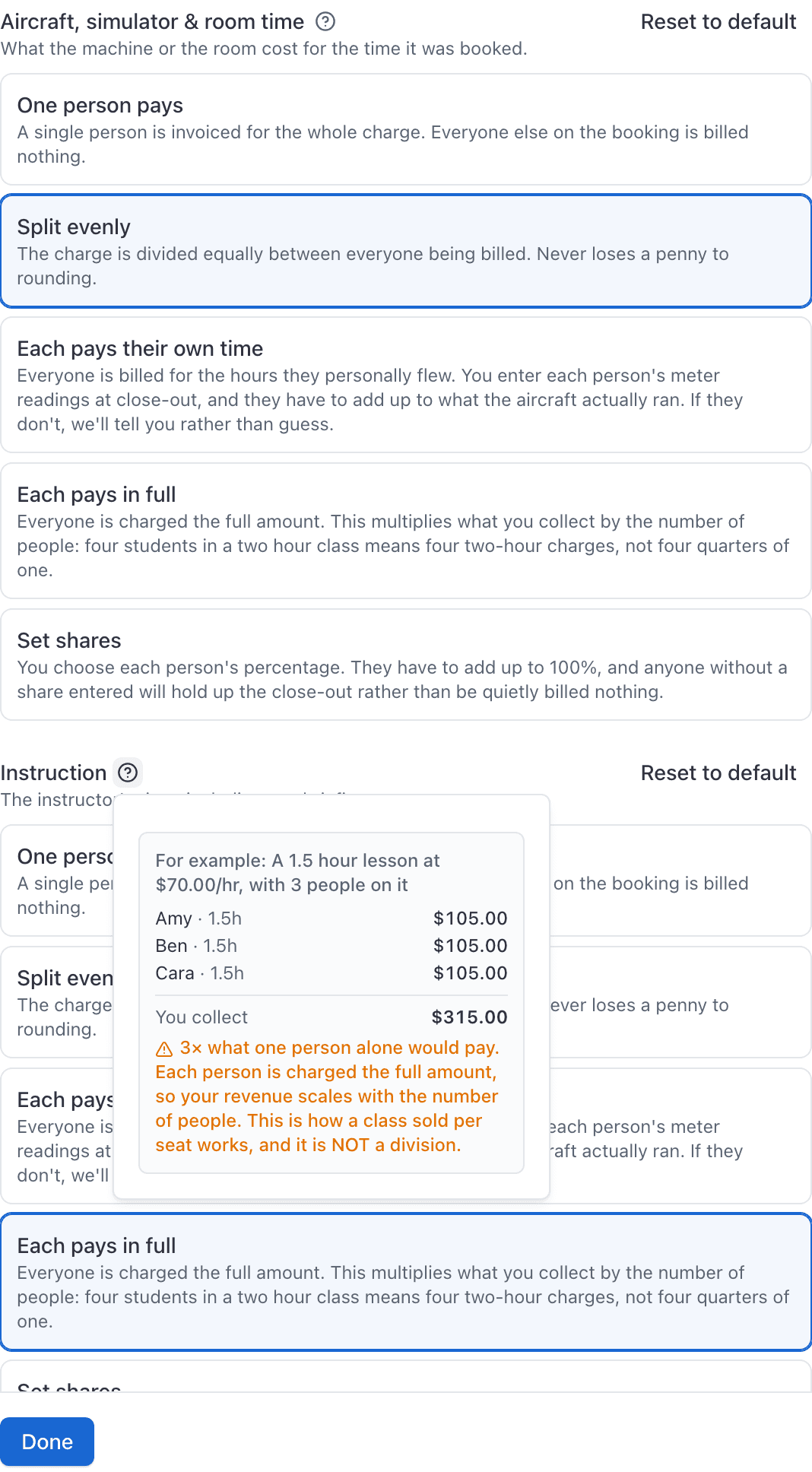
A booking type you have changed carries a Your rule badge on the summary. Reset to default puts one charge line back.
Which bookings can hold more than one person#
Splitting only comes up when a booking has more than one payer, and each type has a cap:
| Booking type | People it can hold |
|---|---|
| Dual | Up to 4 students |
| Shared | Up to 4 |
| Rental | Up to 4 renters |
| Ground | Up to 12 students |
| Simulator | Up to 6 |
| Solo | One person, by regulation |
| Guest | One guest |
What happens at close-out#
A Who pays what panel sits in the Close-out section on the booking's own page, on any booking with two or more payers, from the first close-out step until the invoice is raised. Whoever is closing out fills in the fields the rule needs and saves, then the sign-offs run as normal. See Fill in Who pays what on a shared booking.
Each payer then receives their own invoice, priced at their own rate, with a memo naming the others on the flight and line text quoting their own hours.
What changing a rule does not do#
- It never re-prices an invoice that already exists. A rule change only affects close-outs from that point on.
- Voiding one person's invoice does not re-apportion their share. The others are not topped up, and the booking is left partially billed.
- It does not tell the person at the ramp anything. Cost-splitting rules are admin-only to read, so the dispatcher or instructor filling in Who pays what cannot see which rule applies to the booking in front of them. If your rules rely on individual Hobbs readings, tell your ramp staff.
Still stuck on this?
Email support@aerscheduler.com and tell us what you were trying to do. We answer.