
Create a manual invoice
Bill for anything that is not a flight: headsets, checkride fees, fuel on a dry rate, a rental you are correcting by hand.
For admins, owners, dispatchers and instructors
WebBilling → New invoice. Pick the member, add line items, click Create invoice. It is raised in Stripe and the member is emailed a link to pay it. A manual invoice is never charged to a saved card, even when the member has autopay switched on.
Use this for anything that is not a flight: a headset rental, a checkride fee, ground school books, a fuel charge on a dry rate, or a correction you are making by hand.
Your school needs Stripe connected before any invoice can be raised. See Turn on invoicing and card payments.
Create one in the web console#
Open Billing and click New invoice
WebBilling is in the left rail, and is visible to owners and admins only.
Pick who is billed
Search the member list, or turn on Guest recipient and enter a name and an email address for someone who is not a member.
Add line items
Each line has a Description, a whole-number Qty and a unit price, and says what it is: Labor, Parts and goods, Shop supplies, Outside service, Freight and shipping, Fees, Aircraft rental, Instruction, or Other. What you pick also decides where the line lands in QuickBooks. Add as many lines as you need with the running total shown underneath.
If your school charges a service fee, it is shown as its own line under the subtotal. If it charges sales tax, each line has a Taxable tick that starts from your school's rule, and the tax is shown under the subtotal. The Total includes both, and it is what the customer is billed. See Charge sales tax on an invoice.
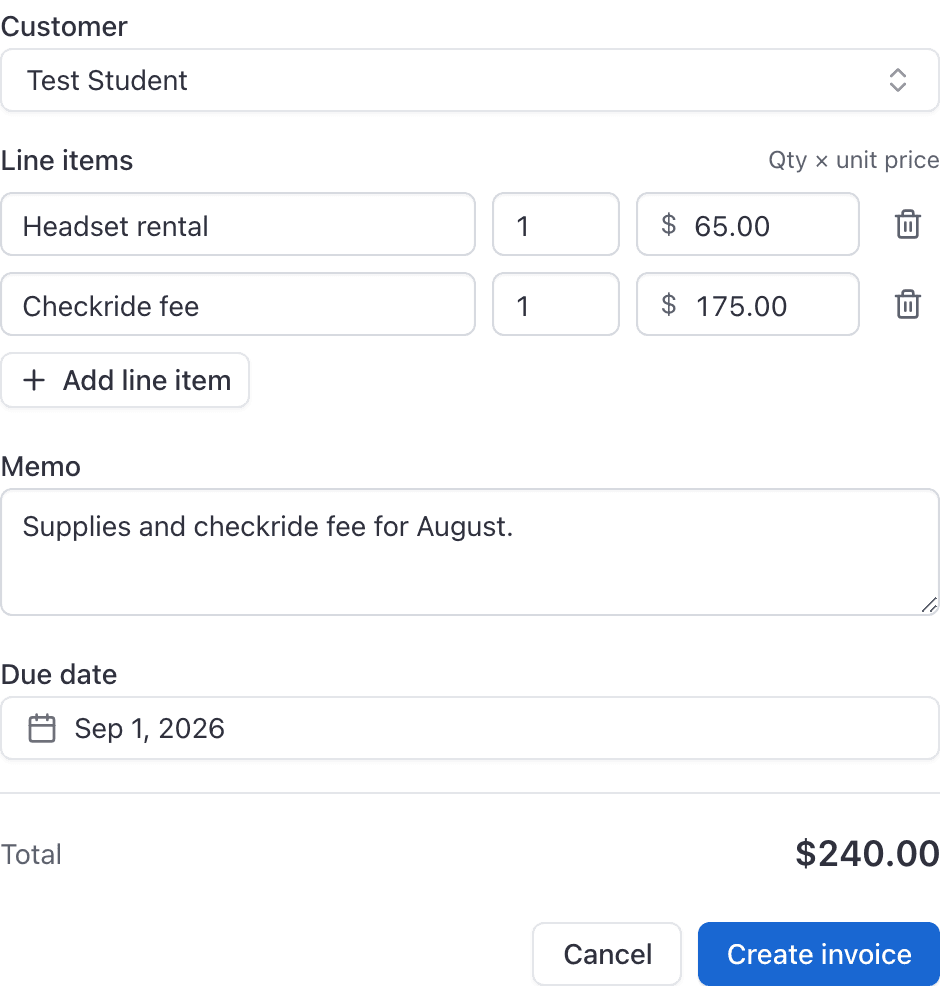
Add a memo and a due date if you want them
Both are optional. A due date matters more than it looks: it is what the automatic reminder sweep chases against. See Chase an unpaid invoice.
Click Create invoice
The invoice appears on Billing and on the member's own Invoices page, and they are emailed and pushed a link to pay it.
Create one in the iOS app#
Open Billing, then Generate Invoice.
Choose the recipient
Either search for a member, or enter a guest recipient with a name and an email address.
Add invoice items
Tap Add + for each line: a name, a quantity and a price. Invoices raised in the app (iPhone or Android) carry no sales tax, because the app does not yet ask what each line is. Raise taxed invoices in the web console.
Add a memo and a due date
Optional, same as the web console.
Tap Send Invoice
Invoicing a guest#
Turn on Guest recipient in the New invoice dialog (or use the same fields on the iOS Generate Invoice screen). Type a name and an email address. Stripe creates a guest customer and emails them a pay link. You cannot pick both a member and a guest on one invoice.
Invoicing an aircraft owner#
If you run a maintenance shop, the owners of the aeroplanes you work on are in the Customer list too, with the address you recorded for them. The invoice is emailed to them by Stripe with a link to pay. It is always an invoice, even at a school that uses account balances, and it is never chased by automatic reminders. See Work on a customer's aircraft.
Limits on line items and memos#
| Field | Limit |
|---|---|
| Line item name | 200 characters |
| Quantity | A whole number between 1 and 99 |
| Memo | 100 characters |
| Invoice total | More than 50 cents |
The 50 cent floor is Stripe's, not ours. Stripe will not accept an invoice below it.
Manual invoices are never autopaid#
What a manual invoice does not do#
- It is not linked to a reservation. A flight that was never invoiced still shows in the Unbilled reservations list on Billing after you type up a manual invoice for it.
- It carries no rate breakdown. There are no resource hours or instruction figures on it, so it does not appear as revenue against a particular aircraft.
- It cannot be edited once created. The only things you can do to an invoice afterwards are mark it paid and void it. See Mark an invoice paid, void it, or refund it.
Letting dispatchers or instructors create invoices#
By default only admins can create a manual invoice. Two settings widen that, in the Manual invoices card on WebSettings → Billing:
- Dispatchers can manually generate invoices
- Instructors can manually generate invoices
They are also on the app's Billing Settings screen. Either way, only the organization owner can save them.
Related#
Reminders, due dates, and grounding for non-payment.
Every billing action by role.
Still stuck on this?
Email support@aerscheduler.com and tell us what you were trying to do. We answer.