
Close out a flight so it invoices
Ramp out, ramp in, then every pilot confirms with their PIN. The bill posts when the last person signs off: a Stripe invoice, or a ledger charge when Account ledger is on.
For owners, admins, dispatchers, instructors, students and renters
Open the booking on WebSchedule, click Ramp out before the flight and Ramp in after it, then every assigned pilot clicks Confirm review and enters their PIN. The invoice is raised the moment the last person signs off, and not before.
Staff can close out any booking. A pilot can close out a booking they are assigned to.
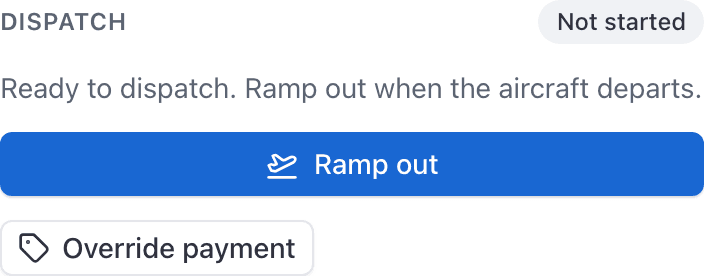
The Close-out section carries a step badge saying where the booking has got to: Not started, In flight, Awaiting review, Awaiting close-out, Reviewed, Billed, Paid or Void. The badge always tells you whose turn it is.
Ramp out#
Open the booking on the schedule
Click it to open the detail sheet, then find the Close-out section.
Click Ramp out
Enter Hobbs out and Tach out
Both are prefilled from the aircraft's current readings, so usually you are confirming rather than typing. Correct them if the meters disagree.
Ramp in#
Click Ramp in when the aircraft is back
Enter Hobbs in and Tach in
Enter Instruction time (hrs) if a CFI was teaching
This is what instruction is billed on, including any briefing. Leave it empty on a rental or a solo.
Saving Ramp in also moves the aircraft's Hobbs and tach readings forward to the figures you just entered, so the fleet is up to date straight away. That happens here, not at the sign-offs.
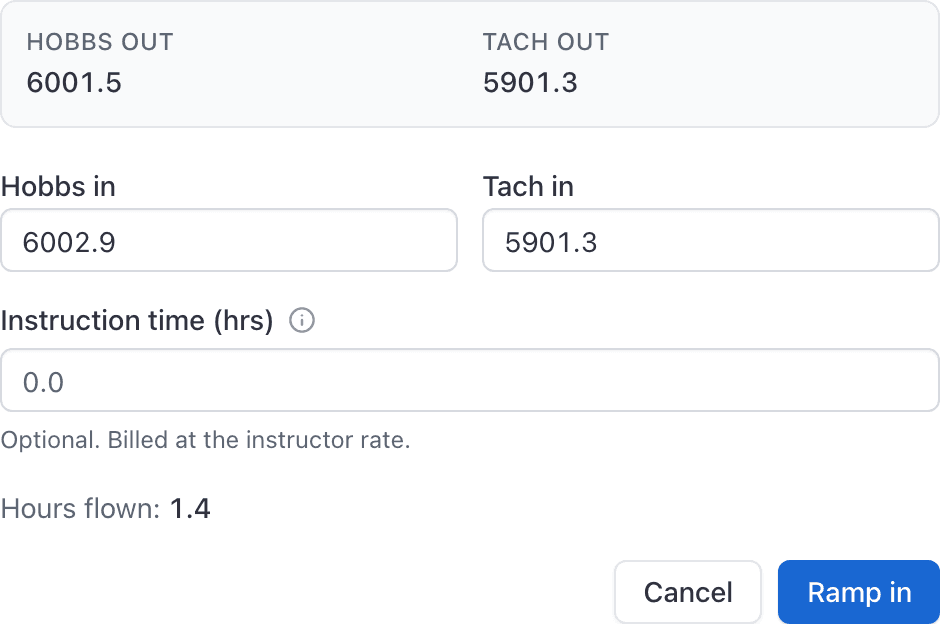
If the hours flown on Hobbs and tach disagree by an unusual amount, or the flight is far longer or shorter than the booking, a dialog lists what looks off before saving and asks you to confirm the readings anyway. It is a check, not a hard block: correct the reading if it is a typo, or confirm if the flight really did run that way.
If the booking was away overnight and your school has set an overnight minimum, this dialog tells you before you save, in plain figures: away two nights, minimum 2.0 hours a night, so it will bill 4.0 hours rather than the 1.5 flown. See Charge a minimum for overnight trips.
If two or more people are paying for this booking, a Who pays what panel sits in the same section. Fill it in and save before the sign-offs. See Fill in Who pays what on a shared booking.
Confirm the review with your PIN#
Every assigned pilot clicks Confirm review and enters their own confirmation PIN. The section shows how many have confirmed out of how many are needed.
Guests never enter a PIN. A guest or discovery booking is closed out and billed in one step instead: see Bill a discovery or guest flight.
The invoice (or ledger charge) appears#
What happens when the last person confirms depends on How members pay.
Invoice each booking (the default):
- One invoice per payer is created in Stripe and in AerScheduler.
- Each payer gets an "Invoice #N" email and a push notification with a pay link.
- The invoice appears on WebBilling and on the payer's own Billing page.
- If the payer has autopay on, it is charged to their default card straight away and lands as Paid.
Account ledger:
- One ledger charge per paying member is posted instead of a Stripe invoice.
- The Close-out section says Charged to account ledger.
- See Charge a flight to the account ledger.
Guests always take the invoice path, even when the school uses Account ledger for members.
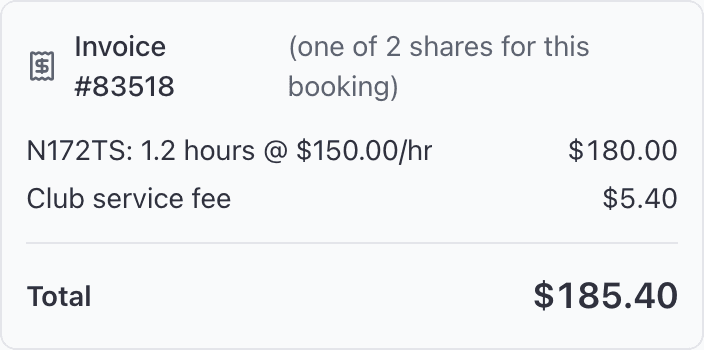
The Close-out section then shows the line items and the total (invoice mode) or the ledger summary (ledger mode).
Ground lessons and bookings with no aircraft#
A ground lesson, a room booking, or a booking with nothing reserved at all has no meters to read. Instead of Ramp out and Ramp in you get a single Review times step that asks only for instruction time, and then goes straight to the sign-offs. Everything after that is the same.
Overriding a rate clears every sign-off#
Override payment on a booking lets you replace the aircraft rate or the instruction rate for that flight only. It is on the reservation panel in the console and on the reservation screen in the app, and it reads Change rates once the booking already has one. Rates are typed in dollars. Leave a field blank to keep the school's rate.
Admins, owners and dispatchers can always use it. Instructors can when the school has switched on "Instructors can override reservation prices" under WebSettings → Booking preferences.
Doing this in the iOS app#
The reservation detail page and its Complete Reservation sheet run the same sequence: ramp out, ramp in, confirm with a PIN. Correcting readings (Edit Time Details there, Correct times in the console) and, for admins, Create invoice on a completed reservation that never produced one, are on both surfaces. Correcting readings runs the same unusual-reading check as ramp-in.
If no invoice appeared#
Start with the sign-offs, then work down Why a flight was not invoiced. Maintenance bookings, and shares worth less than 50 cents, are never invoiced at all.
Still stuck on this?
Email support@aerscheduler.com and tell us what you were trying to do. We answer.