
Mark an invoice paid, void it, or refund it
Record a cash or check payment, cancel an invoice that should never have been raised, and understand why refunds only happen in Stripe.
For admins, owners, dispatchers and instructors
Open the invoice from WebBilling. Mark paid records money that arrived some other way: choose how it was paid (cash, check, card in person, bank transfer or other), the check number, and the day it arrived. Void cancels an invoice that should never have been raised, and only works while it is still unpaid. There is no refund in AerScheduler: a refund is done in your own Stripe dashboard.
Mark an invoice paid after cash, check or bank transfer#
Find the invoice on Billing
Use the date range and the Status filter to narrow the list, or open the invoice from the Recent invoices panel on the Dashboard.
Click Mark paid
It is in the row menu on the invoice table, and on the invoice detail panel itself.
Say how it was paid
Choose How it was paid: Cash, Check, Card in person, Bank transfer or Other. For a check, type the Check number if you want it on the record. Date received starts at today, in your organization's own time zone; change it to the day the money actually arrived. It cannot be a day in the future. Note is for your own records, such as which deposit it went in with.
Click Mark paid
What that does:
- The invoice flips to Paid here, and in Stripe it is recorded as paid out of band.
- The invoice says how it was paid, on your side and on the payer's: "Paid by check #1234 on Oct 3". The date is the date received, not the day you clicked.
- Who marked it paid, and how, is recorded on the invoice's audit trail.
- The person billed gets a Payment received email that says how they paid, and a push notification if they use the app. An aircraft owner who has not signed up gets the email too, at the address you keep for them.
- Your note stays with you. The person billed never sees it.
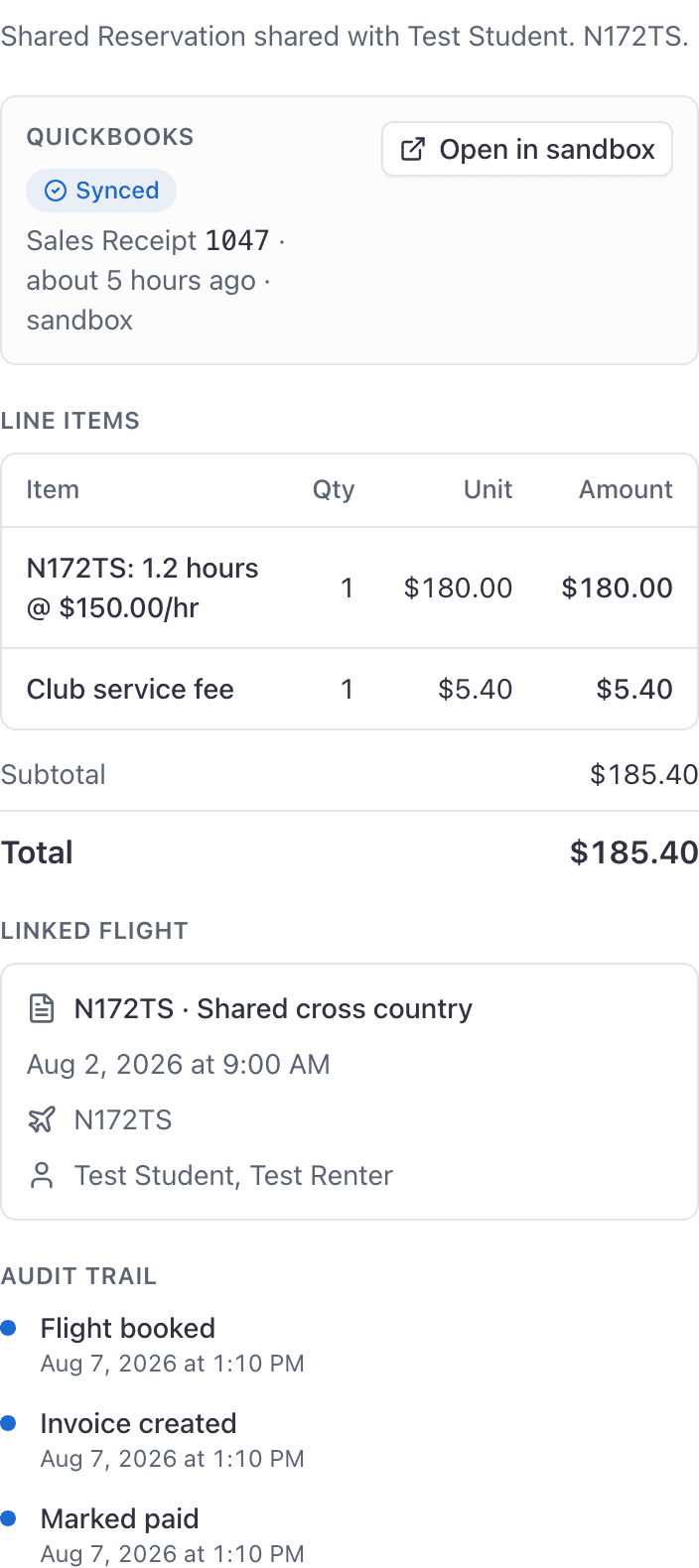
- If QuickBooks sync is on, a Sales Receipt is created. See Send paid invoices to QuickBooks Online.
- If the member was grounded for unpaid invoices and this takes them under the threshold, they are released automatically.
- The Payments received report shows the method, and has Received, Check # and Payment note columns you can turn on. Its date window is still the day you recorded the payment.
Things that can stop you:
- "You cannot pay an invoice that has already been voided." A voided invoice is finished. Raise a new one instead.
- "The date received cannot be in the future." The day the money arrived is today or earlier, in your organization's time zone.
- "A check number goes with a payment by check." Choose Check, or leave the number out.
- Stripe could not be reached. You get a warning rather than an error, saying the invoice was marked paid here but Stripe could not be updated. The invoice is correct in AerScheduler; go and mark it paid in Stripe too, or the two will not agree.
- Stripe shows it already paid by card. If the person paid online a moment before you clicked, the invoice is recorded as a card payment, and what you typed is not kept.
Record check or cash on a package booking#
For a discovery or other package-price booking, you do not have to open Billing. On the booking itself, desk staff, the instructor on it, or the person who created it can click Record check or Record cash. That marks the invoice paid the same way Mark paid does.
If the booking is on the calendar but the invoice never went out, the banner says Invoice did not go out. Send the Stripe invoice from there, or record the check or cash, so close-out does not bill Hobbs a second time.
See Charge a package price when booked.
Void an invoice#
Voiding is for an invoice that should never have existed: a duplicate, a booking billed to the wrong person, a flight that never happened.
Open the invoice and click Void
Also available from the row menu on the Billing table.
Confirm
The dialog says this marks the invoice as void and that it cannot be undone. It means it.
The invoice is voided here and in Stripe, who voided it is recorded, and from then on it stops counting toward the Outstanding total, toward the grounding threshold, and toward every financial report.
Voiding a past flight's only invoice#
If the invoice you are voiding is the only one on a booking that already flew and was never canceled, voiding it would leave that flight with no invoice at all. AerScheduler asks first instead of doing that silently:
- Void and leave unbilled voids it and stops there. The flight shows up wherever your unbilled work is tracked, for you to bill later by hand.
- Void and open close-out voids it and takes you straight to the booking so you can correct the close-out and raise a new invoice in the same visit.
- Cancel backs out and leaves the invoice exactly as it was.
Voiding an invoice that is not a past flight's only invoice, such as a duplicate on a booking with another live invoice, skips this and just voids.
Refunds happen in your Stripe dashboard#
There is no refund action in AerScheduler. Not in the web console, not in the iOS app, not in the API.
To refund somebody, sign in to your school's own Stripe dashboard, find the payment, and refund it there.
What a refund does not change in AerScheduler#
Keep your own note of refunds and correct them on your own books. If you refund often enough that this hurts, the practical habit is to record the refund in QuickBooks by hand on the same day you issue it in Stripe.
Voiding one share of a split booking#
On a booking split between several people, each payer holds their own invoice.
Voiding one of them does not hand that share to the others. Their invoices are unchanged, and the booking becomes partially billed rather than unbilled.
Who is allowed to do this#
| Role | Mark paid (Billing) | Record check/cash on a package booking | Void | Send reminder |
|---|---|---|---|---|
| Owner | Yes | Yes | Yes | Yes |
| Admin | Yes | Yes | Yes | Yes |
| Dispatcher | No | Yes, on bookings they collect | No | No |
| Instructor | No | Yes, on bookings they instructed or created | No | No |
| Student, renter | No | No | No | No |
Dispatchers cannot open the Billing page at all. Full detail in Who can see and do what in billing.
Related#
Send the invoice or record a check on the booking itself.
Reminders and grounding, for the invoices you do want paid.
Wrong amounts, missing invoices, and the behaviour that catches people out.
Still stuck on this?
Email support@aerscheduler.com and tell us what you were trying to do. We answer.