
Why a flight was not invoiced
Work through the six reasons a completed flight produced no invoice, starting with the one that is true nine times out of ten.
For owners, admins and instructors
Nine times out of ten somebody has not confirmed the review with their PIN, so nothing was billed. Check that first, then work down this list in order. On Account ledger, look for a ledger charge rather than a Stripe invoice.
1. Check the sign-offs first#
Open the booking on WebSchedule and read the step badge in the Close-out section.
| Badge | What it means |
|---|---|
| Not started, In flight | The flight has not been ramped in yet |
| Awaiting review, Awaiting close-out | Somebody still owes a confirmation |
| Reviewed, Billed, Paid | The close-out is finished |
No invoice exists until every assigned pilot has confirmed with their PIN. A flight that flew in March and is still sitting at "Awaiting review" has produced nothing. Chase whoever's confirmation is missing. If that person can no longer sign off at all, raise a manual invoice for the amount instead.
Guest and discovery flights never have sign-offs at all. They are closed out and billed in one step: see Bill a discovery or guest flight.
2. Billing is switched off#
WebSettings → Billing → Billing enabled.
Only the organization owner can turn it on and save.
3. Stripe setup is not finished#
Same page, the Payouts card. If the badge reads Not connected, nothing bills, even with Billing enabled on. Both are required.
An abandoned Stripe onboarding leaves the badge at Not connected. Click Connect payouts again to finish it. See Turn on invoicing and card payments.
4. The aircraft has no rate#
WebAircraft → open the tail → edit → Rate (per hour).
A tail with no rate prices its time at zero. If there was no instruction either, the whole booking comes to nothing and there is nothing to invoice. See Set your aircraft and instruction rates.
The same applies to instruction: with no rating rate and a default instructor rate of $0.00, instruction bills zero.
5. Maintenance bookings are never invoiced#
By design. A maintenance booking exists to keep the aircraft off the schedule, not to charge anybody. Nothing is wrong.
6. The share came to less than 50 cents#
Stripe will not accept an invoice below 50 cents.
Only some people on the booking were billed#
On a split booking each payer gets their own invoice, and they are raised one at a time. Two things leave gaps:
- A share under 50 cents, as above.
- Voiding one person's invoice. Voiding does not re-apportion their share to the others, so the booking is left partially billed.
How to bill it now#
Open the reservation
On the dispatch board in the console, or the reservation screen in the app. It has to be completed, with every sign-off done.
Click Create invoice
In the console it is the button at the bottom of the close-out panel, under "Review complete, and this flight has no invoice against it." In the app it is in the bubble menu.
Confirm
You get "Invoice sent", or one invoice per payer on a split booking.
Finding the flights that were missed#
In the web console, WebBilling → set the Status filter to Unbilled reservations. That lists past bookings with no invoice against them.
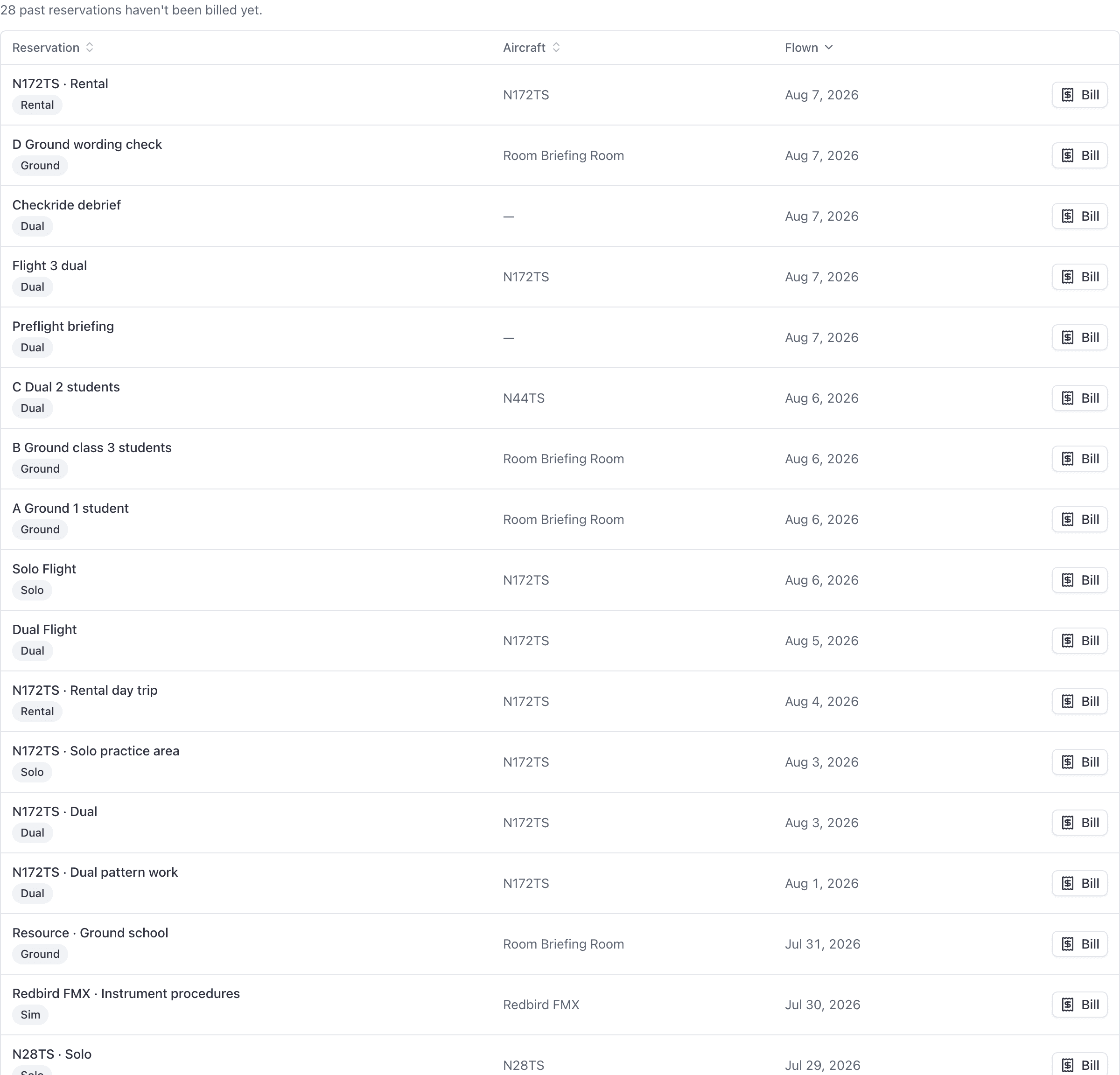
If you genuinely want to charge a flat amount by hand, that dialog is the right tool. See Create a manual invoice.
Still nothing#
- Confirm the person you expected to be billed is actually a payer. An instructor with a student aboard is being paid, not billed, so they never receive an invoice. See Fill in Who pays what on a shared booking.
- Check Billing troubleshooting and FAQ for the rest of the surprises.
Still stuck on this?
Email support@aerscheduler.com and tell us what you were trying to do. We answer.