
Pay your invoice and set up autopay
Where to find what you owe, how to pay it by card, and how to save a card so future flights settle on their own.
For students, renters and instructors
Everything you owe is under Invoices in your personal section of the left rail. Open the invoice and click Pay. To stop doing this after every flight, go to WebProfile → Payment methods, add a card, make it your default, then switch Autopay on.
Find what you owe#
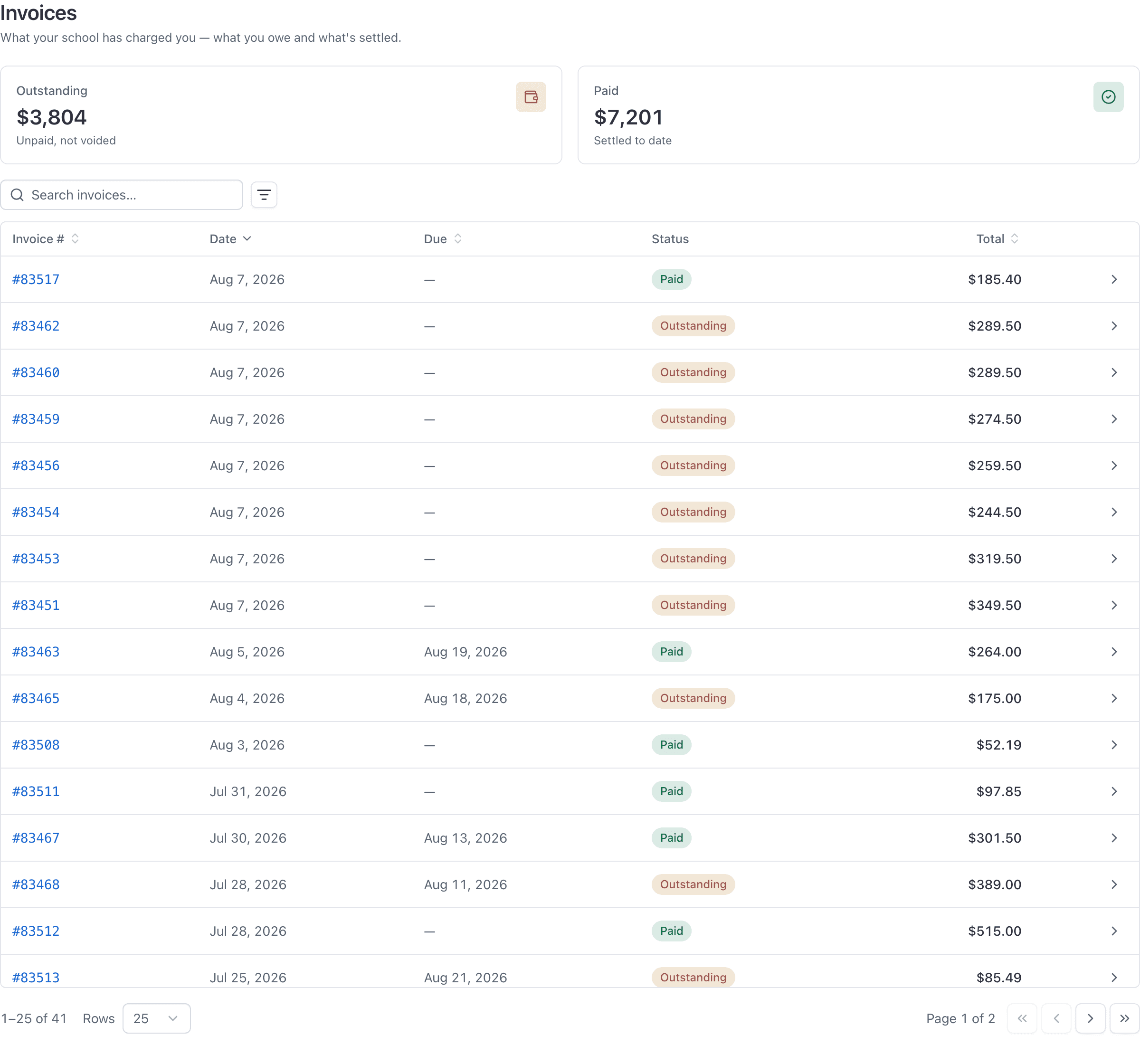
WebInvoices in your personal section of the left rail.
Two cards at the top: Outstanding, which is what you still owe, and Paid, which is what you have settled to date. Below them is every invoice your school has raised for you, with its number, date, due date, status and total. Filter by Paid or Outstanding and by date range.
Pay an invoice#
Click the invoice
It opens in a panel beside the list showing the line items and the total.
Click Pay
The button carries the amount, so you can see what you are about to be charged before you click it.
Enter your card details and pay
The card form belongs to Stripe, your school's payment processor. Your card number never touches AerScheduler.
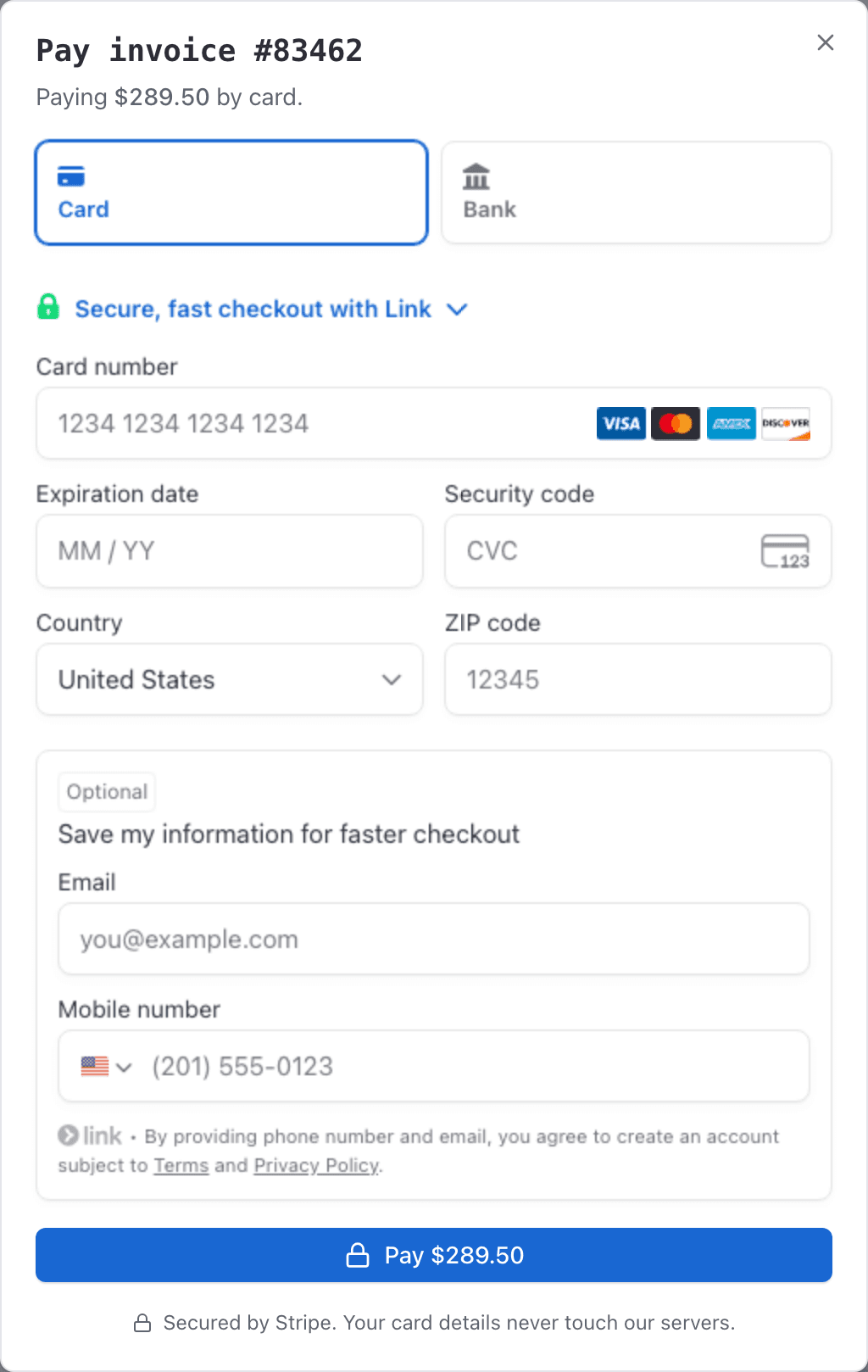
The invoice flips to Paid once Stripe confirms the payment, and you get a Payment received email. If you had been grounded for unpaid invoices, paying releases you.
Save a card#
Open Profile, then the Payment methods tab
Click Add card
The Stripe form opens. Fill it in and click Save card.
Click Make default
The default card is the one autopay uses. If this is your only card it is already the default.
Your card is stored by Stripe on your school's own account, not centrally. If you fly with two schools that both use AerScheduler, you save a card at each of them.
Turn on autopay#
With a default card saved, switch Autopay on from the same page.
New invoices raised from your flights are then charged to that card as they appear, and land as Paid without you doing anything.
The switch stays disabled until you have a default card: "Add a card and set it as default to turn on autopay."
If your school uses an account ledger instead of invoices, the same page has Auto-refill. That charges the default card to add credit on a schedule. Autopay is for invoices; auto-refill is for the account balance.
What autopay does not pay#
If your school has not set up online payments#
If your school has not finished its Stripe setup, the Payment methods page reads "Online payments aren't set up" and there is nothing to add a card to. The pay dialog says the same thing if you try from an invoice. Neither is anything you can fix from your side; settle up with the school directly and ask them to finish it.
Paying from the iOS app#
Open Billing in the app to see your own invoices. Tap one to see its charges and details, then tap Pay to open Stripe's hosted payment page. The same screen offers Download PDF, Payment Methods, and View Reservation for the flight it came from.
If your school asks for a card before you can book#
Some schools switch on Require payment method before self-book. If yours has, booking yourself in without a saved card gives you "Add a payment method before booking. Open Payment methods in your profile, then try again."
Save a card and try the booking again. The rule does not apply when a dispatcher or instructor books you in.
Why two screens can show different balances#
Related#
Where the numbers on your invoice come from.
An invoice for an amount you did not expect.
Still stuck on this?
Email support@aerscheduler.com and tell us what you were trying to do. We answer.