
Send paid invoices to QuickBooks Online
Connect your Intuit company, answer a few setup questions (start date, what else records this revenue, where money lands), and each paid invoice becomes a Sales Receipt.
For owners
WebSettings → Integrations → QuickBooks Online, organization owner only. Connect your Intuit company, answer the setup questions, then turn sync on. Every invoice paid on or after the start date you choose becomes a QuickBooks Sales Receipt. Nothing is sent to QuickBooks until every question is answered.
Before you connect#
You must be the organization owner. Every part of this page is owner only. An admin who is not the owner opens it and sees an Owner only notice. On the iOS app, Accounting Integrations tells you to manage QuickBooks on the web.
You need at least one active Service or Non-inventory item in QuickBooks. Each line of a Sales Receipt posts to an item you pick, and its income account is what shows on your Profit and Loss. Inventory items are not offered, because they would take stock off your shelf and post cost of goods on every receipt.
Connect QuickBooks#
Open Settings → Integrations → QuickBooks Online
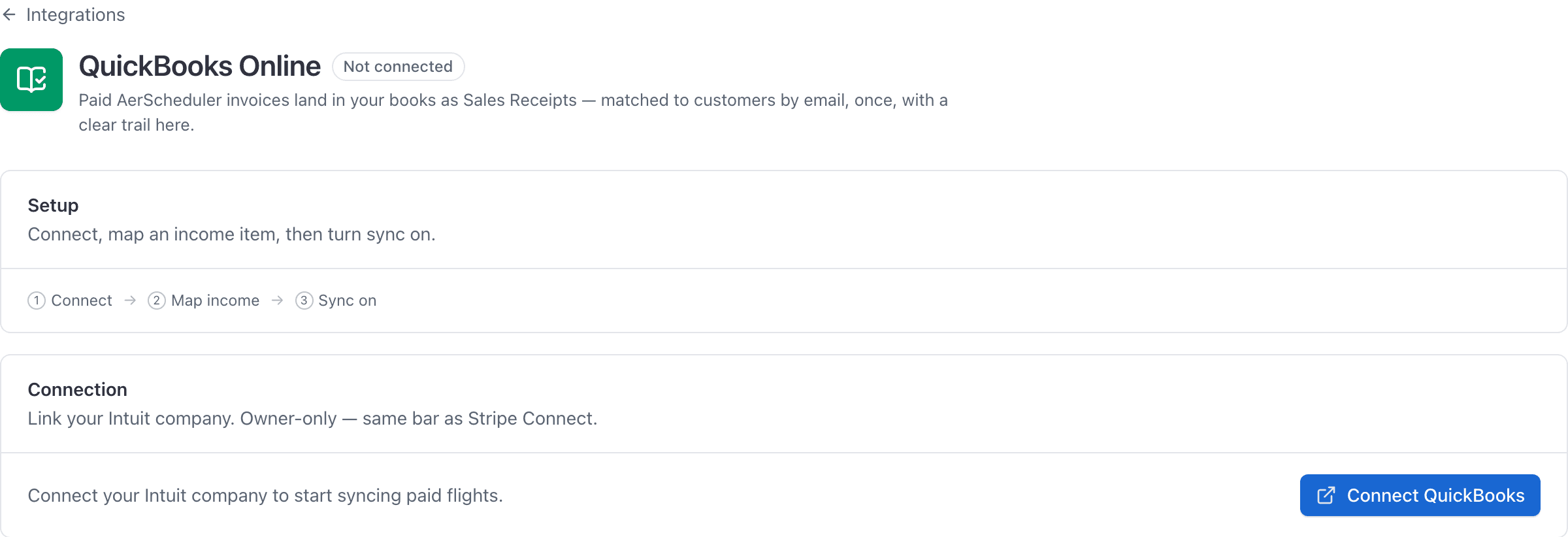
Click Connect QuickBooks
Intuit's own sign-in opens. Authorize the company you want AerScheduler to post into. Connecting only reads your company. Nothing is written to QuickBooks yet.
Confirm it is the right company
Setup opens one question at a time, starting with the company: its name, legal name, location and when it was created in QuickBooks. Intuit lists every company your login can see, including an accountant's client files and separate LLCs, so check before you confirm. Customers AerScheduler creates can never be deleted from the wrong company.
What setup asks#
Each answer saves as you give it, so you can close setup and come back: the Overview shows how many are answered, and Continue setup picks up at the next one. To change an answer later, open the Settings section and choose Change next to it.
What else records this revenue. Pick the answer that is true today.
- Nothing yet: AerScheduler can post from any start date you choose, including history.
- A bank feed rule, or your bookkeeper by hand: AerScheduler can take over, but only from today onward. Turn the bank rule off, or tell your bookkeeper to stop, the same day.
- Stripe's QuickBooks app, another tool, or not sure: sync stays off. Turn the other tool off first. If you are not sure, run Profit and Loss for last month in QuickBooks: if your flight revenue is already there, something is recording it.
Start date. Invoices paid on or after this day post. Nothing before it ever does. Pick today to start fresh, or an earlier day to bring history in. Before you save, the page shows how many invoices and how much money would post, by year. A date that reaches into a year you have probably already filed asks you to type that year to confirm. If your QuickBooks books are closed through a date, nothing can post on or before it.
Income items. A default item for every line, plus an optional item per kind of charge: aircraft and simulator rental, instruction and ground school, fees (late, cancellation, card, service), membership dues, and everything else. Decide this before bringing in history. Changing it later does not re-file receipts already posted.
Where card payments land. The QuickBooks account card and ACH payments collected through Stripe are recorded to. Most schools use a Stripe clearing account, because Stripe pays out in batches with its fees taken off. Undeposited Funds works too, but then your bookkeeper groups receipts into deposits and subtracts the Stripe fees by hand.
Front-desk payments. Whether cash and check payments the desk marks as paid post too, and to which account (usually Undeposited Funds). An invoice someone marked paid in your own Stripe dashboard counts as a front-desk payment too, because no card was charged; for older invoices AerScheduler asks Stripe before posting. Leave front-desk payments out if your bookkeeper already records them when the money is deposited.
Turn on. Sync paid invoices. Pausing it is safe: anything paid while it is off posts when you turn it back on, as long as it is on or after the start date.
What lands in QuickBooks#
One Sales Receipt per paid invoice, dated the day it was paid in your school's time zone, against a customer matched by email. Guest bookings post under the guest's own name and email. The same person booking twice, or a guest who is also a member, lands on one customer.
Each receipt's private note holds the AerScheduler and Stripe references, the member or guest, the instructor, the flight date and the tail number, so a receipt can always be traced back to the flight that produced it.
History posts in the background, oldest first, about 25 a minute. You can close the page. The Overview shows how many are in QuickBooks, how many are still to post, how many are before your start date, and how far along it is. Activity lists every receipt posted or removed and every problem, newest first, with the invoice it was about and what started it (the background sync, a payment, a refund in Stripe, or a button someone pressed). A problem row also says where that invoice stands now: still waiting on you, sorted out since, or being tried again automatically. Switch it to Problems only to see just the failures.
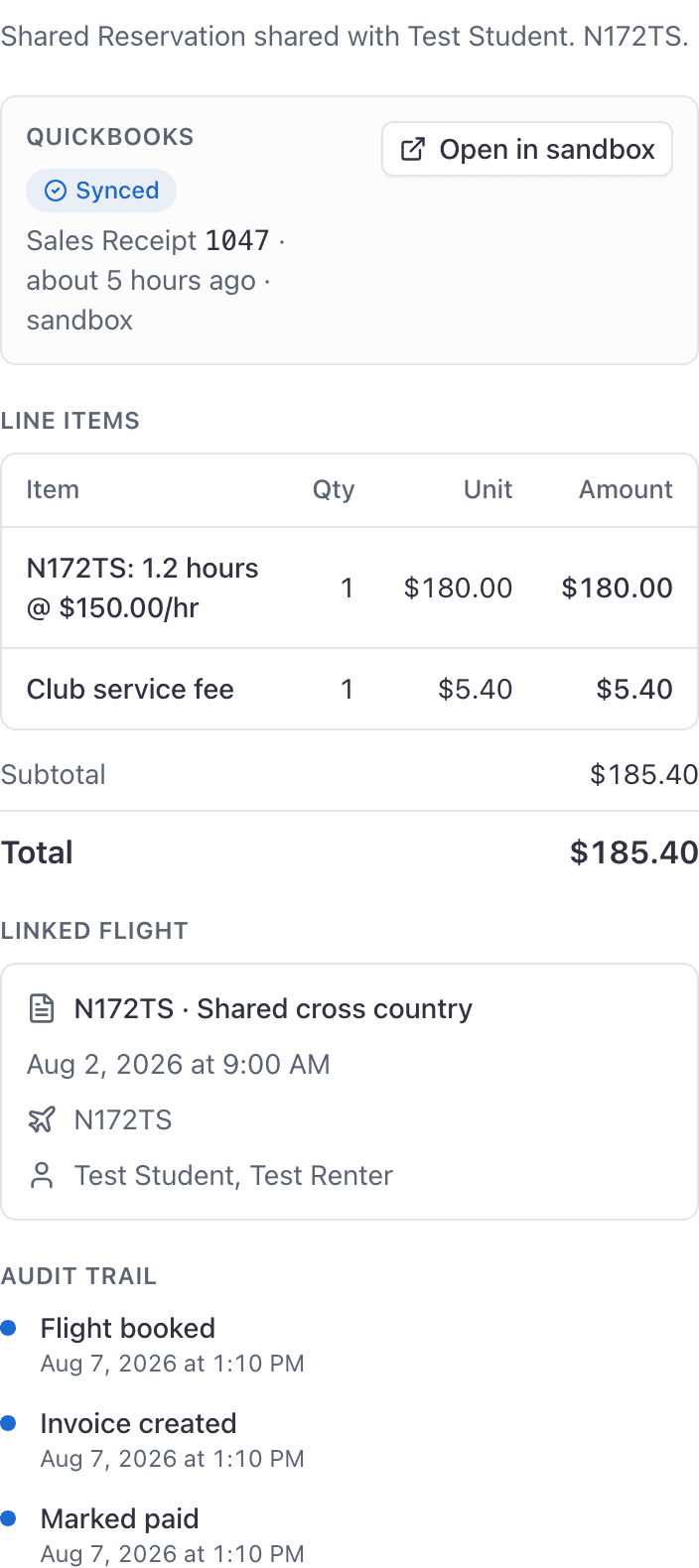
In AerScheduler you see the result on each invoice: a QuickBooks section in the invoice detail panel with the Sales Receipt id and Open in QBO.
When something can't post#
Syncing never blocks the money. If QuickBooks is down or busy when a member pays, the payment still succeeds and the invoice is still Paid here. It posts on its own once QuickBooks answers.
An invoice that needs a person lands in the Needs attention section, with a sentence saying what to fix. If anything has been waiting a day or more, every owner gets a notification, so nothing sits there unnoticed. The common ones:
| Shown as | What to do |
|---|---|
| Name already used in QuickBooks | You already have this person in QuickBooks under their name but without their email. Add the email to that customer in QuickBooks, then Retry. If it is a different person, create a customer with this email in QuickBooks, then Retry. |
| Customer inactive in QuickBooks | Make the customer active again in QuickBooks, then Retry. |
| Several QuickBooks customers match | Two customers share this email. Merge them in QuickBooks, then Retry. |
| No email address | Add an email to the member's profile, then Retry. |
| No member or guest | The booking's type was changed after it was paid. Void it, or record it in QuickBooks by hand. |
| Partially refunded | A receipt for the full amount would count money you gave back. Record the payment and the refund in QuickBooks yourself, then choose Handled. |
| Dispute won after books closed | A card dispute was won and the payment is back, but its date is now inside a period your QuickBooks books are closed through. Record it in QuickBooks by hand, then choose Handled. |
| Refunded, then paid again | It was partly refunded and then marked paid again at the desk. Record the payments and the refund in QuickBooks by hand, then choose Handled. |
| Couldn't confirm how it was paid | Stripe no longer has the invoice (for example, the school moved to a different Stripe account), so AerScheduler can't tell a card payment from cash marked paid in Stripe. Record it in QuickBooks by hand if it belongs there. |
Retry from an invoice's menu, or Retry all after fixing, puts it back in the queue. For the ones you record in QuickBooks yourself (a partial refund, sales tax, a payment Stripe can no longer show), choose Handled once you have. Retry isn't offered for a partial refund, sales tax or an invoice that collected nothing, because retrying can't change those.
Once you choose Handled, AerScheduler leaves that invoice alone and it drops off the list. If an earlier attempt to post it never got an answer, Handled first checks QuickBooks for a receipt from that attempt: one for the right amount is kept (the invoice counts as posted), and any other copy is deleted.
If you delete or deactivate an item or account in QuickBooks that AerScheduler posts to, sync pauses and the Overview asks you to pick a replacement. Turn sync back on once you have.
Refunds#
When a paid invoice is refunded in Stripe after its receipt went to QuickBooks, AerScheduler removes that receipt. A full refund stays out. A partial refund then shows under Needs attention for you to record by hand. If your bookkeeper already included the receipt in a bank deposit, QuickBooks will not let it be removed automatically, and it shows under Needs attention instead.
Card disputes#
A dispute takes the money back out of your Stripe balance, so AerScheduler treats it like a full refund and removes the receipt. If you win the dispute, the payment is put back: the receipt stays if it had not been removed yet, or it posts again. If its date is now inside a closed period, it shows under Needs attention for you to record by hand.
Taking receipts back out#
- Before a date: set the start date and tick Also remove the receipts AerScheduler already posted before this date. If some are already before your start date, Connection → Receipts before the start date → Remove takes them out without changing it.
- Everything (for example, the wrong company was connected): Connection → All receipts → Remove all. Sync turns off and every receipt AerScheduler posted to that company is deleted there. Customers stay, because QuickBooks does not allow deleting a customer that has ever had a transaction.
Reconnecting and switching companies#
AerScheduler keeps the connection alive by itself. Intuit's authorization lasts 100 days and renews every time something posts, and for a school with sync paused, or a quiet season, AerScheduler renews it in the background. You should never be asked to reconnect on a schedule.
If it does lapse (you revoked access at Intuit, or the connection was refused for long enough), the page offers Reconnect QuickBooks at the top and every owner gets a notification. Reconnecting to the same company picks up where you left off, and everything paid meanwhile posts once you do.
Connecting to a different company (Connection → Connect a different company) clears every setup answer and turns sync off, so nothing posts into the new company until you confirm it and answer the questions again. Receipts already posted to the old company stay there. While receipts are still being removed from the connected company, switching is refused until that finishes. If removals can't run (for example, the connection lapsed), Stop removing leaves those receipts in QuickBooks so you can disconnect or switch.
Start a connection from this page, in the browser you finish it in. Intuit's approval page only completes in the browser that started it, so a link forwarded to your bookkeeper is refused. If your bookkeeper holds the QuickBooks login, connect together on one computer: start it here, and let them sign in to Intuit when it asks.
Disconnecting#
Connection → Disconnect revokes access at Intuit. Sales Receipts that already went across stay in QuickBooks; disconnecting does not reach back into your books.
Related#
Marking an invoice paid is what triggers a sync.
Including what happens to invoices that carry sales tax.
Still stuck on this?
Email support@aerscheduler.com and tell us what you were trying to do. We answer.