
Join a school with a code
What to do with the code or the invitation email you were sent, and what happens if your school has to approve you first.
For students, renters, instructors and technicians
Create an account at app.aerscheduler.com, verify your email, then type your school's code at Webapp.aerscheduler.com/join. Either you are in immediately, or you see "Request sent" and an admin at the school lets you in.
What you need#
One of two things, both of which come from the school:
- A join code, a short code that identifies the school. In the iOS app the school will call it the Organization Invitation Code.
- An invitation email, sent to your address by an admin. The link in it carries the roles you will get.
If you have the invitation, you do not need the code.
Join with a code#
Create your account
Go to app.aerscheduler.com and choose Create your account: name, email and a password, or Sign up with Google / Sign up with Apple.
Verify your email
Click the link we email you. Every page will send you back to Verify your email until you do. That page moves on by itself the moment you click the link, so leave it open.
Choose I'm joining an organization
That is the first card on the "What brings you to AerScheduler?" screen. If you are already signed in and past that screen, go straight to Webapp.aerscheduler.com/join, or in the app to AppSettings → Join an organization.
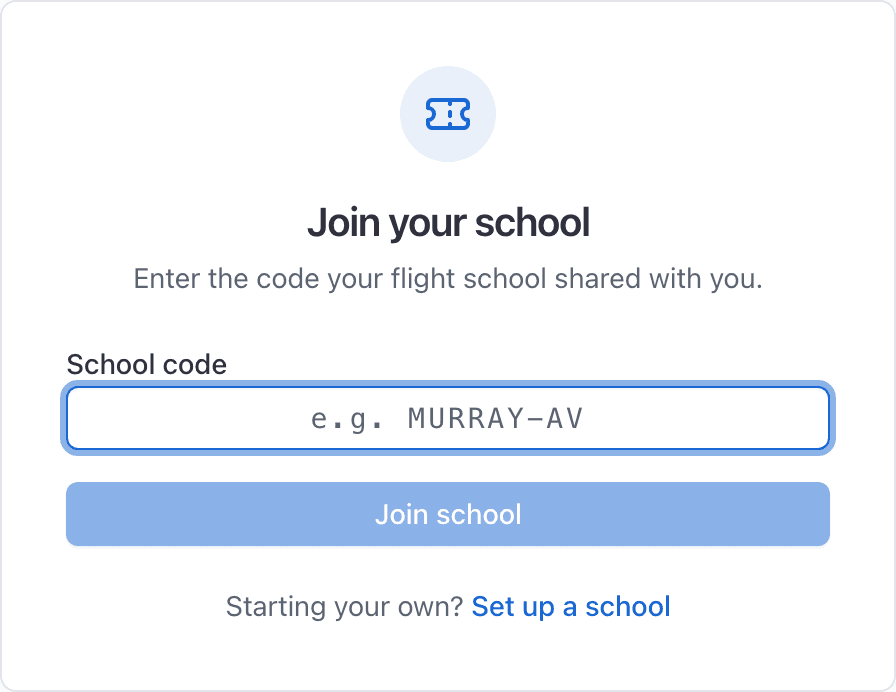
Type the code and press Join school
Either you land on the booking page as a member, or you see Request sent.
If you see "Request sent"#
Your school approves people before they join. Your request is sitting in a panel above their People roster, and an admin has to accept it and give you a role. Nothing else happens until they do, so there is nothing to retry: ask the front desk to look at People.
If you were invited by email#
Click the link in the invitation. You are put into the school immediately with the roles the invitation carried, whether or not the school approves people before they join. If the invitation also named a membership plan, that is applied as pending, and the school starts it when they are ready.
Joining uses the invitation up. If you leave and come back later, join with the code like anybody else.
Common messages#
| What you see | What it means |
|---|---|
| "You already belong to this organization" | You are in. Sign in and use the school switcher at the top of the left rail |
| "Request sent" | The school approves new members by hand. Wait for an admin |
| "Your session is out of date. Sign in again." | You left this organization and joined it again, and this device still holds your old sign-in. Sign in again |
| The code is not accepted | Check it with the school. Caps, spaces, and hyphens do not matter (murray-aviation is the same as murrayaviation). Demo sandbox codes cannot be joined |
Once you are in#
Joining drops you on the booking page. Your home page, Home in the left rail, is where you will spend most of your time: upcoming reservations, unpaid invoices, currencies that need attention, and the school's announcements.
If the Book link and the + button are missing, you were accepted without a role. That is easily fixed: ask an admin to give you student, renter, instructor or technician from WebPeople → ⋯ → Edit roles.
What to read next#
Pick the type, the aircraft, then a start time from the list of free slots.
Contact details, your sign-off PIN, and which time zone the schedule shows.
Still stuck on this?
Email support@aerscheduler.com and tell us what you were trying to do. We answer.