
Find a booking on the schedule
Search matches titles, notes, tail numbers, people and guests. Resource and Location remove lanes from the board. Every other filter dims what does not match instead of hiding it, on purpose.
For owners, admins, dispatchers, instructors, students, renters and technicians
Type into Search on WebCalendar to match titles, notes, tail numbers, people and guests. Only the Resource and Location filters take lanes off the board. Everything else dims what does not match and leaves it where it is, on purpose.
Search the board#
The Search box sits in the toolbar above the board. It matches:
- the booking title
- the notes
- the reservation type
- the tail number, simulator name or room number
- the names of everyone on the booking
- a guest's name and their email address
Matching text is highlighted inside the block, and the counter on the right of the toolbar switches from "47 reservations" to "12 of 47 matching" so you can see how much you narrowed it by.
Filters that remove lanes#
Two facets change which rows are drawn:
| Filter | What it does |
|---|---|
| Resource | Draws only the aircraft, simulators or rooms you pick |
| Location | Draws only the resources at the field you pick |
These are the ones to reach for when the board is too tall to read. Typing an airport name into the Resource filter surfaces every aircraft based there, which is the quickest way to get a two-field school down to one field.
Filters that highlight instead of hiding#
Personnel, Ramp status, Billing and Type, plus the search box, never remove a booking from the board. They dim everything that does not match and leave the matches bright.
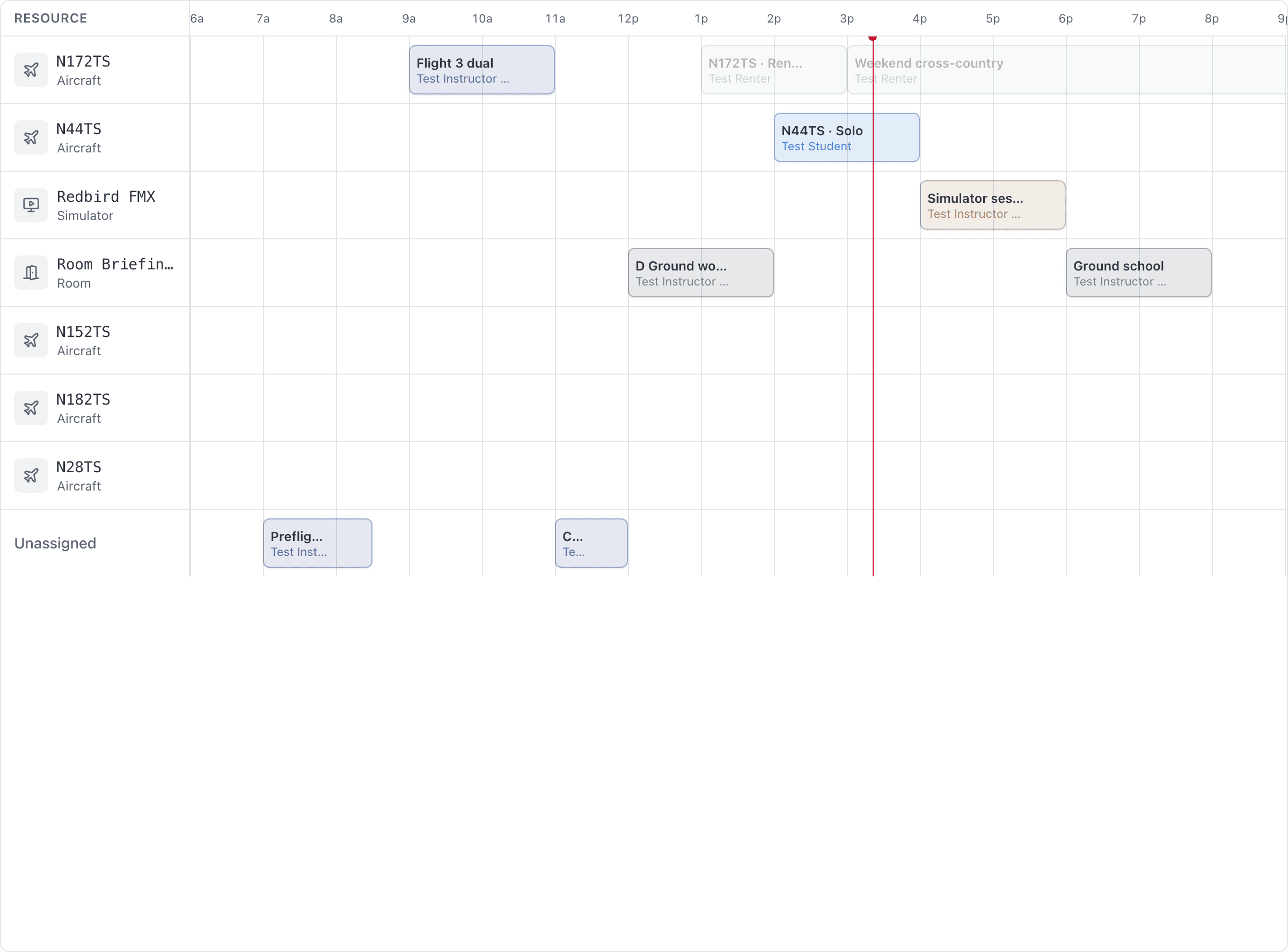
This surprises people, because every other list in the product drops rows when you filter. It is deliberate, and it is protecting you: if filtering to one instructor hid every other booking, a slot that already has a flight in it would look free, and the next person to click it would double-book a real aeroplane.
The Personnel filter lists everyone in the school, not just the people who happen to be rostered today. That way paging forward a week does not quietly drop your selection.
Filter by ramp status#
Five options, matching the stages a flight moves through on the day:
| Option | Bookings it matches |
|---|---|
| Not out yet | Booked, nothing recorded |
| Out now | Ramped out, aircraft is off the line |
| Overdue back | Ramped out and past its return time |
| Back, not closed out | Ramped in, waiting on sign-off |
| Closed out | Finished |
An aircraft that is late matches both Out now and Overdue back, because both are true of it. That is what you want at 4pm when you are working out what is still airborne.
Filter by billing#
Four options: Not invoiced, Unpaid, Paid, Voided.
On a booking split between several payers, Unpaid wins while anybody's share is outstanding. A ground class where three of four students have paid still reads as unpaid until the fourth does. See Split a flight between two or more people.
Your filters are remembered#
Filters are stored in your browser and restored the next time you open the board, including days later. That is usually helpful and occasionally baffling: a board that looks like it is missing half the fleet is normally a Resource filter you set last week. Clear the facets to get everything back.
The booking you had open is not restored. It lives in the page address instead, so you can paste a link to a booking to a colleague, and so you do not come back on Monday to a flight from Thursday sitting open in a panel.
Searching in the month view#
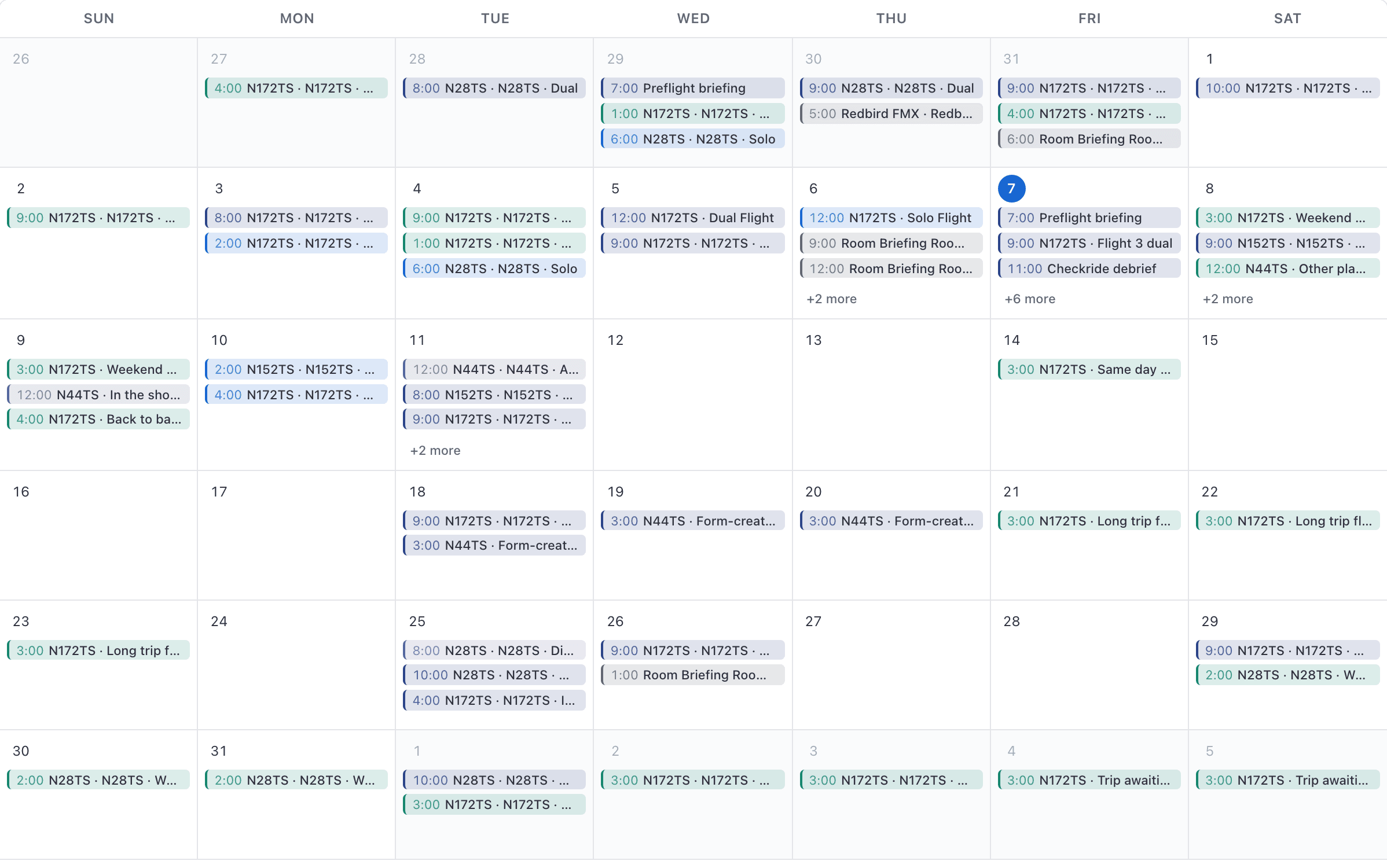
A month cell only has room for three bookings before it collapses into a "+N more" link. When a search or filter is active, matches are floated to the top of each day, so a match that would have been fourth is visible rather than hidden behind the link.
Finding a cancelled booking#
Cancelled bookings are not drawn on the web board at all, so no amount of searching will surface one there. Two places to look instead:
- the Cancellations page, which lists every cancelled booking in a date range with its reason, who cancelled it and how much notice was given. Staff only.
- the iOS app's reservations list, which includes cancelled bookings and has a Canceled filter.

Related#
The board itself, and the five ways to look at it.
Where cancelled bookings go, and what the report counts.
Still stuck on this?
Email support@aerscheduler.com and tell us what you were trying to do. We answer.