
Set your weekly availability
Set the hours you can be booked under Profile then Availability. The iOS app honors these hours when someone books you, and the web console does not.
For instructors and admins
Set the hours you can be booked under WebYou → Profile → Availability. Switch a day on, give it a start and an end, and press Save availability. A day left off reads as Unavailable.
Set your hours#
Open the Availability tab
Go to WebYou → Profile and pick the Availability tab. An old bookmark to the availability page still works and redirects here.
Switch on the days you work
Each day has a switch. On, and it takes a start and an end time. Off, and the day shows Unavailable.
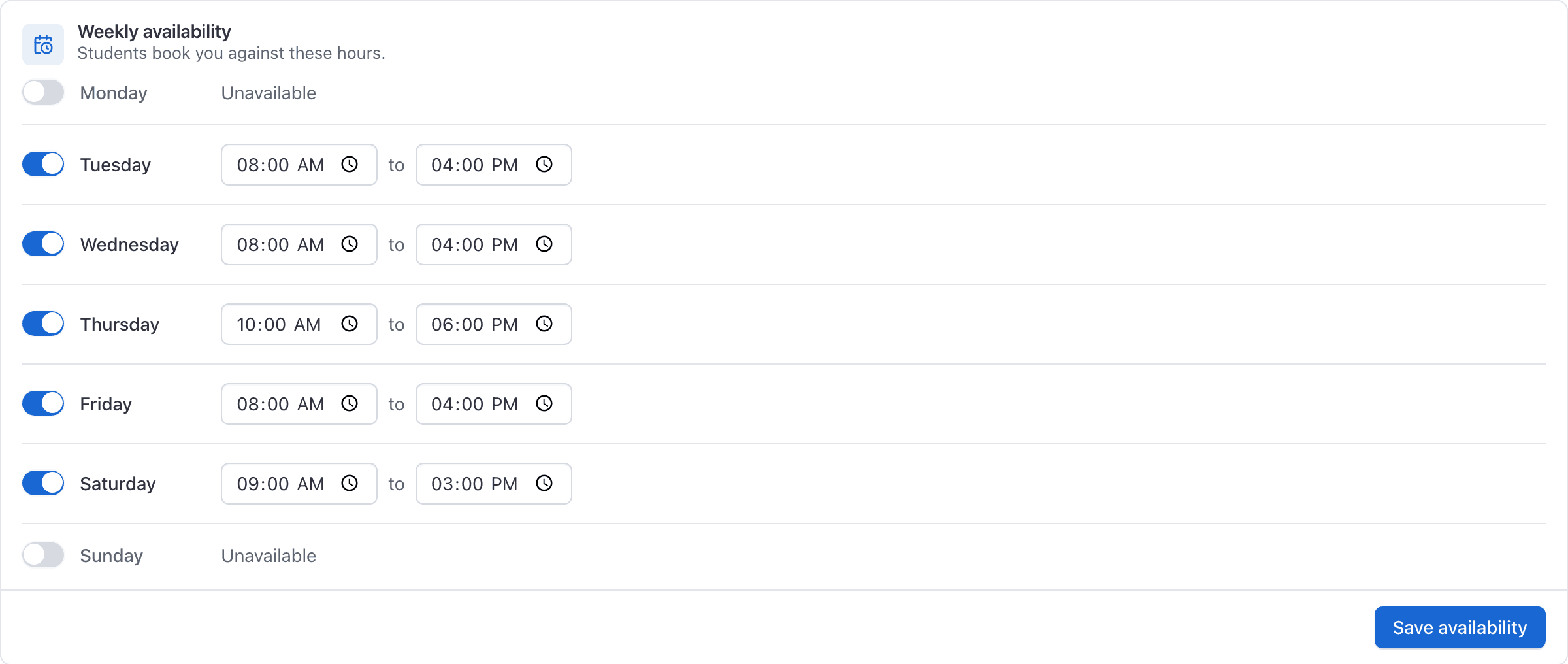
Press Save availability
The end time has to be after the start, or you get "End must be after start."
One window per day#
Each day holds exactly one window. There is no way to express a lunch break, or a morning block and an evening block, on the same day. Set the outer hours you are willing to be booked in, and block the middle out by putting a booking there instead.
Availability is per school#
Your hours belong to one school. If you instruct at two, you set them separately at each, and so are your confirmation PIN and your email preferences. Switching organizations gives you a fresh set rather than carrying the old one over.
Which app honors your hours#
This is the part worth reading twice.
| Where somebody books you | Does it respect these hours? |
|---|---|
| AerScheduler iOS app | Yes. The times offered are your availability minus what you already have booked. |
| Web console | No. The times offered are only the times you are not already booked. |
So a student booking you on the web can still land on 9:00 PM even though your Saturday ends at 5:00 PM. The web booking form builds its list of start times from the overlap of the aircraft's free time, yours and the instructor's, and "free" there means "not already booked".
Do not switch every day off#
Clearing every day, for example to reset the grid before typing fresh hours, is read by the iOS app as having no availability at all. You become completely unbookable in the app, with nothing on screen to say so, while the web carries on offering you as normal.
If you want a week off, cancel or decline the bookings and tell the front desk. Switching all seven days off is not a holiday setting.
Where members set this on iOS#
On the web, the Availability tab is shown to instructors, because instructors are who students book against. Every member can set theirs in the iOS app under AppSettings → Schedule → Availability, headed "When you can be scheduled".
Related#
Where the front desk sees the times you are free.
Including an empty Start list, and what actually causes it.
Still stuck on this?
Email support@aerscheduler.com and tell us what you were trying to do. We answer.