
Why the schedule shows airport time, and how to change it
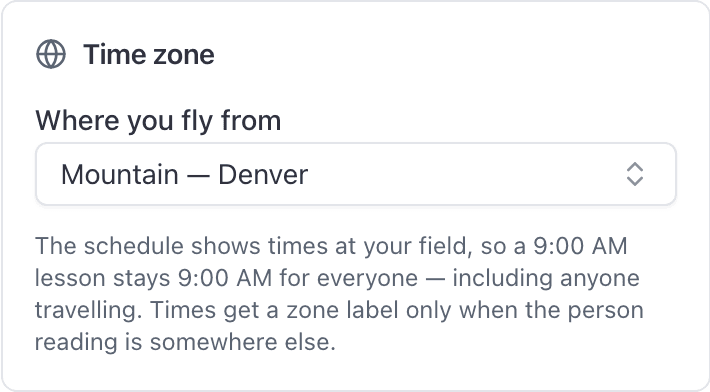
Every time on the schedule is drawn in the airport's own zone, not your device's, so a 9:00 AM lesson stays 9:00 AM wherever you check it from. You can switch to your own zone for yourself.
For owners, admins, dispatchers, instructors, students, renters and technicians
Every time on the schedule is drawn in the airport's own zone, so a 9:00 AM lesson reads 9:00 AM whether you check it from the front desk or from another state. Every school needs one: until it is set, members cannot book themselves. Admins set it under WebSettings → Organization or AppSettings → School time zone. You can switch your own view to your own zone under WebYou → Profile.
What airport time means#
AerScheduler picks the zone for a booking in this order:
- the time zone on the location the booking is at
- failing that, the organization's time zone
- failing both, whatever zone the device you are reading it on is in
The aircraft and the instructor are going by the clock on the wall at the field, so that is the clock the board uses. A 9:00 AM lesson stays 9:00 AM in the day board, the week board, the booking form and the detail panel, no matter where the person looking at it happens to be.
Set your school's time zone#
Setting up a new school asks for its time zone. It is filled in from the home airport when you pick one from the search, or from your computer or phone when you type the airport yourself, and you can change it before you carry on.
To change it later, go to WebSettings → Organization and pick a zone, or on iPhone AppSettings → School time zone. Owners and admins only. Don't confuse it with the Time zone row just above it in the app: that one is your own clock and never moves anybody's booking.
The list opens on the zones most schools want, with UTC (Zulu) at the top for anyone who works in Zulu. Everything else follows underneath, grouped by region. You can search it by the things you would actually type: the zone name, the city, or the identifier of a field in it, so KBOI finds Mountain and KMIA finds Eastern.
It is the single setting that makes everybody's schedule agree, members need it to book themselves, and it is a hard prerequisite for multi-day bookings, which stay greyed out until it is set. A school's zone can be changed but not cleared.
Set a time zone for a second airport#
If the school operates from more than one field, give each location its own zone under WebFacilities → Locations. A location's zone beats the organization's for bookings at that field, so a school with a base in Denver and a satellite in Phoenix labels each booking against the right clock instead of splitting the difference.
The quickest way to set one is to let the airport do it. Search by identifier or name (KBOI, or just Boise) and pick the field. On the web that is the Airport or site name box. On iPhone, open the location, tap Airport, and search there. The zone is filled in from the airport's own position, along with the city, state and country, and we store the airport's identifier so pre-flight weather is for that field rather than a nearby reporter. You can still change the zone afterwards, and you can still use a name we do not recognise, in which case nothing is filled in and you pick the zone yourself. A typed site has no identifier and no weather. Re-pick from the list to attach one to a location that already exists.
A location with no zone of its own carries a No time zone badge in that list, which is the quickest way to find the ones still falling back to the organization's.
Choose what you see#
Every member controls their own view from the My time zone card on WebYou → Profile.

Two settings on the card:
| Setting | Options | What it does |
|---|---|---|
| Show the schedule in | Airport time (recommended), My time zone | Which clock the whole schedule is drawn in |
| Time zone | Automatic, or a zone you pick | What "your time" means. Automatic follows your device and moves with you |
The default is airport time, and it is the recommendation for a reason. Switching to your own zone is for the person who genuinely works remotely and thinks in their own clock. If you fly at the field, leave it alone.
When a time gets a zone label#
A time is labelled with its zone abbreviation, and the detail panel appends your own time, only when the two disagree at that instant. When they agree there is no label, because a label on every time would be noise.
That instant matters. Phoenix and Denver read the same for half the year and differ for the other half, so the same pair of people see labels appear and disappear at the DST changeover without anybody changing a setting.
If no time zone is set anywhere#
With no zone on the location and none on the organization, two things go wrong.
Members can't book themselves. Every school has flying hours (6:00 AM to 10:00 PM unless you change them), and hours mean nothing without a clock to read them on. So a student or renter who tries to book is told their school hasn't set its time zone yet. Owners and admins get a notification the first time that happens, at most once a day, in the app and by email, with a button that goes straight to the setting. The front desk can still book for them in the meantime.
Times fall back to each person's own device. The schedule then genuinely looks different to different people, and it changes under one person when they travel. That is the state that produces "the times moved" support calls.
Owners and admins see a banner on the dashboard and the schedule, on the web and in the app, while the zone is missing. It offers the airport's zone when we can work it out from the school's airport, so fixing it is one click.
Why this matters to the bill#
Two places where the zone is not cosmetic:
- Nights away. A multi-day trip bills a minimum number of hours per night, and the nights are counted at the airport. This is why multi-day bookings cannot even be turned on until a zone exists: with the count falling back to a device, two people booking the same trip would be billed differently.
- Local midnight. A booking that ends exactly at midnight is a same-day booking. One that ends at 12:15am is a night away. Which side of the line you are on is decided by the airport's clock, not yours.
Related#
Why a time zone is a prerequisite, and how nights are counted.
The rest of the settings that change how booking behaves.
Still stuck on this?
Email support@aerscheduler.com and tell us what you were trying to do. We answer.