
Move a booking to a new time or a different aircraft
Three ways to move a booking: edit it, drag it on the board, or nudge it with the arrow keys. Dragging up or down on the day board swaps the aircraft.
For owners, admins, dispatchers, instructors, students and renters
Three ways to move a booking: open it and press Edit reservation, drag the block on the day or week board, or focus the block and nudge it with the arrow keys. On the day board, dragging a block up or down onto another lane moves it to a different aircraft.
Staff can move any booking. Everybody else can move the bookings they are on.
Edit the booking#
Open the booking
Click the block on the board, or open it from WebYou → Schedule.
Press Edit reservation
In the panel's … menu, or in the block's … menu.
Change what you need
Aircraft, crew, times, notes.
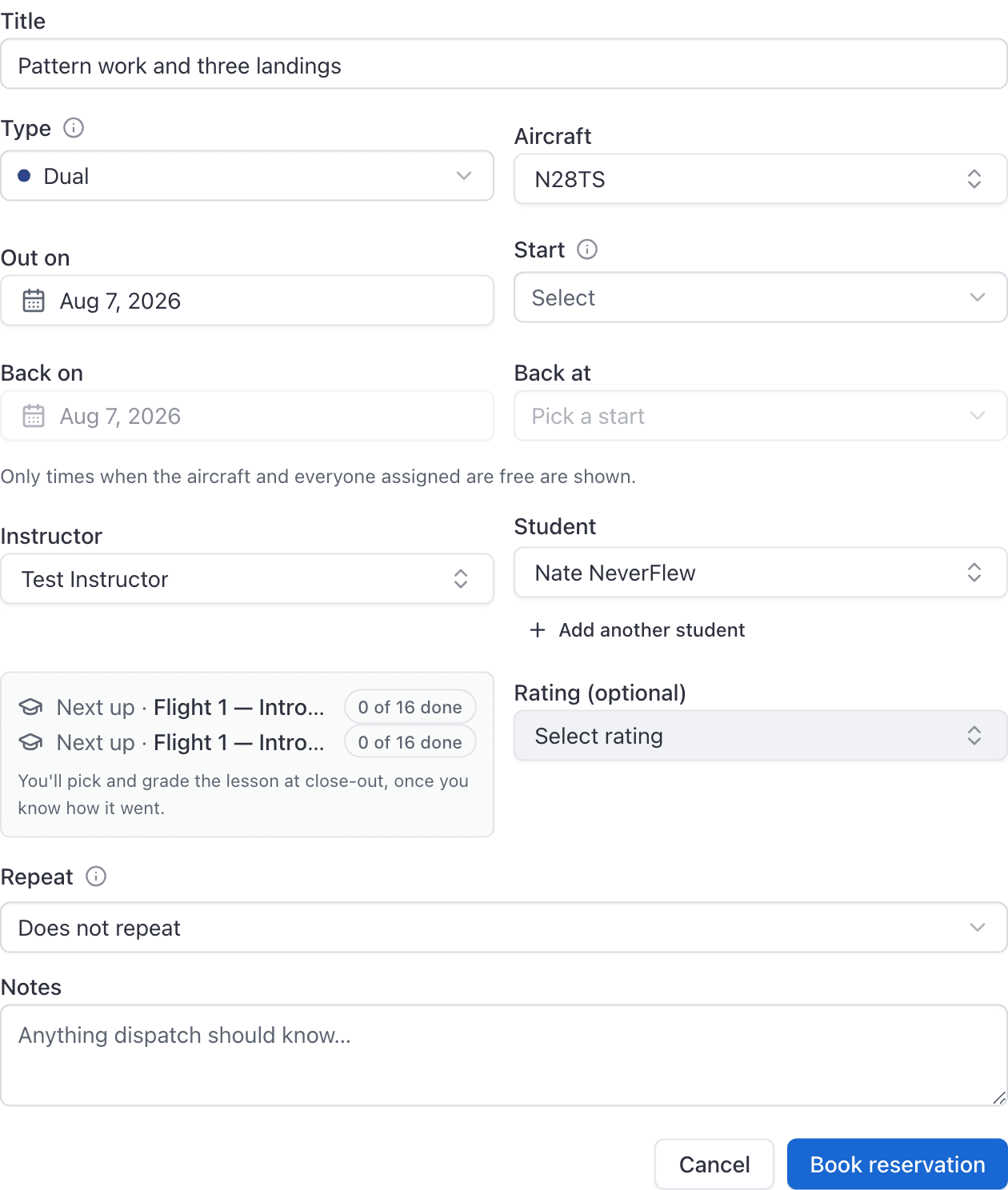
Press Save changes
Everyone on the booking is notified, their Google Calendar events are updated, and the booking's timeline records what changed.
The time picker adds the booking's own current slot back into the list of free times, so it does not report itself as busy. Everything else is intersected as usual, so adding a person can still shorten the list.
Repeat is not offered when editing. An edit changes that one booking, never the series.
Drag it on the board#
On the Day or Week board, press and hold a block and drag it. A callout follows the cursor showing the slot it would land on, or a red refusal if the drop is illegal.
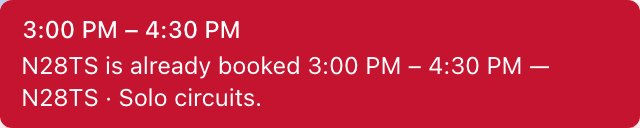
Everything snaps to 15-minute marks, and a booking cannot be dragged shorter than 15 minutes. On the week board, dragging sideways moves the booking to a different day.
Drag it onto a different aircraft#
This one is day-board only. Drag the block up or down onto another resource lane. The target lane highlights, and releasing moves the booking to that resource and that time in one save.
The board refuses drops that would not make sense, and tells you why under the cursor:
| What you tried | What it says |
|---|---|
| Dropping on the Unassigned or Other row | Drop it on a resource lane. Dragging cannot take a booking off its aircraft. |
| Dropping a ground booking on an aircraft | A ground booking needs a room, and names the tail you are over. |
| Dropping on a grounded tail | Names the tail and its grounding reason, and says only maintenance can be booked on it. |
| Dropping on top of another booking | Names the clashing booking and the hours it holds. |
Resize it to change the end time#
Drag the leading or trailing edge of a block instead of its middle. Same 15-minute snap.
A flight that has already ramped out is a special case: it grows a single trailing handle. Its start time and aircraft are frozen, because they are part of the close-out now, and the only thing you can still change is when it is due back.
Move it without a mouse#
Focus a block and use the arrow keys.
| Board | Keys | Effect |
|---|---|---|
| Day | Left and right arrows | Move 15 minutes |
| Week | Up and down arrows | Move 15 minutes |
| Week | Left and right arrows | Move a whole day |
| Either | Shift and an arrow | Move the end only, so the booking gets longer or shorter |
Nudges are batched into one save, so holding an arrow down does not fire ten requests.
What a move does to a repeating booking#
It moves that one occurrence. The toast says so explicitly, and the rest of the repeat stays where it was. There is no way to shift a whole series: cancel it and rebook.
Undo a move#
Every successful drag raises a toast naming the booking and its new slot, with an Undo action. The board updates before the server answers, so it feels instant. If the server refuses the move, the block snaps back to where it was and the refusal is shown.
When a booking will not move#
Hovering a block tells you before you try. A booking is locked when it is:
- Invoiced. Its times are part of the bill.
- Ramped in. The aircraft is back and its times are part of the close-out.
- Past its window and never ramped out.
- Cancelled.
Ramped out is the partial case above: only the return time can change, by dragging the trailing edge.
If the Edit button has disappeared entirely, see Why can't I edit, move or cancel this booking?
Still stuck on this?
Email support@aerscheduler.com and tell us what you were trying to do. We answer.