
Pull training records for an FAA inspection
The Training records report is the log to hand an inspector. Set the range, filter to the student, add the columns you need, and export.
For owners, admins and dispatchers
WebReports → Compliance → Training records is the log to hand an inspector: every graded lesson, both signatures, and the hours. Set the range, filter to the student, add the columns you want, and export.
Instructors cannot open Reports, so this is a front-desk or chief-instructor job.
Open the Training records report#
Open Reports
From the left navigation.
Choose Compliance → Training records
In the report rail.
Set the date range
It opens on the past 90 days. Widen it to the period being inspected.
Each row is one graded lesson. As the report opens that is the date, the student, the course, the lesson, the grade, the flight and ground hours, the instructor, and the signature state.
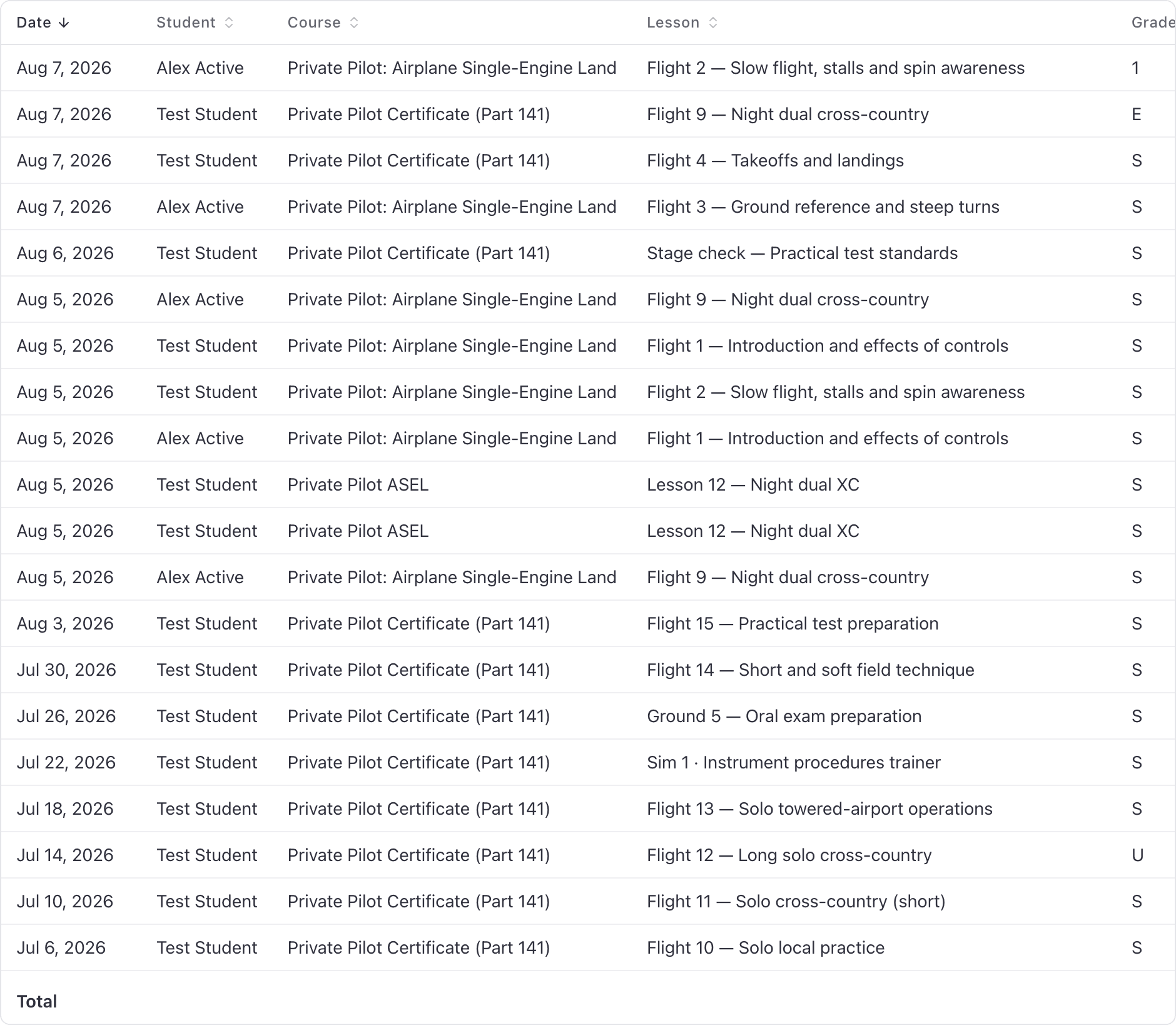
Set the range and the student#
Filter on Student to produce one person's log, and on Course as well if they are enrolled on more than one.
Useful optional columns, added from the report toolbar: Stage, Type, Simulator, Notes, Superseded, Correction, and Credits, which counts the ledger entries each signed lesson posted. An amendment's reversals are not counted on that row.
If you pull the same thing every year, save the view so the range, the filters and the columns come back next time.
What each Signatures value means#
| Value | Means |
|---|---|
| Not signed | A draft. The instructor opened it and never signed. It credits nothing. |
| Awaiting student | The instructor signed it, so the hours are credited, but the student has not countersigned. Lessons the syllabus marked sign-off optional never sit here. |
| Complete | Both signatures are on the record, or the lesson does not require a student signature. |
Filter Signatures to Not signed before an inspection to find drafts an instructor left open, and to Awaiting student to find records nobody countersigned. Neither is chased automatically, so this report is how you find them.
Superseded and Correction rows#
A record that has been amended stays in the report, flagged Superseded, with its replacement flagged Correction. Both are shown on purpose. Hour and credit totals skip superseded rows so the correction is not added on top of the original.
That is the whole reason AerScheduler amends rather than edits: the original is still there, the correction is beside it, and the reason for the change is on the reversal in the student's ledger. See Correct a signed lesson record.
Export it#
Use the export action on the report toolbar. The export carries the columns you have on screen, the range you set, and the filters you applied, so get the view right first. See Export a report to CSV or PDF. For an inspector, pick PDF: it carries the school's name, the window and the date it was produced on the page itself.
The Student progress report#
WebReports → People → Student progressThe other half of the picture. One row per enrollment, with lessons done against lessons in the syllabus, percent complete, total hours, how many requirements are still short, the next lesson, and days since the student last flew. The optional Awaiting student column counts instructor-signed lessons still waiting for a countersignature. Lessons marked sign-off optional are not counted.
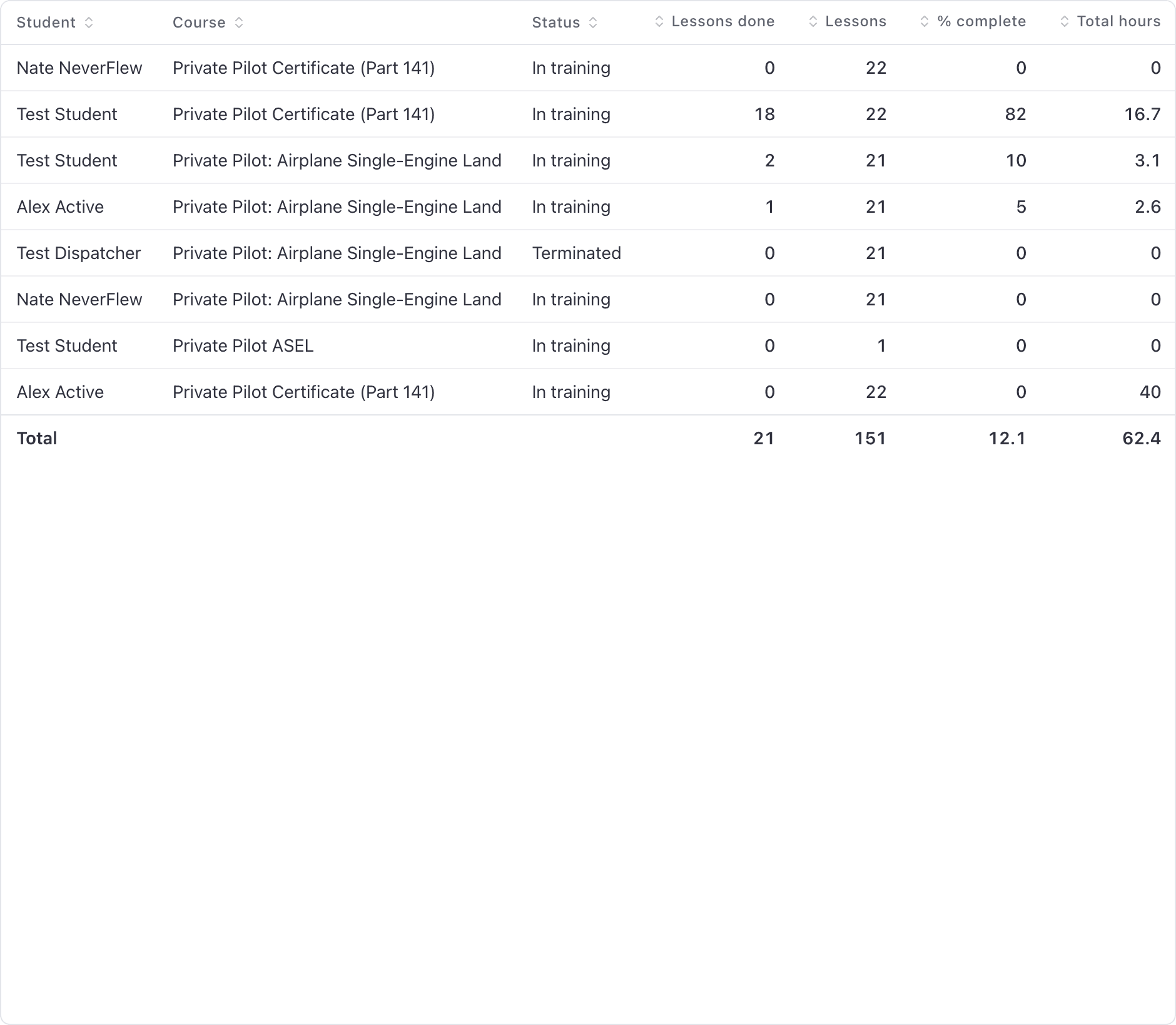
Somebody training for two certificates at once appears twice, once per enrollment. That is correct: they are two records with two sets of requirements.
Find students who have stopped flying#
On the same report, sort by Requirements short, or filter Days since flown to 30 or more. Read the Next lesson column to see what to book them for, then call them.
The same signal appears one student at a time as the pace badge on their training record: At risk after 30 days without a signed lesson, Stalled after 60.
Still stuck on this?
Email support@aerscheduler.com and tell us what you were trying to do. We answer.