
Credit prior training and simulator time
Post credit against a requirement for training done at another school or in a device. Enter the date it was actually flown, not today.
For owners and admins
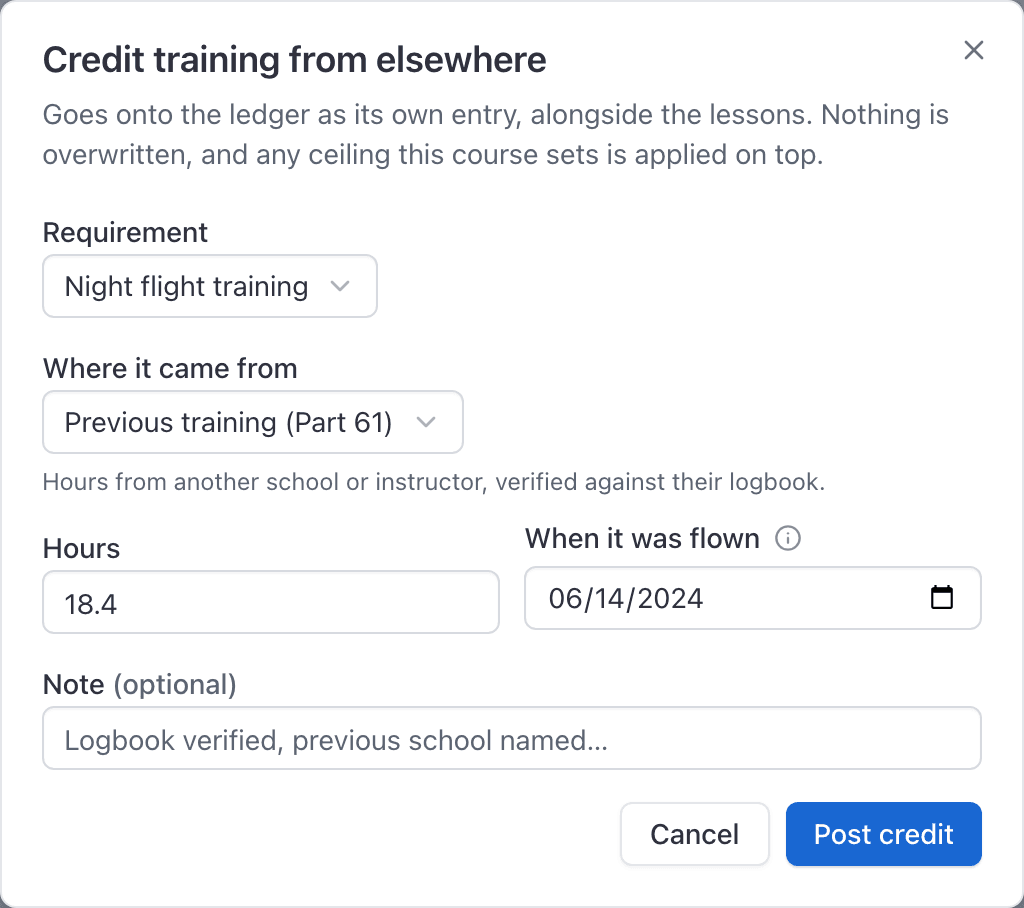
Enroll the student first, then open their training record, go to Requirements, and click Add credit. Choose the requirement, say where the time came from, enter the hours, and set When it was flown to the date in the logbook rather than today.
Instructors can do this too if they hold the Enroll and graduate grant. See Who can see and do what in Training.
Post a credit#
WebTraining → Students → the student → RequirementsEnroll the student first
Credit is posted against a requirement, and requirements come from the course version the student is enrolled on. There is nowhere to park hours before an enrollment exists.
Click Add credit
On the Requirements tab of their training record.
Choose the requirement
One credit feeds one requirement. Time that counts toward three requirements needs three credits.
Enter the amount
Hours for an hours requirement, or How many for one measured in events, such as night landings.
Set When it was flown, and add a note
The date from the logbook. A note such as the previous school's name and that you have seen the logbook is what makes this defensible later.
Click Post credit
The Requirements bars move immediately.
Choose where it came from#
Four sources, and the choice decides which ceiling applies to the hours.
| Where it came from | Use it for |
|---|---|
| Previous training (Part 61) | Training done elsewhere under Part 61, from the student's logbook. |
| Previous training (Part 141) | Training done at another Part 141 or Part 142 school. |
| Simulator or training device | Device time, which the course may cap separately. |
| Correction by hand | A number you are putting right yourself. A note is required. |
The date is the point#
When it was flown is required for previous training (Part 61 or Part 141). Post credit will not go through without it.
Simulator time and a correction by hand still default to today if you leave the date blank, because those usually happened this afternoon. Transferred hours did not.
On any requirement that only counts training from the last few calendar months, a missing date used to quietly make a 2019 logbook look like it was flown this morning, and the student was told they were ready when they were not.
A date in the future is refused: training cannot be credited before it has happened. Zero is refused, and so is a negative number.
Why some of it may not count#
Post 30 hours and the requirement may still show fewer. That is the course's own ceilings doing their job, not the credit failing.
A requirement can cap how much of it may be met by previous training, and how much by device time. The caps exist because §141.77 limits transferred credit, and Appendix B limits simulator time. They are applied when the record is read, so every hour you posted stays on the ledger; the requirement simply refuses to count more than its share.
The Requirements row says which one bit. See Read a training record.
Reverse a credit you posted by hand#
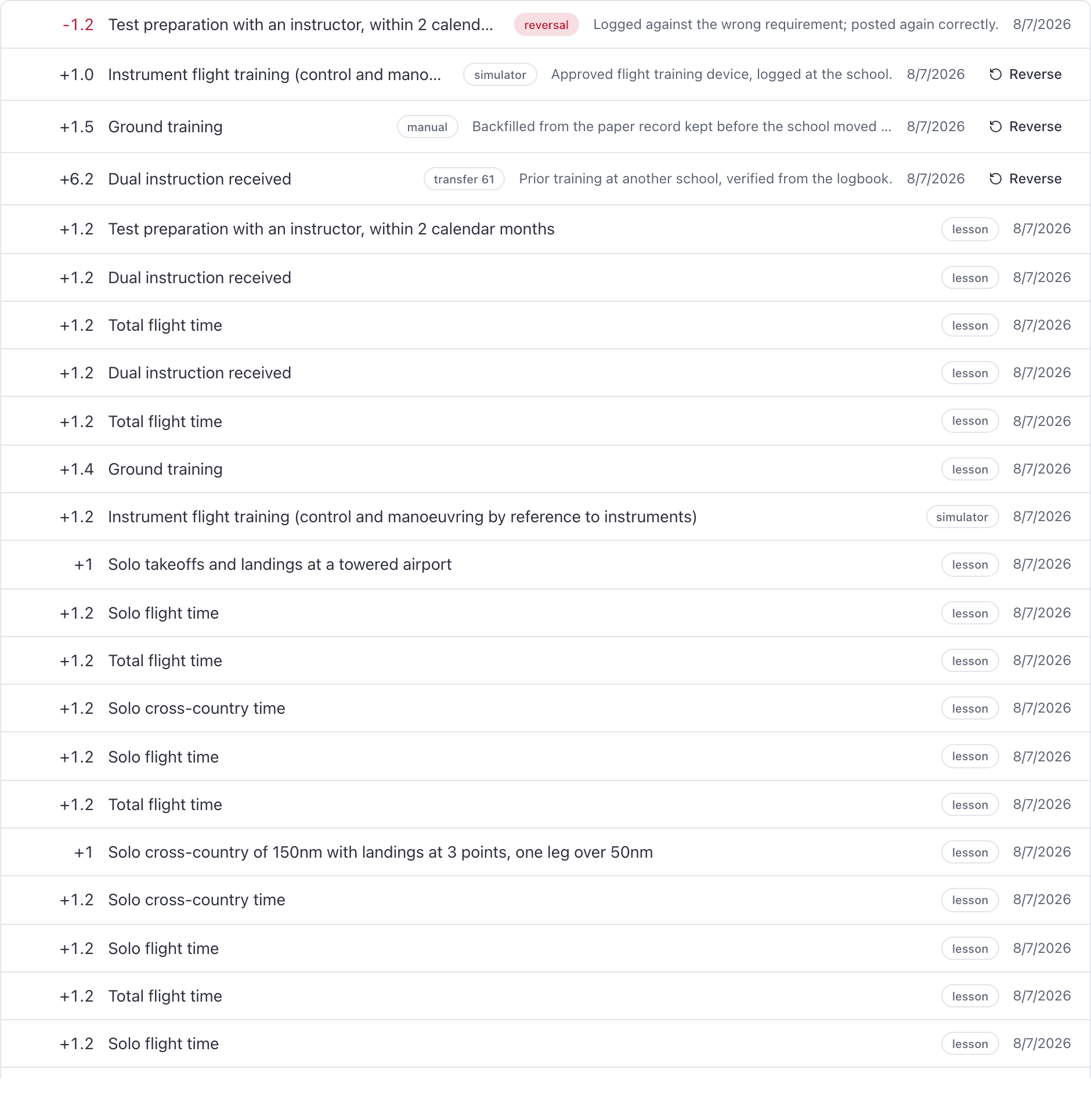
On the Ledger tab of the training record, each hand-posted credit has a Reverse button. It does not delete the original: it writes the negative beside it and both stay visible, which is the point of a ledger. You have to say why.
Check the requirement, the amount and the date before you click Post credit. Reversing is for a number that should not have been posted, not for changing your mind about the source.
Amending a signed lesson record is the other undo: it reverses the credits that lesson posted. Use that for a flight grade, and Reverse for a hand-posted transfer or simulator credit.
Read the result on the Ledger#
WebTraining → Students → the student → LedgerEvery credit and every reversal, with its amount, the requirement it fed, a chip saying where it came from, and its date. Nothing is stored as a running total: a student's standing is the sum of these rows, which is why "why does this read 41.2 hours?" is still answerable next year.
Still stuck on this?
Email support@aerscheduler.com and tell us what you were trying to do. We answer.