
Graduate a student, or end an enrollment
Certify the record first if the course is Part 141, then graduate. Terminated and transferred enrollments keep everything already recorded.
For owners and admins
On a Part 141 course, click Certify record in the training record header first, then Graduate and type the graduation certificate number. On a Part 61 course, Graduate is the only step. To stop an enrollment that will not finish, use End enrollment and choose Terminated or Transferred out.
Instructors can do all of this if they hold the Enroll and graduate grant.
Certify a Part 141 record#
§141.85 makes certifying the student's record the chief instructor's job. In AerScheduler that is one button in the training record header: Certify record. It stamps the record with the date and who clicked it, and a Record certified badge appears in the header.
The button only exists on Part 141 courses, and only while the enrollment is still In training.
Until the record is certified, graduating a Part 141 student is refused.
Graduate a student#
Open the student's training record
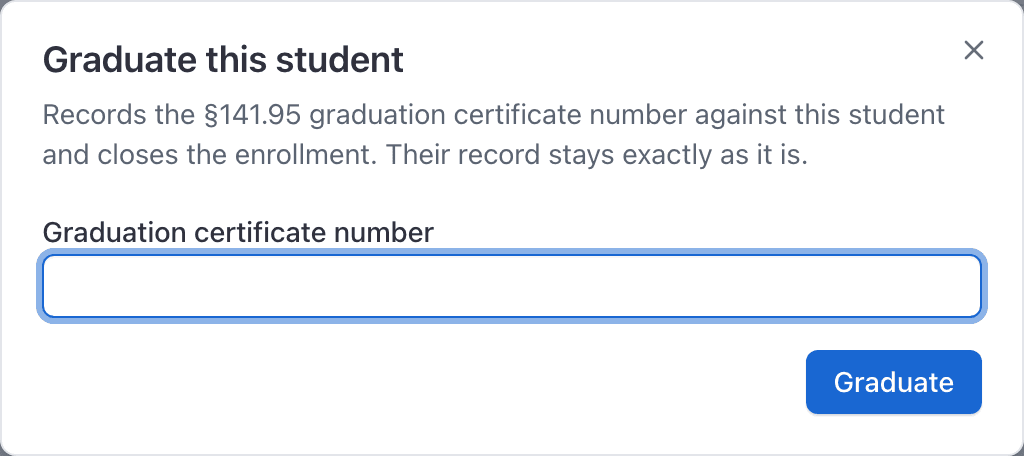
Click Graduate
In the page header.
Type the graduation certificate number
Part 141 only. This is the §141.95 number, stored on the record for your audit trail.
Click Graduate
The status badge changes to Graduated and the graduation date is recorded.
Why the Graduate button is disabled#
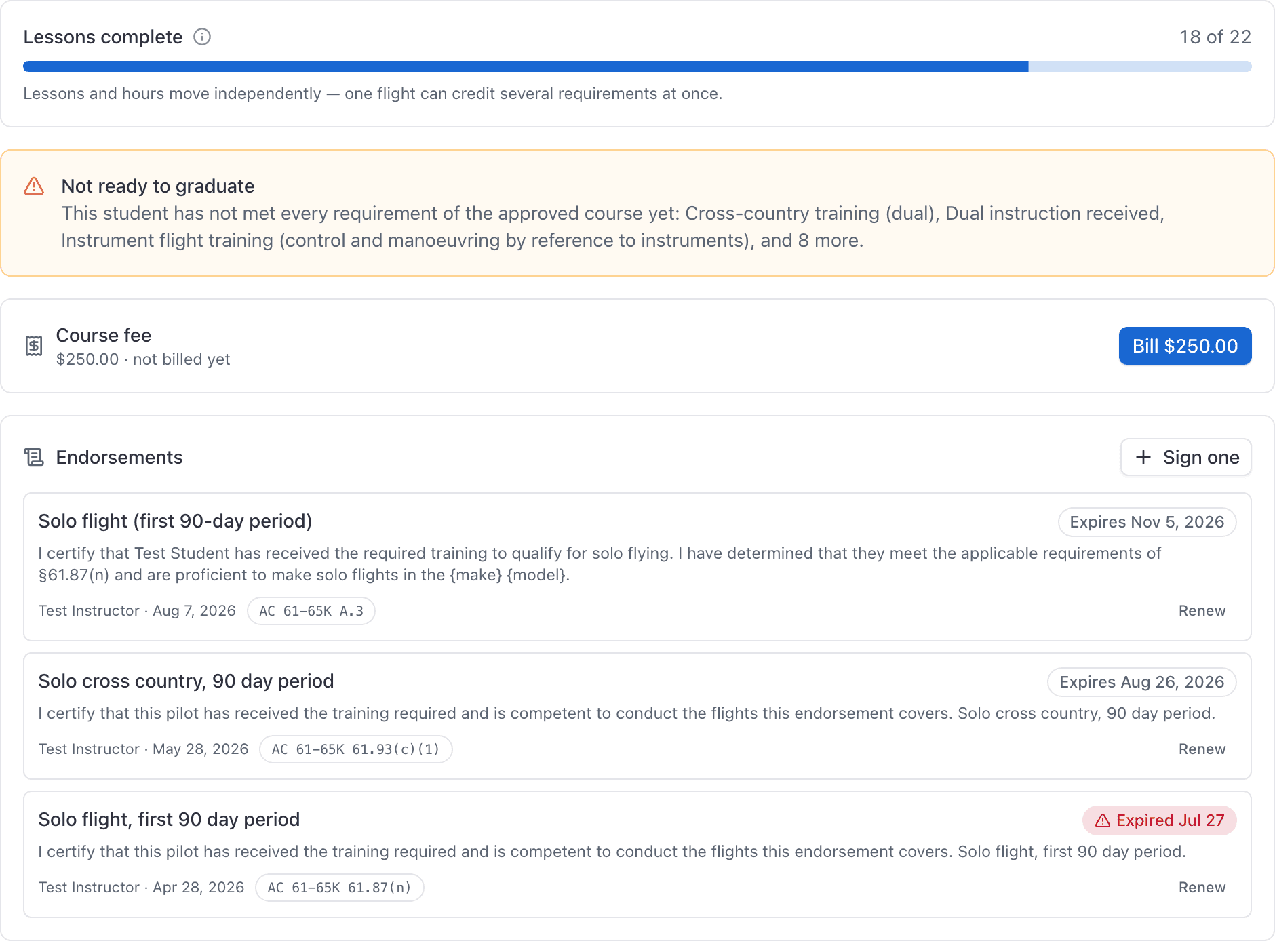
On a Part 61 course it never is. Nothing blocks graduation no matter how short the hours are, because the instructor decides readiness and the FAA counts the hours at the checkride. The requirement bars are advice, not a gate. If lessons are unfinished or requirements are short, the Graduate dialog lists them before you confirm, and Graduate stays a secondary button until the course is complete.
On a Part 141 course it is disabled while either of these is true:
- the record has not been certified, or
- any requirement sourced from Part 61 or Part 141 is still unmet.
The reason is written in the amber "Not ready to graduate" card on the Overview tab, which names the outstanding requirements. If you are sitting on the Requirements or Lessons tab you will see a dead button and no explanation, so go back to Overview.
Requirements you created with Comes from set to "Our own" never block graduation, however short the student is. Only a Part 61 or Part 141 requirement can stop it. See Add hour and landing requirements to a course.
End an enrollment: terminated or transferred#
For a student who stops, or who moves to another school.
Click End enrollment
In the training record header.
Choose Terminated or Transferred out
Pick the one that is true. This distinction is exactly what a student disputes two years later, which is why the reason is stored on both.
Type a reason, then click Record it
The status, the date and the reason are recorded, and the change is written to the audit trail.
What happens to the record afterwards#
Nothing is removed. Every lesson record, every signature and every ledger credit stays exactly as it was, whether the student graduated, quit or transferred. §141.101 requires the school to keep the record either way.
Two consequences worth knowing:
- No further lesson records can be added. Once an enrollment is graduated, terminated or transferred, the console refuses new records against it, and there is no un-graduate. If there is an unrecorded ground lesson, record it before you graduate them.
- An unbilled enrollment fee is still billable. A student who left in week two may still owe it, so the Bill button stays on the record. See Charge a course enrollment fee.
Re-enrolling a student later#
A student may only have one active enrollment per syllabus version, but after a termination they can be enrolled again on the same version. The old enrollment stays where it is, with its own records, and the new one starts empty.
If they are coming back after a long gap, consider posting their earlier hours as prior training credit against the new enrollment, dated when they were actually flown.
Still stuck on this?
Email support@aerscheduler.com and tell us what you were trying to do. We answer.