
Grade a lesson from a student's training record
Open the student's record, find the lesson, then save a draft or save and sign. Signing freezes the record and posts its hours to every requirement the lesson credits.
For instructors and admins
Open the student's training record, go to Lessons, find the lesson and click Grade (or Continue if a draft is already open). Fill in the grade, hours and notes, then Save draft to leave it open or Save and sign to finish. Signing freezes the record and posts its hours to every requirement the lesson credits.
Use this when the flight was closed out without grading, when you are catching up on paperwork, or when you want to leave a record half-finished and come back to it. The quicker path for a flight you have just flown is grading at the close-out.
Open the record and find the lesson#
Open the student's training record
WebTraining → Students and click the row, or the person's page → Training → the enrollment.
Go to the Lessons section
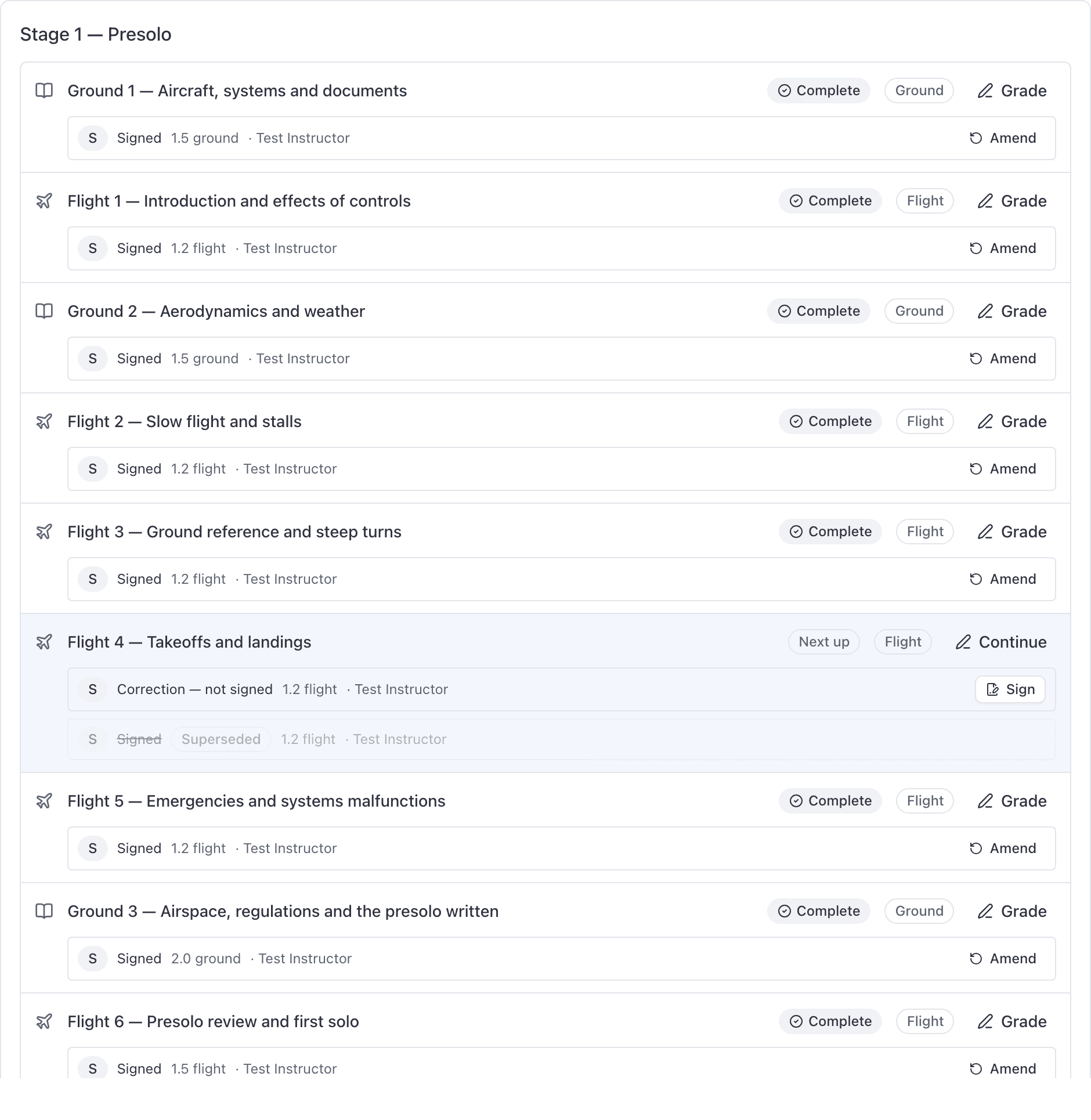
Stages and lessons in syllabus order. The lesson the syllabus suggests next is highlighted and badged Next up.
Click Grade
It reads Continue instead if somebody has already started a draft for that lesson. A lesson already marked complete has no Grade button: correct it with Amend on the signed row instead.
Save a draft, or save and sign#
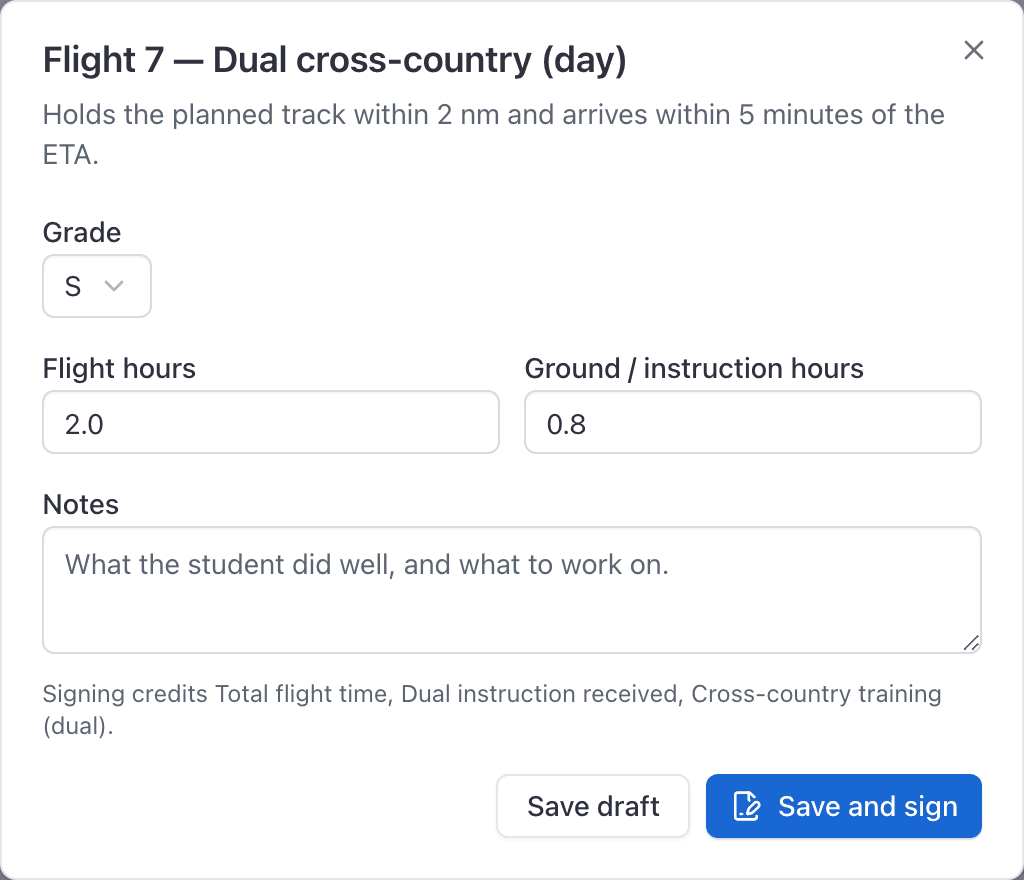
Fill in Grade, Flight hours, Ground / instruction hours, When it was flown and Notes. If the lesson carries minimum flight and ground hours from the syllabus, the boxes arrive prefilled with them, so the common case is open, confirm, sign.
On a flight or simulator lesson, Of which, simulator hours is part of the flight figure, not extra. Recency is judged on the date you type, not on when you press Sign.
| Button | What it does |
|---|---|
| Save draft | Leaves an editable record. The row reads Grading. Nothing is credited yet, and anyone who can grade can pick it up. On a lesson the syllabus marked sign-off optional, a passing Save draft is the finish: it stamps the instructor signature and posts the hours, and the student is not asked to countersign. |
| Save and sign | Freezes the record and posts its credits. The row reads Awaiting student until the student countersigns. On a sign-off-optional lesson, Save and sign after a passing Save draft does nothing further: the hours are already posted. |
What signing credits#
The dialog tells you before you commit, for example: "Signing credits Total flight time, Dual instruction received, Night flight training."
That list comes from Credits toward on the lesson in the syllabus. If the line is missing or shorter than you expect, the lesson credits nothing or credits less than you meant, and the fix is in the syllabus rather than here. See Build a syllabus.
Awaiting the student's signature#
Your signature is the one that freezes the record and credits the hours. The student's countersignature only acknowledges it, and the record can sit at Awaiting student indefinitely with its hours already counted.
Nothing in the product chases the student. To find records nobody has countersigned, filter the Training records report on Signatures = Awaiting student. See Pull training records for an FAA inspection.
Students sign from WebMy training, from the course record that link opens, or from the app. See See your training progress and sign your lessons.
Grading out of order on a Part 141 course#
On a Part 141 course, saving a draft for a lesson whose earlier lessons are not complete returns a warning naming the count: "N earlier lessons in this course have not been completed. Record a reason if you are taking this one out of order."
Complete here is the same rule as the rest of the record: a signed unsatisfactory grade still counts as outstanding, and a lesson the syllabus marked as not needing a signature is complete on its passing grade alone.
It is a warning and never a block. Put the reason in the notes and carry on. Save and sign does not raise it at all.
On a Part 61 course there is no warning, in either direction. See Part 61 vs Part 141.
Simulator hours and per-task grades#
On a lesson your syllabus marks as a sim, the dialog adds Of which, simulator hours. It is part of the flight figure above it rather than an addition, which is what makes your course's simulator allowance apply to that time.
If the lesson has tasks, each one appears with its ACS code and your course's marks as buttons. Marking them is optional, nothing is marked for you, and pressing a mark again clears it.
A lesson marked Notes required in the syllabus will not sign with the Notes box empty. On a lesson that still requires sign-off, Save draft is still available: an unfinished record is exactly what a draft is for. On a sign-off-optional lesson, a passing Save draft is the signature, so notes are required there too.
What this dialog cannot do#
- No records on a closed enrollment. Once an enrollment is graduated, terminated or transferred, nothing further can be added: "This student's enrollment is graduated; records cannot be added to it." An unsigned draft left on the enrollment cannot be signed, amended, or countersigned either, and it does not post hours. There is no un-graduate, so record everything before you graduate somebody. See Graduate a student, or end an enrollment.
- No link back to a booking. A record saved from this dialog stands on its own, and the instructor named on it becomes whoever saved it. A record graded at the close-out carries a link to the flight. Re-saving from this dialog leaves that link alone; it does not clear it. If you care about the link, grade at the close-out.
Still stuck on this?
Email support@aerscheduler.com and tell us what you were trying to do. We answer.