
Sign an endorsement
Pick a template, fill in every blank, add your certificate number, and sign. The text is stored exactly as you signed it, and the endorsement belongs to the pilot rather than to a course.
For instructors and admins
On the pilot's Endorsements card click Sign one, pick a template, complete every blank in the body, enter your certificate number, and click Sign. The text is stored exactly as you signed it and is never regenerated.
Where you can sign one from#
The Endorsements card is the same card in three places, so use whichever you are already on:
- WebPeople → the pilot → Training
- The Overview tab of a student's training record
- WebMy training → Endorsements, for your own
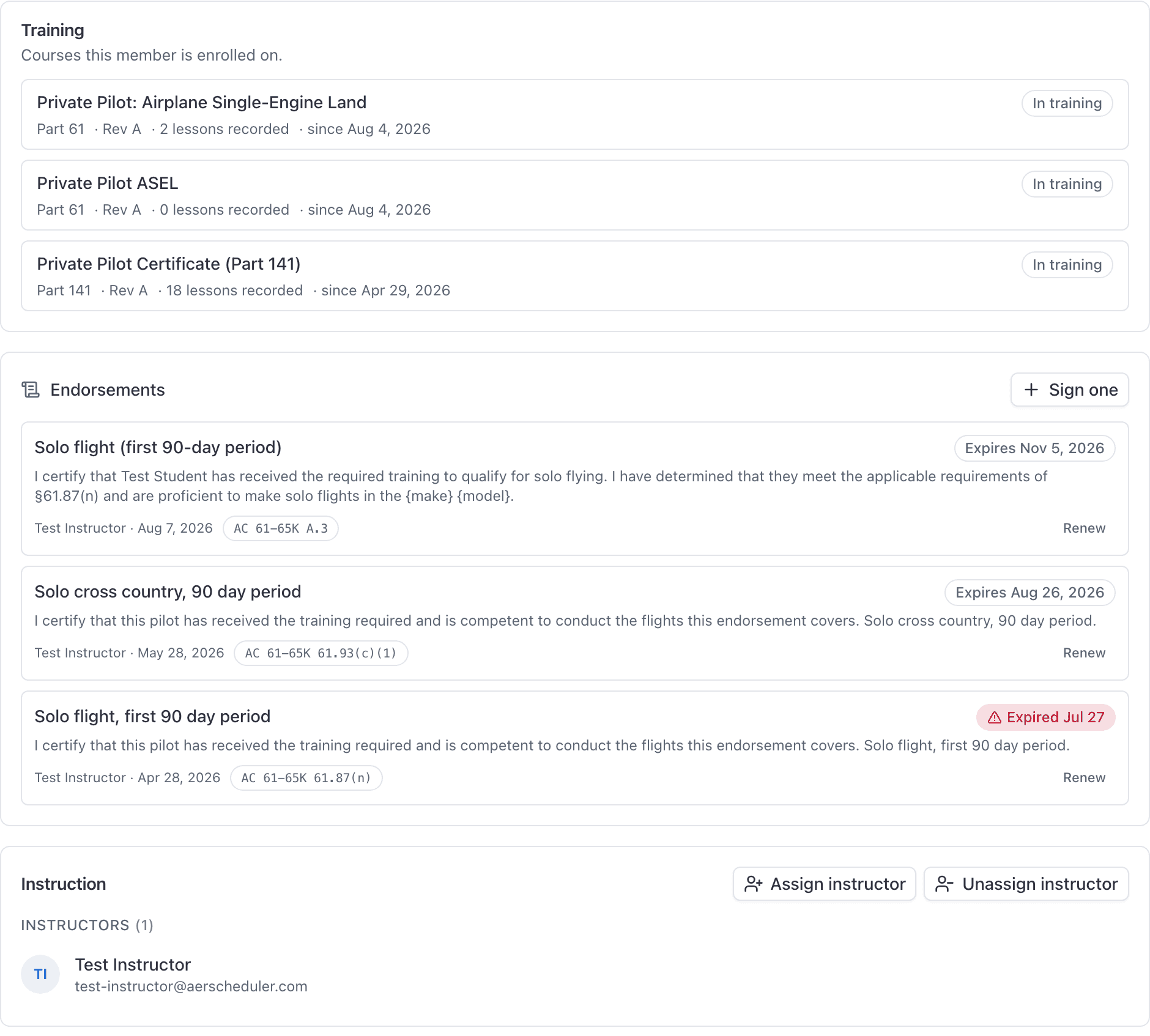
An endorsement belongs to the pilot, not to a course. That is why it appears on people who are on no syllabus at all: a rental checkout, a flight review, a tailwheel sign-off. Signing one from inside a training record also attaches it to that enrollment.
Pick a template#
Templates are grouped: Before solo, Solo, Cross-country, Knowledge & practical tests, and Additional privileges & reviews. There is also Something else, which gives you a free text box.
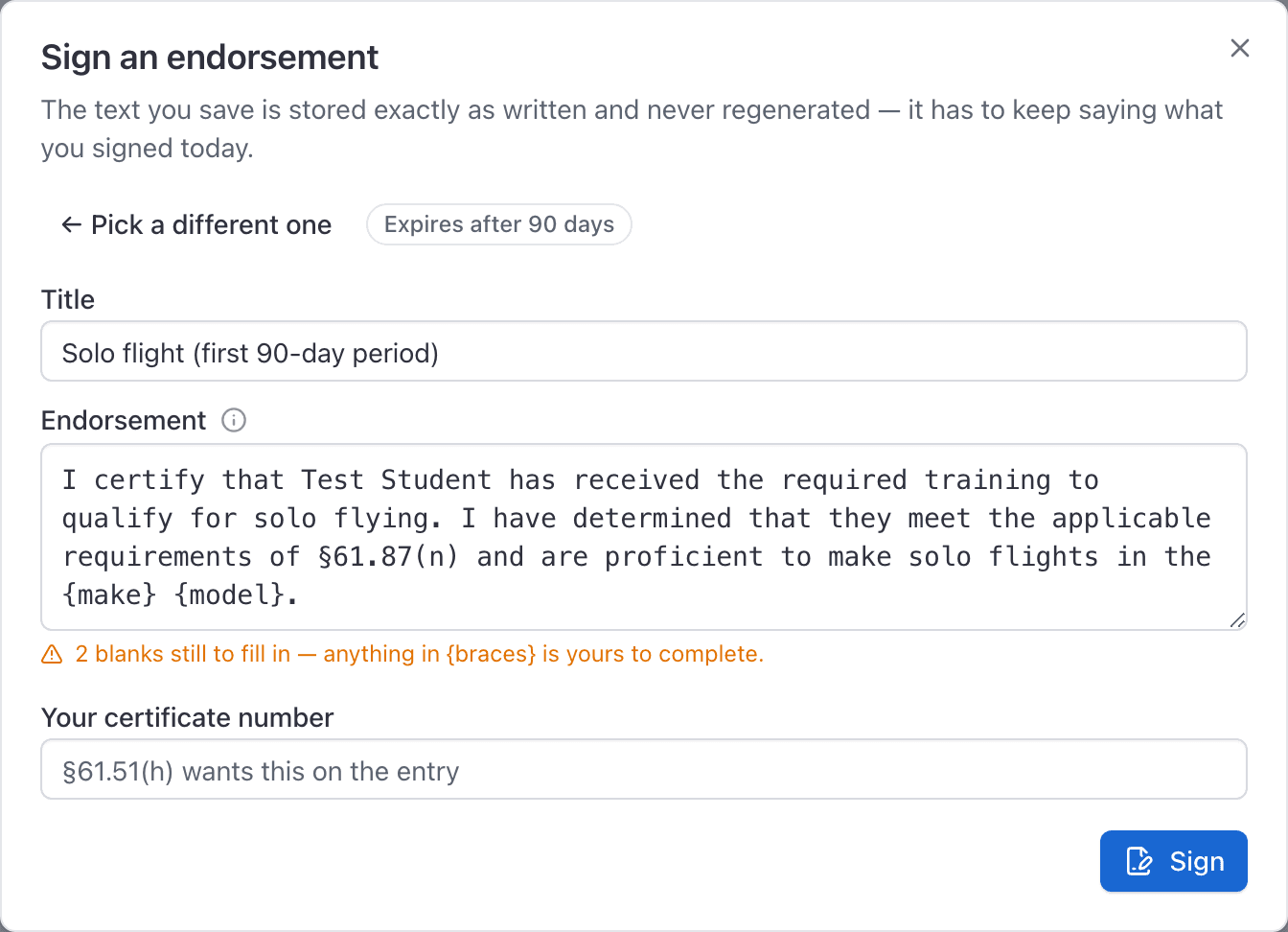
Choose one and the body arrives with the student's name already filled in.
Fill in the braces#
Anything the template leaves for you appears in braces, such as {make}, {model} or
{airport}. The dialog counts how many are left and tells you.
Sign it#
Enter Your certificate number, then click Sign.
What gets stored: the text exactly as it stood, your name, the date, your certificate number, and an expiry date if the template carries one. The 90 day solo endorsement under §61.87(n) and (p) carries one; a flight review sign-off does not.
The text is never regenerated. AC 61-65K will be revised eventually, and what you signed must not change underneath you.
Once signed it appears on the pilot's page, on the student's own My training tab, and, if it has an expiry, in the Endorsement expirations report and the nightly digest.
Renew an endorsement#
Renewing is always a fresh signature, never a changed date.
Click Renew on the row
Only endorsements that carry an expiry offer it.
Check the body
The template that was signed before is preselected and the text reloaded.
Complete the blanks and your certificate number, then Sign
A new endorsement is created that replaces the old one, with its own fresh expiry.
The old endorsement disappears from the card, from the expirations report and from the digest. It still exists on the record, it is simply no longer the current one. An endorsement that has already been replaced cannot be renewed a second time.
What is not in the template list#
The built-in templates are the AC 61-65K Appendix A endorsements a flight school signs most, each labelled with its paragraph number in the AC: the practical-test prerequisites (A.1 and A.2), the student pilot endorsements (A.3 to A.12), the knowledge and practical test endorsements for private, commercial, instrument and flight instructor (A.36 to A.47), the flight review and instrument proficiency check (A.69, A.71), complex, high-performance and tailwheel (A.72, A.73, A.75), and retesting after a failure (A.77). Sport, recreational, glider, balloon and type rating endorsements are not among them.
For anything outside the list, choose Something else and write the endorsement yourself. It is stored, signed, dated and shown on the pilot's page exactly like the rest.
Still stuck on this?
Email support@aerscheduler.com and tell us what you were trying to do. We answer.