
Build a syllabus: stages, lessons and tasks
Add stages, then lessons inside them, then the graded tasks inside a lesson. The control that matters most is Credits toward, because a lesson with nothing ticked credits no hours at all.
For owners, admins and instructors
Open the course and go to Syllabus. Add a stage, then lessons inside it, then the graded tasks inside a lesson. The control that matters most is Credits toward in the lesson dialog: a lesson with nothing ticked can be flown, graded and signed, and will credit no hours anywhere.
Before you start#
Two things save you a rebuild.
- The version has to be a draft. A published version is shown as a plain read-only page with no pencils and no Add buttons at all. That is on purpose, not a loading failure. See Publish a syllabus version.
- Add your requirements first. Until the version has requirements, the Credits toward box in the lesson dialog is empty and shows an amber warning, so lessons added early credit nothing until you go back and fix them. Add hour and landing requirements
Once a course has more than one version, a version dropdown appears in the course header. Check it before you edit anything: it silently governs the Syllabus, Requirements and Students sections below it.
Add a stage#
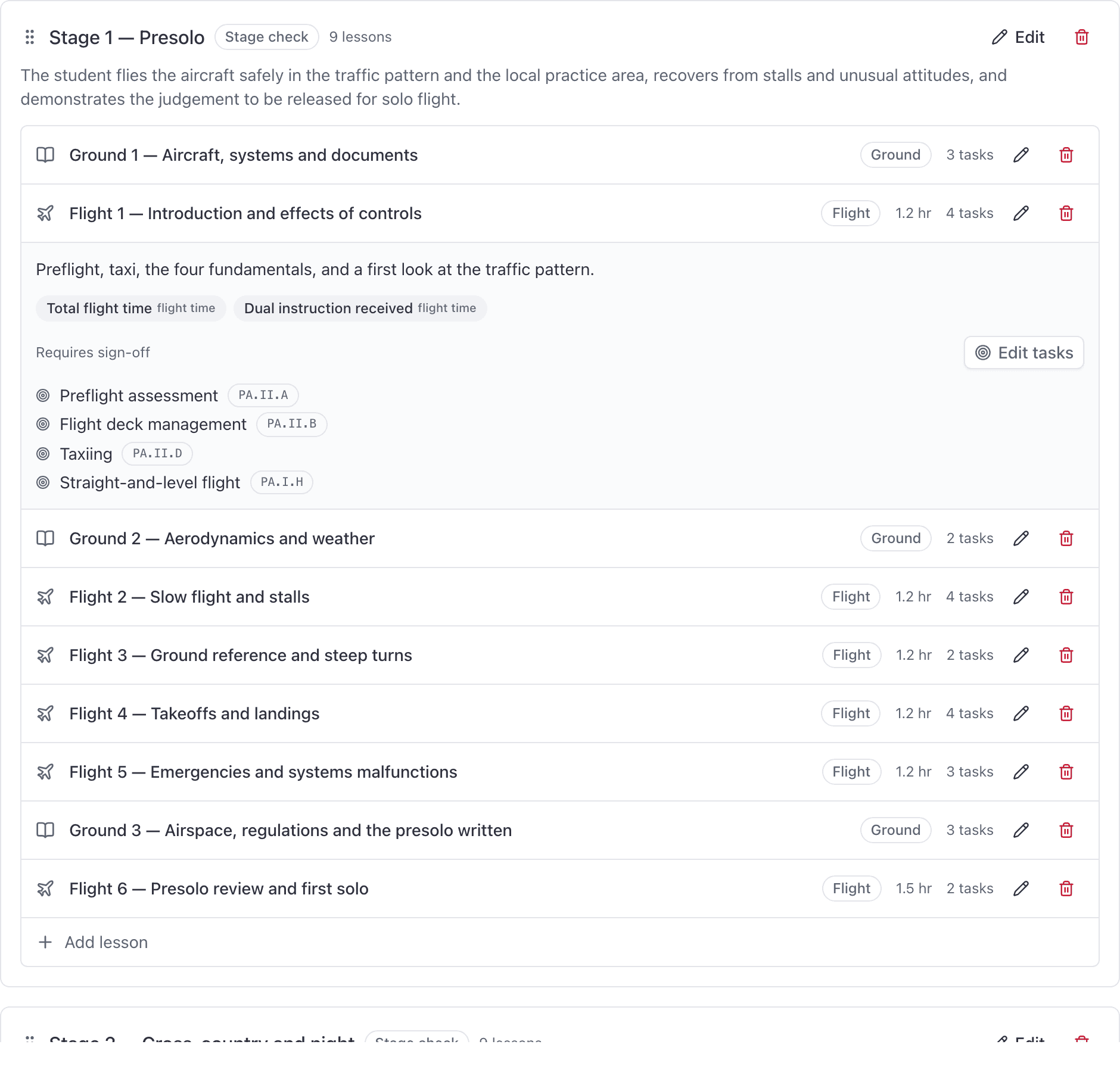
A stage is an ordered block of lessons: "Stage 1, Presolo", "Stage 2, Cross-country and night".
Course → Syllabus → Add stage
Give it a Name and an Objective
The objective is what the student reads on the record and on the phone.
Click Add stage
It saves immediately. There is no separate Save for the page.
Add a lesson#
Click Add lesson inside the stage
Fill in the lesson
Name, Type (Flight, Ground or Simulator), Flight hrs, Ground hrs, Objectives and Completion standards.
The hours are a prefill, not a floor. They fill the hour boxes in the grading dialog so the common case is open, confirm, sign. Nothing refuses a lower number on the day.
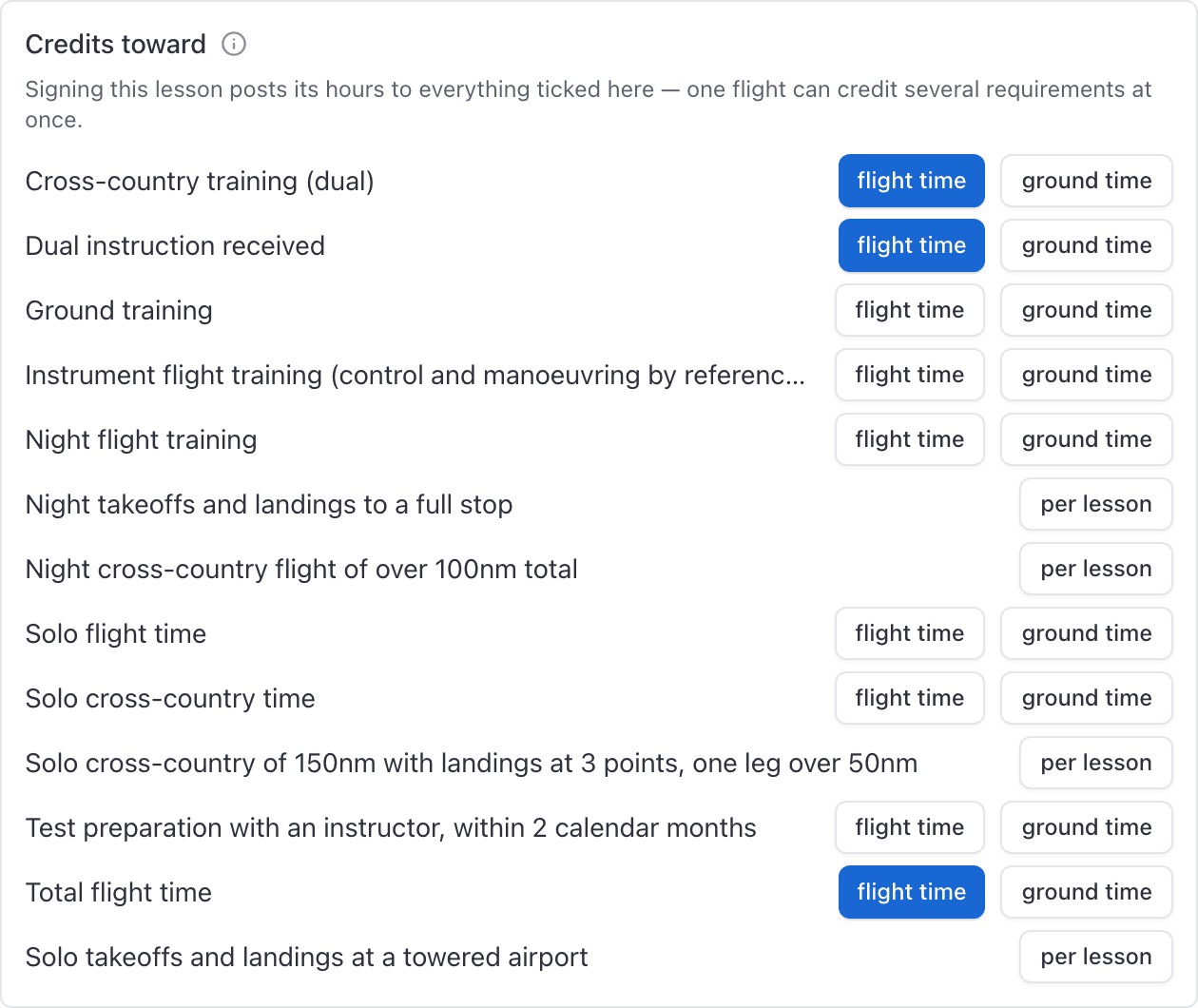
Tick Credits toward
Beside each requirement this lesson should feed, click flight time, ground time or per lesson. Read the next section before you skip this.
Click Add lesson
The Type you choose here decides which bookings can grade the lesson at close-out: dual and solo bookings offer flight lessons, ground bookings offer ground lessons, sim bookings offer sim lessons. See Grade a lesson when you close out the flight.
Tick what the lesson credits#
Credits toward is the fan-out. When a lesson record is signed, its hours are added to every requirement ticked here, from the clock you chose:
| Choice | What is posted |
|---|---|
| flight time | The flight hours on the record |
| ground time | The ground hours on the record |
| per lesson | One event, for a requirement measured in a count rather than hours |
One flight can credit several requirements at once, which is the whole point: a night cross-country feeds total time, dual received, night training and cross-country time from a single signature.
Add tasks and ACS codes#
A task is one graded item inside a lesson: one maneuver or one knowledge area, optionally
carrying its ACS code, for example PA.VII.B.
Expand the lesson row
Click Add tasks (or Edit tasks)
Click Add task for each item
Give it a name and, if you have it, the ACS code.
Click Save tasks
Edit, delete and reorder#
- Edit anything with the pencil on its row, while the version is still a draft. Name, objectives, hours and the other lesson fields stay editable after a student has a record on that lesson. Credits toward does not: once a record exists, changing what the lesson credits is refused, because it would rewrite what already-signed hours counted toward. Make a new version instead.
- Delete with the trash icon. Deleting a stage deletes the lessons inside it, and the confirmation names how many. If the syllabus already has training records, delete is refused and the page tells you why.
- Reorder is the one thing you cannot do. There is no drag to reorder, and a lesson keeps the position it had when it was added. Add lessons in the order you teach them, and if the order is wrong, delete and re-add rather than hunting for a handle.
Two lesson settings worth knowing#
- Notes required refuses the signature while the Notes box is empty ("This lesson needs notes before it can be signed."), on every surface: the app, the grading dialog, the flight close-out and the API. Set it on the lessons where a narrative matters. On a lesson that still requires sign-off, Save draft is unaffected, so a half-written record can still be parked. On a sign-off-optional lesson a passing Save draft is the signature, so notes are required then too. Once a record exists on the lesson, this switch, Requires sign-off, and This is the stage check freeze with the credit map: flipping them would rewrite whether an unsigned grade already counts as complete.
- Requires sign-off defaults on. Turn it off for a self-study module or a written quiz: a passing grade finishes the lesson without a student countersignature, and saving that passing grade also stamps the instructor and posts the hours. The console hides Sign once the lesson is complete, so those hours have to post on Save draft or they never would.
- Flight hrs and Ground hrs prefill the grading dialog, as above.
Next#
The amounts a student has to accumulate, and the caps that discount them.
Which marks the course uses, and which of them complete a lesson.
What publishing locks, and how to revise it afterwards.
Check the version first, then enroll from the course page.
Still stuck on this?
Email support@aerscheduler.com and tell us what you were trying to do. We answer.