
See your training progress and sign your lessons
My training shows every course you are on, how far through the syllabus you are, the hours you still need, and any lesson waiting for your signature.
For students, renters and instructors
WebMy training, under You in the navigation, shows every course you are on, how far through the syllabus you are, the hours each requirement still needs, and any lesson waiting for your signature. On the iPhone app the same thing is under Training.
Open My training#
Sign in to the web console and look under You in the left navigation for My training. It has two tabs: Progress and Endorsements.
You will not see the school's Training page, and you cannot open anyone else's record. This page is your own record only, and it shows exactly the same numbers your instructor and your school see. That is deliberate: §141.101 makes the record yours as much as theirs. Instructors who are also students still only see their own courses here. The school's roster is under Training.
Read your progress#
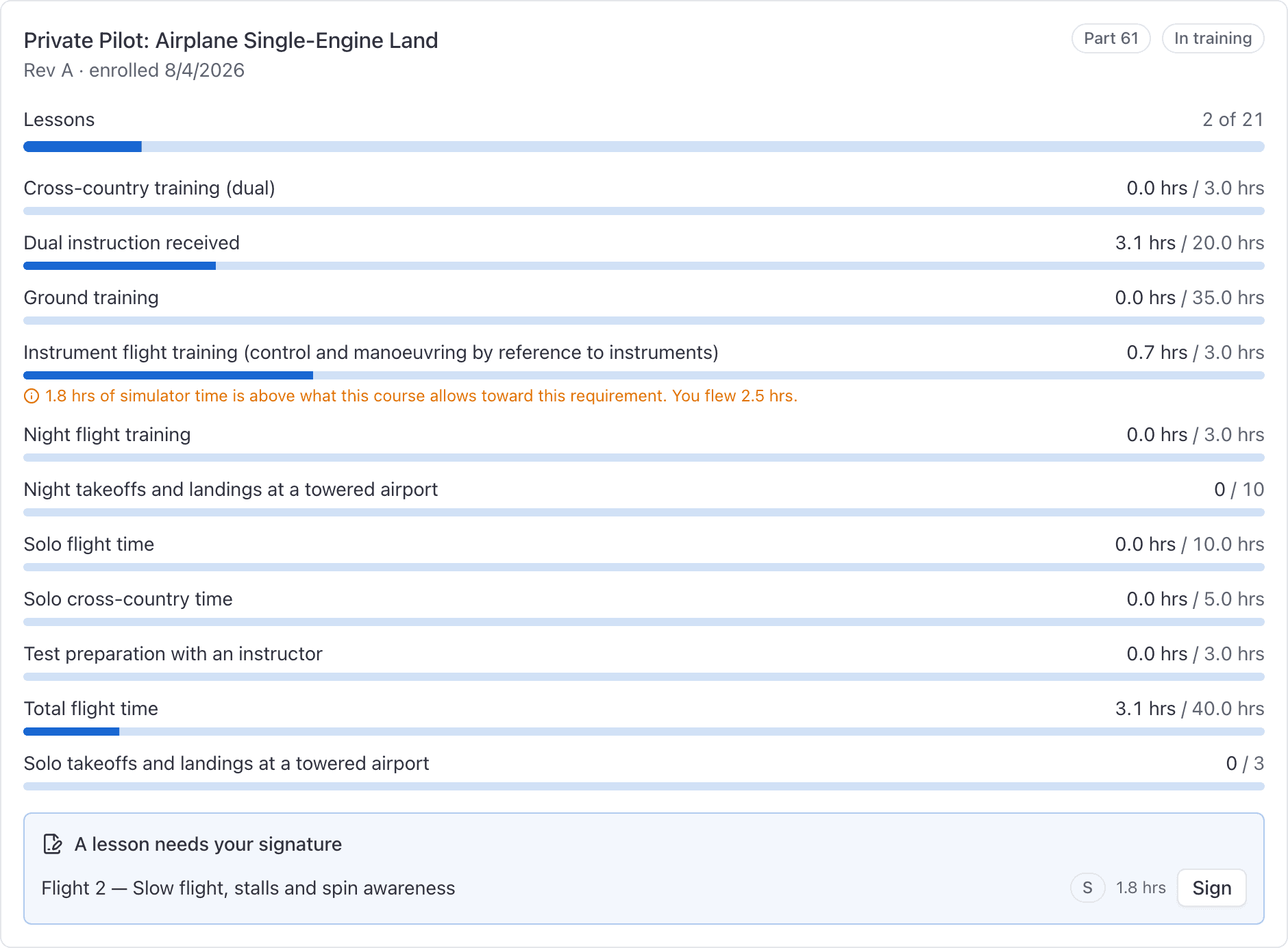
One card per course you are enrolled on, showing the course, which revision of the syllabus you are training against, the date you enrolled, and your status.
At the top is your next lesson, with Book a lesson beside it.
Then two measures, and they are not the same thing:
- Lessons, as a timeline. Each stage of your syllabus is a bar across the months, filled as far as your signed lessons go, with your stage check as a diamond. After today the bar is striped: that is a forecast of when you will finish at the pace you have flown so far, not a promise.
- Requirements, one row each. The hours or the landings you must accumulate before you can test.
Neither predicts the other. You can be on lesson 19 of 21 and still be hours short, or have the hours long before the syllabus is finished.
A lesson only counts as complete once your instructor has signed it with a passing mark. A lesson you have to fly again stays on your record and does not move the bar.
Under the requirements, a course for a certificate or rating shows Checkride readiness: the syllabus, the hours, and the endorsements an examiner will ask to see, each ticked once it is done. The A.1 endorsement has to be signed within the two calendar months before the month of your test, so the list says until when the one you have is good. What each item means.
Why a requirement shows fewer hours than you flew#
Because that requirement has a rule limiting what counts, and the page will say which one:
- Time in a simulator or training device, above what the course allows toward that requirement.
- Training transferred in from another school, above the limit for previous training.
- Training that has fallen outside the requirement's recency window, when it has to have been flown within the last few calendar months.
If a number still looks wrong, ask your instructor rather than assuming. They can see the same ledger you can, entry by entry.
Sign a lesson your instructor signed#
When your instructor signs a lesson the syllabus asks you to countersign, it waits for you to acknowledge it. On the Progress tab a highlighted block reads that a lesson needs your signature. Click Sign beside it.
The course name on each card is a link into the same record the school sees. Sign is there too, at the top of every tab, so you do not have to come back to My training to countersign.
Signing does not change the grade or the hours: those were credited when your instructor signed. Your signature completes the record.
A school can mark a lesson sign-off optional (a self-study module, a written quiz). Those finish when your instructor saves a passing grade: the hours are credited then, and you are not asked to countersign. They do not appear in the countersign block, and they do not show as awaiting your signature on the record.
Three things you may see instead:
- Your instructor has not signed the lesson yet, so there is nothing to countersign.
- You have already signed it.
- The enrollment has ended (graduated, terminated, or transferred). Sign is hidden then, because the record is closed.
Your endorsements#
The Endorsements tab lists the endorsements signed for you, with their expiry state. A solo endorsement carries a 90 day clock, and this is where you check it before you plan a solo flight. Searching an endorsement from the command menu opens this tab, not Progress.
Only an instructor or an administrator can sign or renew one. If yours is close to expiring, ask your instructor to renew it, which signs a fresh endorsement rather than extending the old one.
Doing all of this on the app#
Open Training from the app menu. Your list is headed by the course, with the revision underneath. Tap it.
The enrollment screen carries the same lessons bar, how many lessons of how many are complete, your course fee if there is one, an Up next card for the lesson you are heading for, and two tabs: Lessons and Requirements. A signed lesson shows its grade and its hours on the row.
If a lesson is waiting for you, a Waiting for your signature card appears near the top. Tap Sign on it. This is the same action as on the web, and it is the only write you have in the training module.
Still stuck on this?
Email support@aerscheduler.com and tell us what you were trying to do. We answer.