
Find endorsements about to expire
The Endorsement expirations report and the dashboard tile are the durable list. The nightly email is a convenience and is only sent once per stage.
For owners, admins, dispatchers and instructors
WebReports → Compliance → Endorsement expirations is the list to work from, and the Endorsements expiring tile on the Reports overview is the shortcut to it. The nightly email is a convenience: it is sent once per endorsement per stage, so do not treat it as the reminder system.
Instructors cannot open Reports. Their two routes are the nightly digest and the Endorsements card on each pilot's page.
The dashboard tile#
WebReports → OverviewThe attention strip carries an Endorsements expiring tile counting everything already lapsed, however long ago, plus anything due in the next 14 days. Click it and the Endorsement expirations report opens, pre-filtered to Expired and Expiring over that same window.
An endorsement due in 15 days or more is still Valid, so it is not in the count. The tile is the urgent list, not the month ahead: use the report for that. When the count is zero the tile leaves the strip and the name is listed on the Clear: line underneath it.
The Endorsement expirations report#
WebReports → Compliance → Endorsement expirationsOne row per endorsement, with:
| Column | What it tells you |
|---|---|
| Student | The pilot the endorsement was signed for. |
| Endorsement | Which one. Its AC 61-65K code is a separate column, added from the toolbar. |
| Status | Expired, Expiring or Valid. |
| Expires | When it lapses. |
| Days left | Negative once it has lapsed. |
| Signed by | The instructor who signed it. |
The default range is the next 90 days. Widen it to see further out, or set it backwards to sweep up anything that lapsed while nobody was looking.
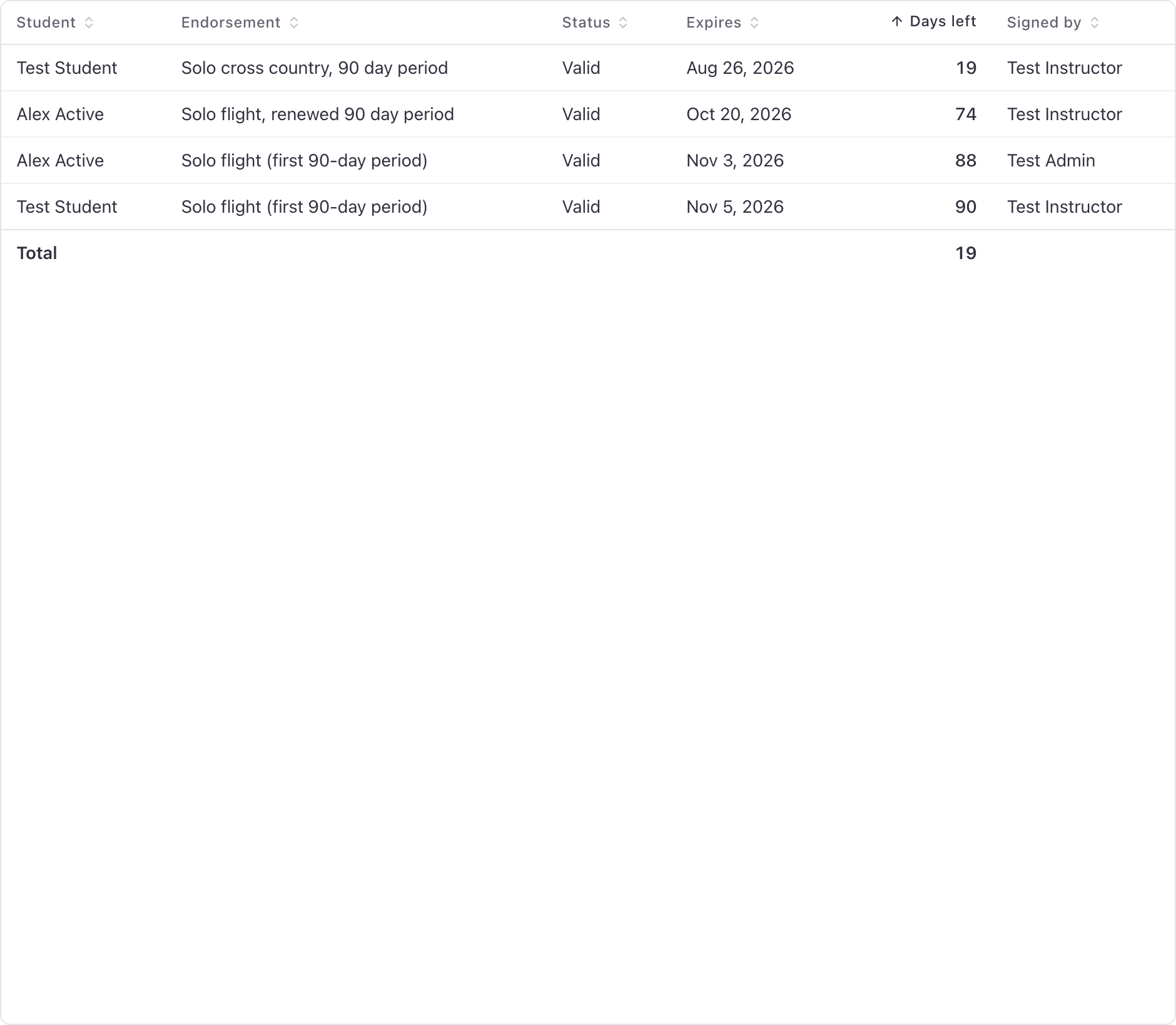
Everything else on the standard report toolbar works here too: filter, group, add columns, save the view, export it, or have it emailed on a schedule.
What the report leaves out#
Two things, both deliberate, and both worth knowing before you use this as a compliance sweep:
- Endorsements with no expiry date never appear. A flight review sign-off or a complex aircraft endorsement has no clock, so there is nothing for this report to count down. Look at the pilot's Endorsements card instead.
- An endorsement that has been renewed is excluded. Renewing signs a new one that replaces the old, so only the current endorsement is listed.
Turn the email and push digest on or off#
WebYou → Notification settingsThe Endorsement expirations row has a switch for email and a switch for push. The row only appears for admins and instructors, because nobody else is ever sent the digest.
Renew before it lapses#
Open the pilot's page, find the endorsement on the Endorsements card and click Renew. The template is preselected, you fill in the blanks and your certificate number, and sign. See Sign an endorsement.
Renewing never edits a date. It signs a fresh endorsement that replaces the old one, so the row leaves this report and comes back with a new clock. The old text stays on the record, which is what makes the history readable later.
Still stuck on this?
Email support@aerscheduler.com and tell us what you were trying to do. We answer.