
Email a report to yourself or your accountant on a schedule
Save the report as a view, then click the clock icon beside it. AerScheduler emails that view as a CSV every day, week, or month, at an hour on your school's clock.
For owners, admins, dispatchers and technicians
Save the report as a view, click "Saved views", then the clock icon beside the view. AerScheduler emails that view as a CSV attachment every day, week or month, at an hour measured on your school's clock.
Save a view first#
A schedule always points at a saved view, never at a report on its own. If you have not saved one yet, shape the report and click "Save as". See Save a report as a view.
Open the schedule dialog#
Click Saved views in the report toolbar
The popover lists every view you can see on this report.
Click the clock icon on the view's row
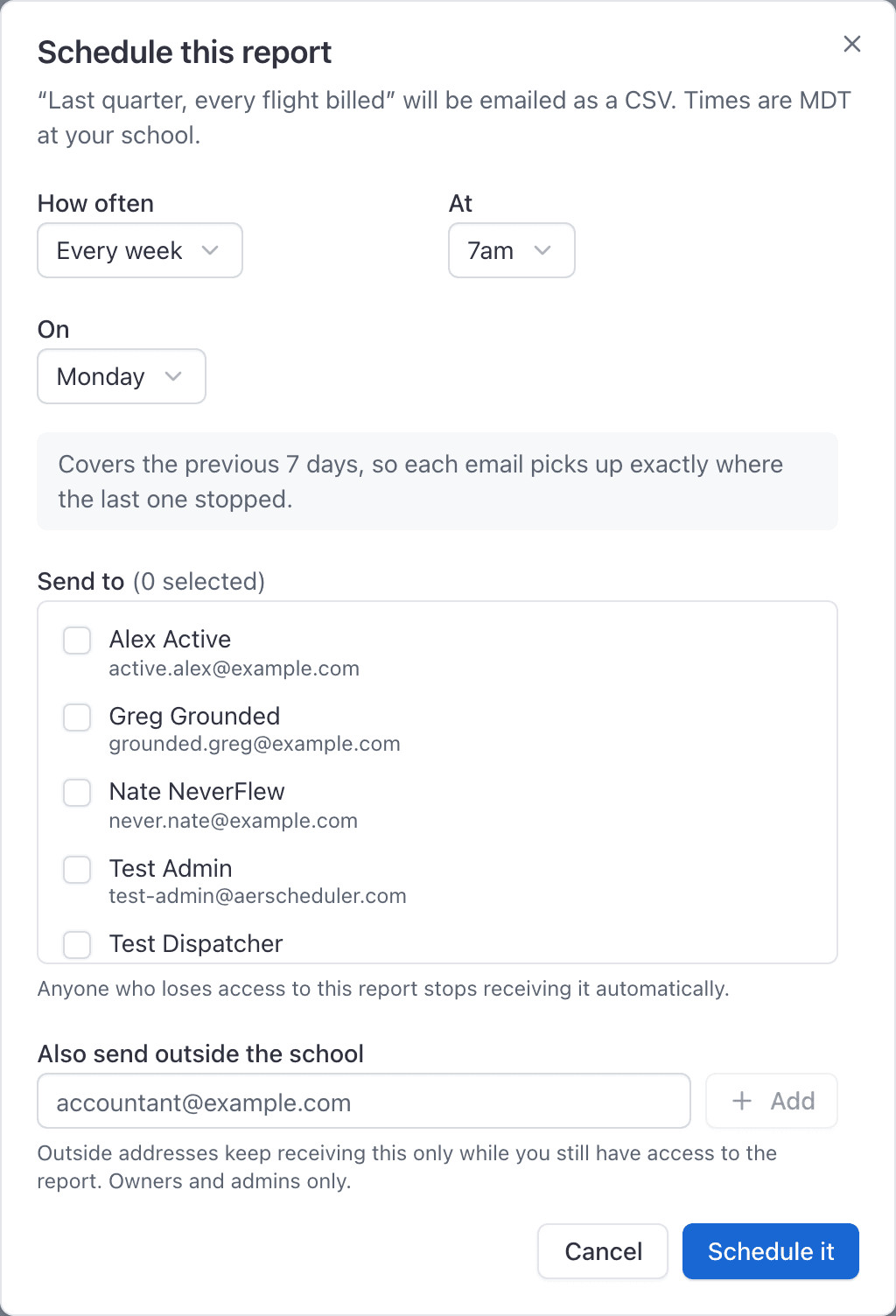
The "Schedule this report" dialog opens.
Set how often and at what hour#
Choose "How often": Every day, Every week or Every month. Then set "At", which is the hour it goes out.
- Every week also asks for the weekday.
- Every month also asks for the day of the month, from 1 to 28.
Click "Schedule it" to finish.
What period each email covers#
The cadence decides the window, and the saved view's own dates are ignored.
| How often | What the email covers |
|---|---|
| Every day | Yesterday |
| Every week | The seven days ending yesterday |
| Every month | The whole previous calendar month |
The email's subject is the view's name followed by the period, and the body states the period and the row count before you even open the attachment.
Choose who it goes to#
Tick the people at your school who should receive it, under "Send to". Everyone on the list must be a member of this school, and a schedule needs at least one recipient.
Send it to an accountant outside the school#
Owners and admins get an extra field: "Also send outside the school". Type email addresses there for people who are not members, such as your accountant or a club treasurer.
Times are your school's, not yours#
"7am" means 7am at the field, on your school's clock, no matter where the reader is or where you were sitting when you set it up.
That clock comes from WebSettings → Organization. A scheduled send has no browser attached, so if no organization time zone is set it falls through to UTC. Set the zone once and this stops being a question. See Date ranges, date basis, and your school's time zone.
Day of the month stops at 28#
Monthly schedules only offer days 1 to 28, and the dialog says why: a schedule set to the 30th would skip February every year. Picking 28 or lower means the report never misses a month.
Pause, edit, or stop a schedule#
Everything lives on WebReports → Scheduled reports.
| Control | What it does |
|---|---|
| The switch on the card | Pauses delivery without losing the setup. The card shows a "Paused" chip and greys out. |
| Edit | Reopens the dialog to change cadence, hour or recipients. |
| Send now | Sends exactly what the next real delivery would contain, right now. |
| Stop sending | Deletes the schedule. |
Only the person who created a schedule, or an admin, can edit, pause, test-send or delete it. On a schedule you can see but not manage, the card says "Set up by" and the person's name, and notes that only they or an admin can change it.
See everything the school is emailing out#
WebReports → Scheduled reports lists one card per schedule: the saved view's name, a chip with the report name, the cadence line ("Every Monday at 7am · covers the previous 7 days"), the recipients, and when it last went.
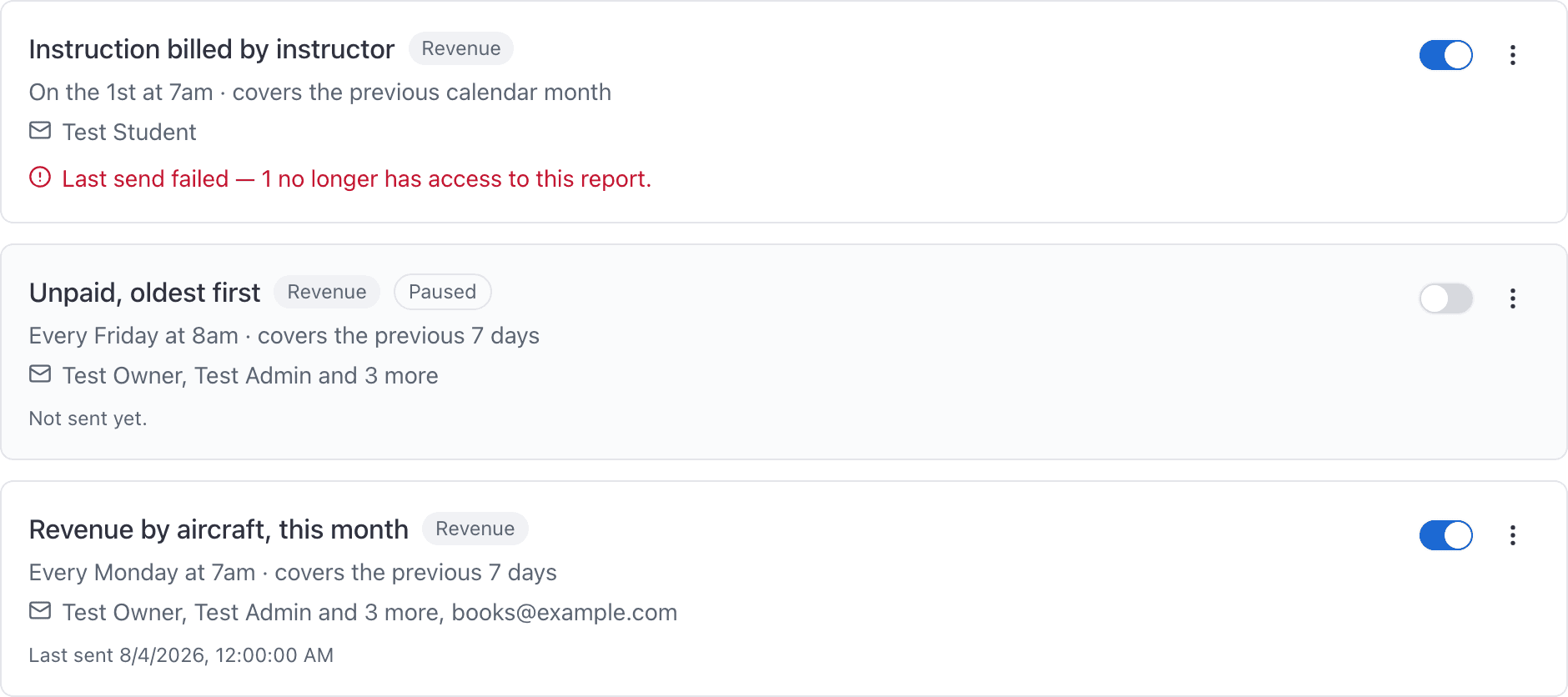
The list only shows schedules whose underlying report you can run. A dispatcher cannot see that a revenue report goes out weekly, let alone read it.
If an email has stopped arriving, the card's last line usually says why. See A scheduled report did not arrive.
Still stuck on this?
Email support@aerscheduler.com and tell us what you were trying to do. We answer.