
Run a report and filter the results
Pick a report from the left rail, set the date range, then use Filters to narrow it. Read the small caption under the toolbar first: it tells you which date the range applies to.
For owners, admins, dispatchers and technicians
Open WebReports, pick a report from the left rail, set the date range, then click Filters to narrow it. Read the small caption under the picker first: it tells you which date the range applies to.
Open a report#
Go to Reports
WebReports in the left navigation. On a narrow screen the rail becomes a "Choose a report" select at the top of the page.
Pick a report from the rail
Reports are grouped under Financial, Operations, Fleet, Maintenance shop, People and Compliance. You only see the categories your roles grant, so the rail is shorter for a dispatcher and shorter again for a technician.
Read the report's one-line description
It sits under the report name at the top of the pane and says what a row is.
Nothing you do here is saved. The report is recomputed on every change, and leaving the page discards the shaping. If you want to keep it, save it as a view.
Set the date range#
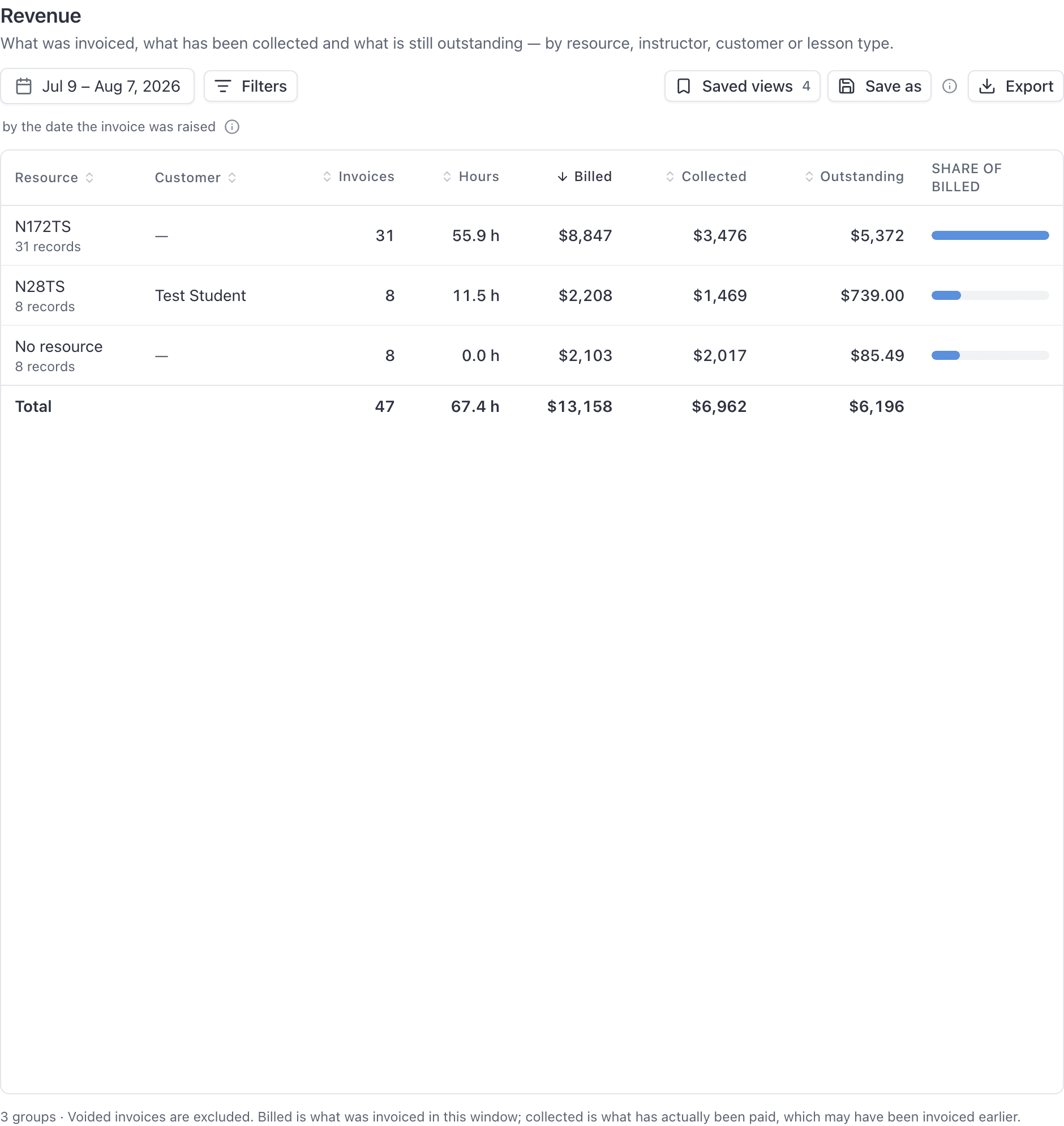
The date range picker sits at the left of the toolbar. Presets are Last 7 days, Last 30 days, Last 90 days and Last 12 months, or you can set your own dates.
Each report opens on its own default window. Most look back 30 days. The three compliance reports (Document expirations, Pilot currency, Endorsement expirations) open on the next 90 days instead, Student progress opens on year to date, and Training records opens on the last 90 days.
Read the date basis caption before you trust the numbers#
Under the picker there is a small caption reading "by" and then a date, such as "by the date the invoice was raised" or "by the date of the flight". That is the date your range applies to.
Add a filter#
Click Filters
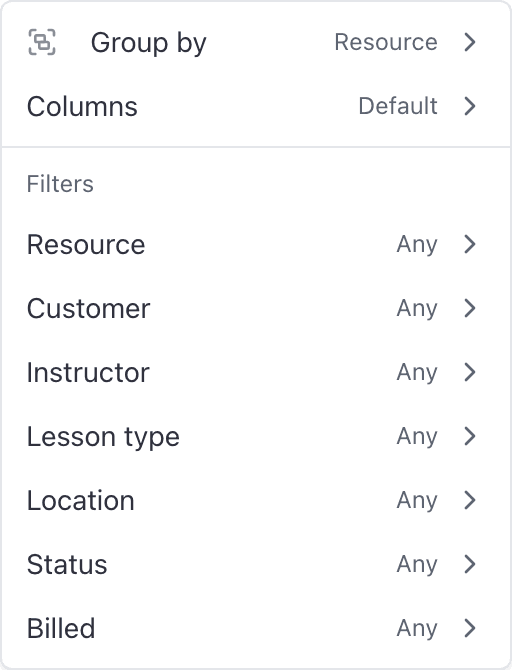
The button sits beside the date picker. The menu behind it holds Group by and Columns as well as the filters, so this is also where grouping lives.
Pick a field from the Filters section
Each report offers its own list of fields.
Choose or type a value
Some fields give you a searchable list of values to tick. Others give you a box to type into.
Pick a condition if the field offers more than one
The Condition list is pinned to the bottom of the field's submenu.
Close the menu
The filter appears as a dismissible chip under the toolbar, and the badge on the Filters button goes up by one.
Conditions: is, is not, over, under, is between#
Depending on the field, the Condition list offers: is, is not, is more than, is at least, is less than, is at most, contains, starts with, is any of, is none of, is empty, is not empty, and is between.
Two rules govern how filters combine:
- One filter per field. "Over 1 hour and under 5" is the "is between" condition, not two filters.
- Filters are always ANDed. To express an OR, use a multi-select condition ("is any of") on the field the question turns on.
A filter you have added but not yet given a value to does nothing at all, so the table does not empty out while you are mid-edit.
Money is typed in dollars and hours in hours#
Type money in dollars and hours as hours, so 2.5 means two and a half hours. A "$" or "hours" hint sits beside the box, and the conversion is automatic.
Remove a filter or clear them all#
Click the "x" on a filter chip to drop that one. To drop all of them at once, use "Clear all" beside the chips, or "Clear all filters" inside the Filters menu.
What the row count and the Totals row are telling you#
Under the table you get the row count ("n rows", or "n groups" when the report is grouped), then "page x of y", then the report's footnote. The table pages at 100 rows.
Sorting, filtering and grouping all apply across every matching row, not just the page you are looking at. Click any column heading to sort by it.
The sticky row at the bottom of the table is the Totals row, and it aggregates every matching row across all pages too. That is what you want when you are reconciling a window against a bank statement.
On an ungrouped report, clicking a row opens the invoice or booking behind it in a detail panel.
A dash is not a zero#
A dash in a cell means no value was recorded. Zero means it really was zero, and the difference matters.
An aircraft booked for 13 hours whose flights were never closed out shows a blank Flown and a blank Efficiency, not "0.0 h" and "0%". Printing zero would claim the aircraft sat idle, which is a different and wrong finding. If a whole column is dashes, its total comes out blank as well.
The usual cause is a flight that was never closed out. See Ramp out and ramp in.
When nothing matches#
The empty state reads "Nothing matched. Try a wider date range", and adds "or fewer filters" when you have filters set. Both suggestions are worth taking in that order: widen the window first, because the window is what most often excludes the rows you were expecting.
Things that catch people out#
Next#
Collapse the rows into one line per aircraft, instructor or customer.
Every matching row, with numbers a spreadsheet can add up.
Still stuck on this?
Email support@aerscheduler.com and tell us what you were trying to do. We answer.