
Export a report to CSV or PDF
Set the report up the way you want it and click Export. CSV is for a spreadsheet, PDF is for the copy somebody hands over. Both hold every matching row, not just the page on screen.
For owners, admins, dispatchers and technicians
Set the report up the way you want it, then click Export at the right of the toolbar and pick a format. CSV is for a spreadsheet; PDF is for the copy somebody hands over. Both hold every matching row, not just the page on screen.
Export what is on screen#
Shape the report first
Set the date range, add your filters, choose the grouping, pick the columns, and sort it. The export is a copy of what you have built, so anything you change afterwards is not in the file.
Click Export and pick a format
It sits at the right of the toolbar, beside Saved views and Save as. Choose CSV for a spreadsheet or PDF for a copy you are handing to somebody. The file downloads immediately.

What ends up in the file#
Every matching row. Not the 100 rows on the page you were looking at, and not a truncated sample.
The file carries the columns you chose, in the report's own order, with your grouping applied. Underneath the rows there is a totals row, labelled "Total" in the first column. That row is always taken over every matching row, so on a grouped export it is the whole report's total, not any one group's.
How numbers are written#
Nothing is exported as a formatted string, so every numeric column can be summed in a spreadsheet without any cleaning up first.
| Kind of column | How it exports | Heading |
|---|---|---|
| Money | A plain number in dollars | Carries "(USD)" |
| Hours | A decimal | Carries "(hours)" |
| Percentages | A number from 0 to 100 | Carries "(%)" |
The file also carries a UTF-8 byte order mark, which is what makes Excel open accented names correctly rather than turning them into punctuation.
The file name and the school's clock#
Files are named after the report and the window, like revenue_2026-01-01_2026-01-31.csv or
airworthiness_2026-01-01_2026-12-31.pdf.
Those dates are your school's dates, measured on the school's time zone, so the file name and the window on screen always agree. If nobody has set the school's time zone yet, see Date ranges, date basis, and your school's time zone.
Why Export is greyed out#
Export is disabled when the report has zero matching rows. There is nothing to write.
Widen the date range or drop a filter, and it comes back. If the table reads "Nothing matched", that is the same condition stated in words.
Which format to pick#
CSV when the file is going into a spreadsheet. Every numeric column is written plain so it can be summed without cleaning up first, and there is a totals row at the bottom.
PDF when the file is going to a person. It carries your school's name, the window it covers, the date it was produced, and the report's own footnote, because a printed page outlives the screen that made it and has to say what it is on its own. This is the one to use for an IA at an annual, a buyer's mechanic, an insurer, or an inspector.
There is no XLSX export. There is also no export on the Overview dashboard and none on Audit Logs. To get a dashboard figure into a spreadsheet, click the tile to open the report behind it and export from there.
A very wide report in PDF#
A page has a fixed width and a spreadsheet does not. If your chosen columns cannot be fitted legibly, the PDF turns sideways first, and if that is still not enough it drops columns from the right and names the ones it dropped on the page. It will not shrink a report until it is unreadable, and it will not quietly leave columns out without saying so. If you need every column, export the CSV.
Opening the file in Excel#
Double-clicking the file works. Because the numbers are plain and the encoding is marked, you can select a money column and read the sum in the status bar straight away.
The Cancellations page has its own separate export#
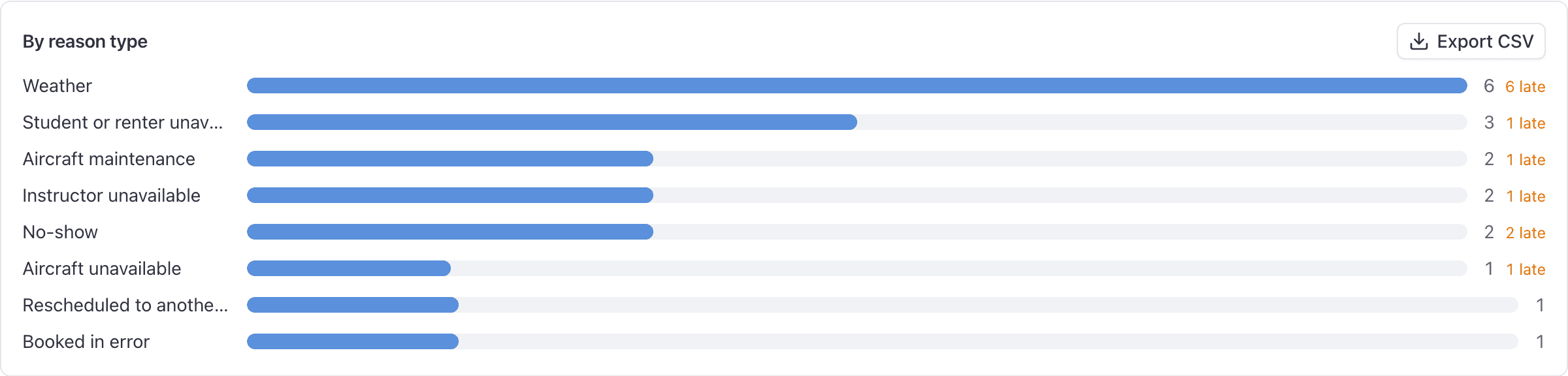
WebOperations → Cancellations is a different screen from the Cancellations and no-shows report on the Reports page. It has its own summary section, its own search box, its own Category and Notice filters, and its own Export button.
The two overlap, so pick deliberately: use the Cancellations page when you want to search and read individual cancellations, and the report when you want to group, save the view, or have it emailed on a schedule.
Next#
The same CSV, sent automatically every day, week or month.
So you do not have to rebuild it before every export.
Still stuck on this?
Email support@aerscheduler.com and tell us what you were trying to do. We answer.