
Save a report as a view, and share it with the school
A saved view remembers the filters, grouping, columns, sort, and dates that were on screen. It is how a school turns a handful of reports into the thirty it actually asks for.
For owners, admins, dispatchers and technicians
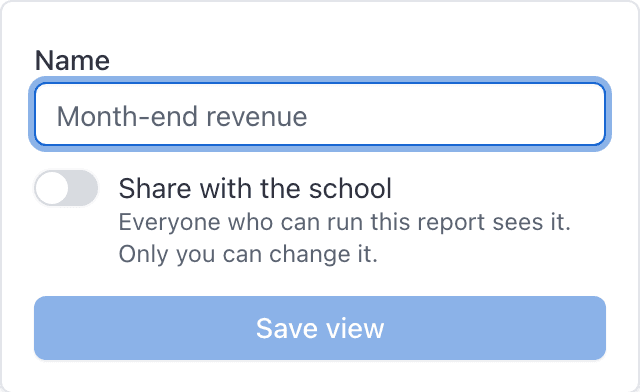
Shape a report, click "Save as", give it a name, and optionally turn on "Share with the school". A saved view remembers the filters, grouping, columns, sort and dates that were on screen.
Save the report you are looking at#
Shape the report
Date range, filters, grouping, columns, sort. All of it is captured.
Click Save as
It sits in the toolbar at the right, between Saved views and Export.
Type a name
Up to 60 characters. Name it the way somebody would ask for it out loud: "Month-end revenue", "Lapsed students", "Grounding squawks".
Click Save view
The view appears in the Saved views list for this report and becomes the active view.
Saving a view is how a school turns a handful of reports into the thirty it actually asks for. There is no way to build a report that is not in the built-in list, and there does not need to be.
Share it with the school#
Turn on "Share with the school" in the Save as dialog, or edit the view afterwards.
A shared view is visible to everyone at the school whose roles let them run that report. It is not visible to anyone else, so sharing a Revenue view does not expose revenue to a dispatcher: they cannot run the report, so the view never appears for them.
Apply a saved view#
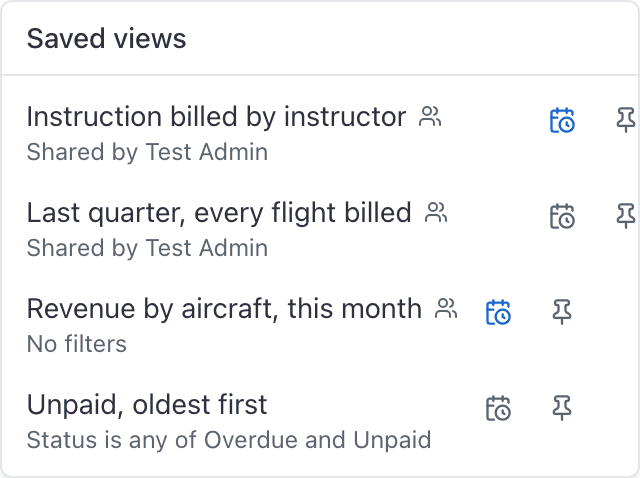
Click "Saved views" in the toolbar and pick one from the list. The report redraws with that view's filters, grouping, columns, sort and dates.
Each row in the popover also carries three icons:
| Icon | What it does |
|---|---|
| Clock | Schedule this view by email |
| Pin | Pin it to your Overview dashboard |
| Bin | Delete it, on views you are allowed to delete |
"Clear selection" at the bottom of the popover drops back to the plain report.
Update a view you saved#
With one of your own views active, change whatever you want on screen and click "Update". It overwrites that view with what is now on screen.
The Update button only appears for a view you own. On somebody else's shared view, use "Save as" to make your own copy instead.
Delete a view#
Open Saved views and click the bin icon on the row.
A saved view remembers exact dates, not the words "Last 30 days"#
This is the one behaviour that surprises people.
A view saved while you had specific dates on screen stores those exact dates. Re-applying it a month later restores that same window, not the equivalent window today.
The picker's presets are no exception. "Last 30 days" is resolved to real dates the moment you save, so the view keeps that month's window rather than meaning the last 30 days from whenever you next open it.
Scheduled reports handle this differently. A schedule ignores the saved view's dates entirely and uses the cadence's window instead, so a weekly email always covers last week. See Email a report on a schedule.
Who can change a shared view#
| Who | Can apply it | Can update or delete it |
|---|---|---|
| The person who saved it | Yes | Yes |
| An admin or owner | Yes | Only views they saved themselves |
| Anyone else who can run the report | Yes | No |
| Anyone who cannot run the report | It does not appear for them at all | No |
What a saved view is used for next#
A saved view is the unit that two other features build on.
A schedule always points at a saved view, so save the view first.
The pin copies the view onto your own board as a tile.
Still stuck on this?
Email support@aerscheduler.com and tell us what you were trying to do. We answer.