
Find out who changed something
Audit Logs records who did what, from which surface, and exactly which fields moved. It is owner and admin only. Anyone who can see a booking can read that booking's own Activity timeline instead.
For owners, admins, instructors and students
WebAudit Logs records who did what, from which surface, and exactly which fields moved. It is owner and admin only, it covers the whole school, and nothing in it can ever be edited or deleted.
Open Audit Logs#
WebAudit Logs in the left navigation. It is not in the nav for anyone below admin, and the route refuses them directly too.
The page opens on the last 30 days. The subtitle under the heading is the number of events in the window you are looking at.
Columns are When, Action, Who, About and Type. Under each name in the Who column there is a smaller line reading "via console", "via app" or "via API", so you can tell a front desk edit from something done on a phone at the ramp.
Actions that take something away or undo it render red. Ordinary edits do not, and neither do meter corrections or grade amendments, which are deliberate corrections rather than removals.
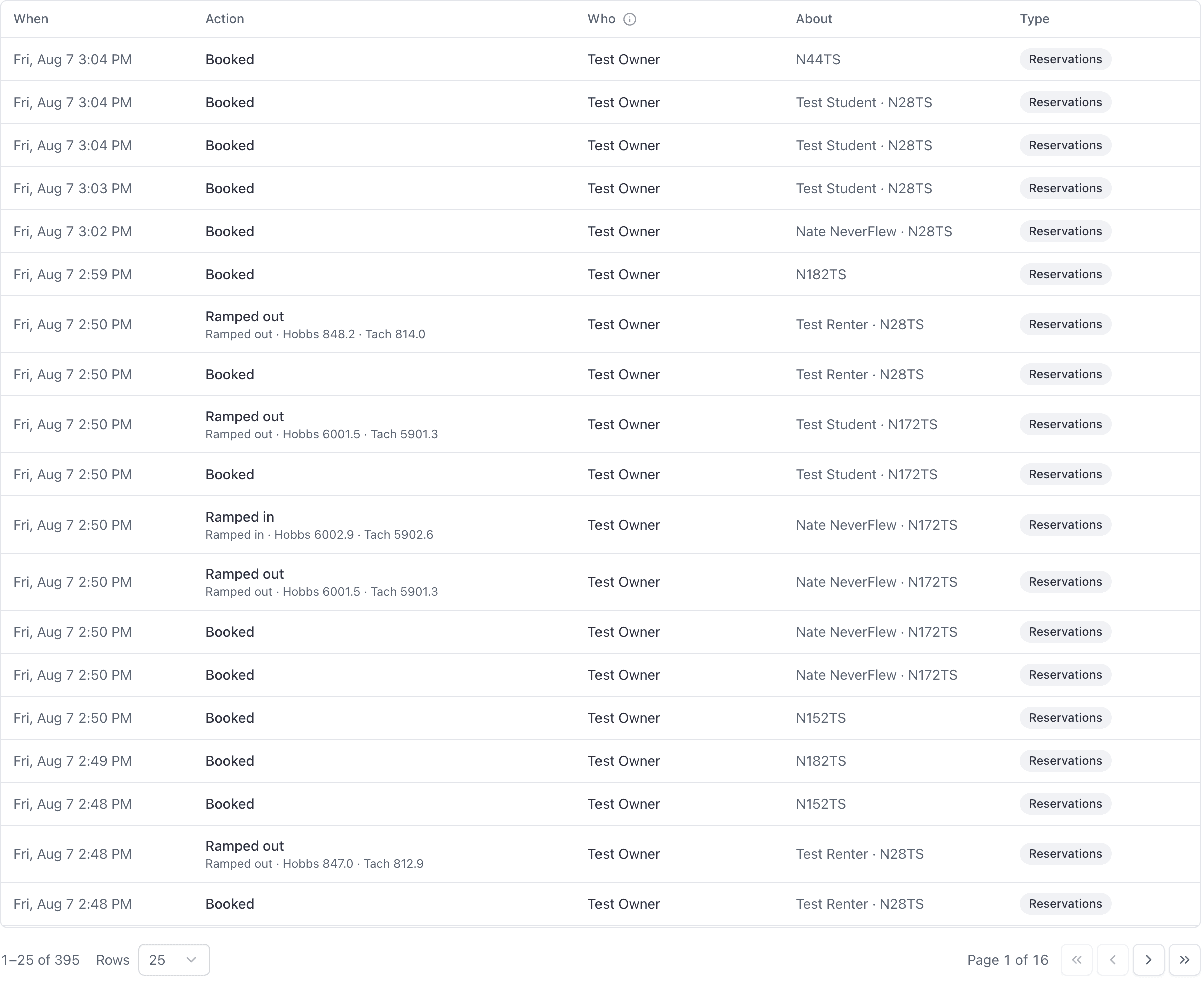
Narrow by type, person, and date#
Three filters sit above the table.
| Filter | Values |
|---|---|
| Type | Reservations, Invoices, Members, Aircraft & facilities, Squawks, Inspections, Documents, Training, Memberships, Join requests, Settings, API keys, Standby, Ledger |
| Person | "Anyone", or any member of the school |
| Date range | Defaults to the last 30 days |
When nothing matches, the page reads "Nothing in this window".
Read the detail panel#
Click any row and a panel docks open beside the table. It carries the full timestamp, who did it, what it was about, the aircraft where one is involved, which surface it came through, the record's type and id, and the field-by-field "What changed" diff.
With the panel open, the up and down arrow keys step through the events on the page without closing it, which is how you follow a sequence of edits in order.
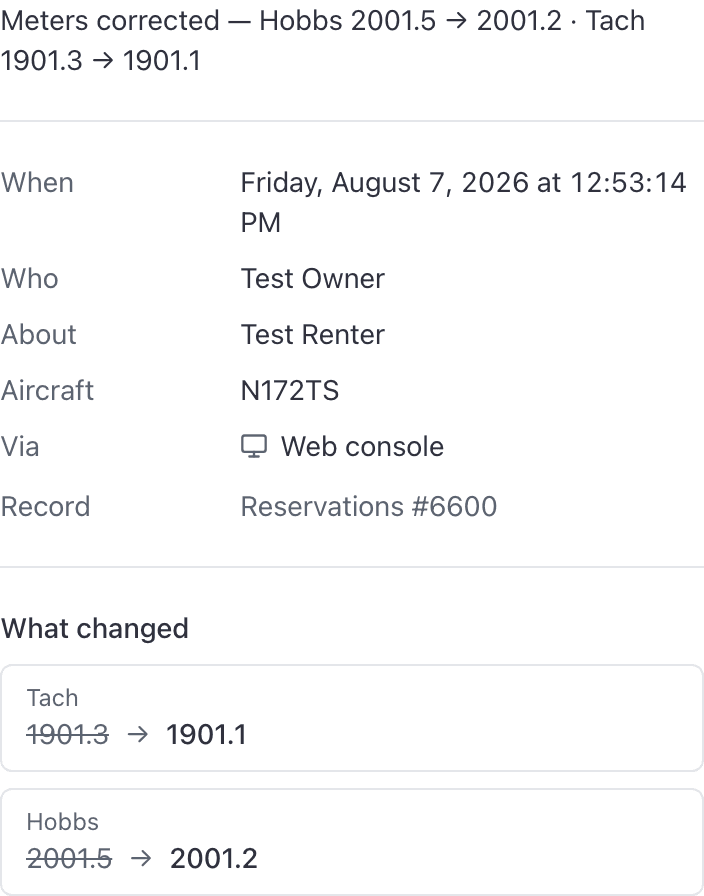
What changed, field by field#
"What changed" shows the before and after for each field that moved, not a sentence describing it.
Hours are converted for you, so a Hobbs correction reads in hours rather than in the tenths the system stores internally.
Names of people in an event summary are resolved when you read the entry, so a member who later changes their name still reads correctly in an old entry.
Hand the finding to somebody else#
The filters and the open row all live in the URL. Copy the address bar and paste it to a colleague and they land on exactly the same event, filters and all, provided they are also an owner or an admin.
AerScheduler in the Who column#
An event whose actor is blank shows "AerScheduler". That is not missing data.
It means nobody clicked it: a nightly sweep, a payment webhook coming back from Stripe, or the invoice a close-out raises automatically. Treat it as "the system did this" and read the What changed panel for the detail.
Why the Record line is not a link#
Every other reference in the console is clickable. The Record row in the detail panel deliberately is not: it shows a type and an id, such as a reservation and its number.
An audit entry outlives the record it describes. A link would be dead exactly when the entry matters most, which is after somebody deleted the thing you are investigating.
Seeing what happened to one booking#
Open the booking and read the Activity list at the bottom of its detail panel. That is the one booking's own history in order: booked, ramped out, ramped in, signed off, invoiced, paid, voided, cancelled, with who did each one and whether it came "from the console", "from the app" or "via the API".
Audit Logs is still the tool for anything wider than one booking, and for the field-by-field "What changed" diff, which Activity does not show. Set Type to Reservations, set the date range to cover the booking's life, and read down the rows. The Record row in the detail panel gives you the reservation number to match against.
What the audit trail does not cover#
The trail is append-only. There is no edit and no delete anywhere in the product, for anyone, including owners. That is the point: a log somebody can tidy up is not evidence.
Slot offers are not in it either. When a cancellation frees a slot, the offer going out, rolling on after a decline, and expiring on its deadline are the product working rather than somebody acting, and a row for each one would bury the entries you came here to find. Whoever accepts still appears, as the booking they made. For who was offered a slot and what they said, open WebCalendar → Pending offers.
Which trails are admin only#
Audit Logs itself, the school-wide feed, is owner and admin only. A dispatcher, an instructor, a student or a technician cannot reach it.
The exception is the Activity list on a booking. The schedule is a shared, view-only mirror, so any member who can open a booking can read that booking's own history. Every other record's trail, including invoices, members, aircraft, squawks, documents, inspections, memberships, join requests, settings and API keys, stays admin only wherever it appears.
If you need somebody below admin to answer "who changed this" beyond a single booking, they need the role, not a workaround.
Related#
The rest of the reporting permission model.
When the question is "why did this number move" rather than "who moved it".
Still stuck on this?
Email support@aerscheduler.com and tell us what you were trying to do. We answer.