
Publish a syllabus version, and change it later
Publishing locks a version forever. To change a published syllabus you create a new version, publish that, and retire the old one. Students already enrolled finish on the version they started.
For owners and admins
Open the course with the draft selected and click Publish, then Publish and lock. Publishing freezes that version forever and there is no unpublish. To change a published syllabus you click New version, edit the copy, publish that, and Retire the old one. Students already enrolled finish on the version they started.
What publishing locks#
Everything the version owns:
- every stage, and its stage settings
- every lesson, its hours, objectives and completion standards
- every task and ACS code
- every requirement, including the simulator, transfer and recency limits
- the grading scale
All of it becomes read-only, permanently. This is the one irreversible act in the training module.
The enrollment fee is the exception, because it belongs to the course rather than to the version. A price is a commercial decision, not part of the document you file, so you can change it whenever you like. See Charge a course enrollment fee.
Publish a version#
Open the course and select the draft
On a course with more than one version, check the version dropdown in the header. It governs everything below it, and publishing the wrong revision is not undoable.
Click Publish
Read the warning
It names how many lessons are about to be frozen, along with their tasks and requirements. If that count looks wrong, you have the wrong version selected.
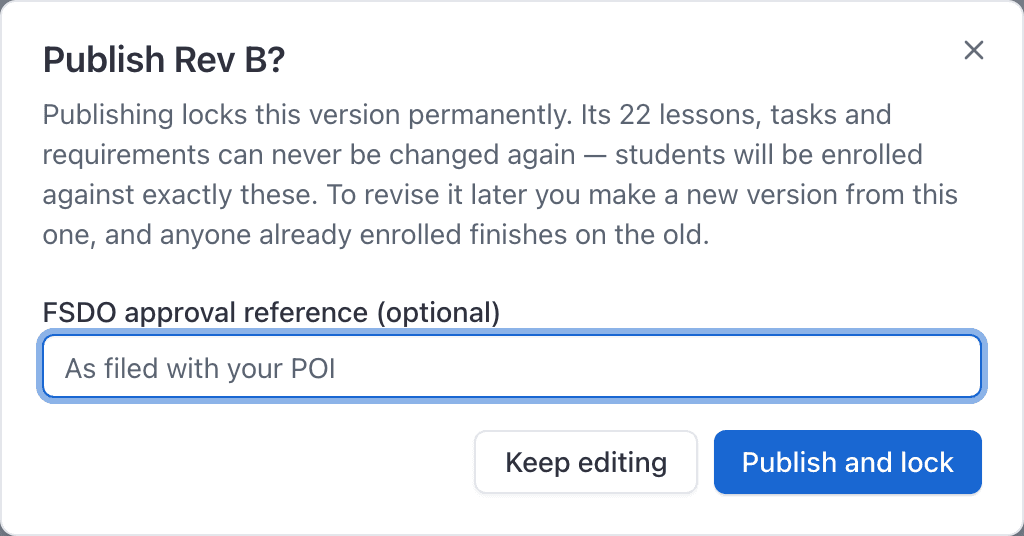
Part 141 only: enter the FSDO approval reference
Optional. It is stored against the version as the Training Course Outline reference you filed with your POI. Nothing depends on it.
Click Publish and lock
Keep editing backs out with nothing changed.
A version has to contain at least one lesson before it can be published. Publishing an empty one is refused with "Add at least one lesson before publishing this version."
Why a published syllabus has no edit controls#
After publishing, the header badge changes to Locked and the syllabus editor is replaced by a plain read-only page: no pencils, no Add buttons, no trash icons anywhere.
That is deliberate. Thirty greyed-out pencils read as a broken page, so the controls are removed rather than disabled. Nothing has failed to load.
The header actions change too: Publish is replaced by New version and Retire.

Change a published syllabus: create a new version#
Open the course with the published version selected
Click New version
Type a version name
"Rev B", "2026.1". It has to be unique within the course, or you get "This course already has a version called ...".
Click Create draft
Every stage, lesson, task, requirement and the grading scale are copied into a new editable draft. The published version, and everyone enrolled on it, are untouched.
Edit the draft, then publish it
Same dialog, same warning, same permanence.
Retire the old version
So nobody new is enrolled on it.
Retire a version so nobody new joins it#
Select the published version and click Retire. The confirmation says it plainly: no new students can be enrolled on it, and anyone already on it finishes on it.
Retiring is fully reversible. The button becomes Un-retire.
Enrolling on a retired version is refused with "This version has been retired. Enroll on the current version instead; students already on this one finish on it."
What happens to students already enrolled#
Nothing. That is the point of versions.
- A student enrolled on Rev A stays on Rev A, is graded against Rev A's lessons and Rev A's grading scale, and graduates against Rev A's requirements.
- They are never migrated to Rev B, and there is no supported way to move them across.
- Publishing Rev B, and retiring Rev A, changes nothing on their record.
Part 141 has one extra rule#
Under Part 141 you cannot enroll anybody until the version is published. Under Part 61 you can enroll students against a draft, which is convenient while you are still writing the syllabus and dangerous afterwards, because the draft can change under them. See Part 61 vs Part 141.
Still stuck on this?
Email support@aerscheduler.com and tell us what you were trying to do. We answer.