
How training records work in AerScheduler
The five pieces the training module is made of, and how a flight you already booked turns into a signed lesson, credited hours, and a record you can hand an inspector.
For owners, admins and instructors
Training is five pieces: a course, a syllabus version, an enrollment, a lesson record, and a requirement. You build a course, publish a version of its syllabus, enroll a student against that version, then grade and sign each lesson from the flight you already booked. The instructor's signature is what freezes the record and credits the hours.
The five pieces#
| Piece | What it is | Where it lives |
|---|---|---|
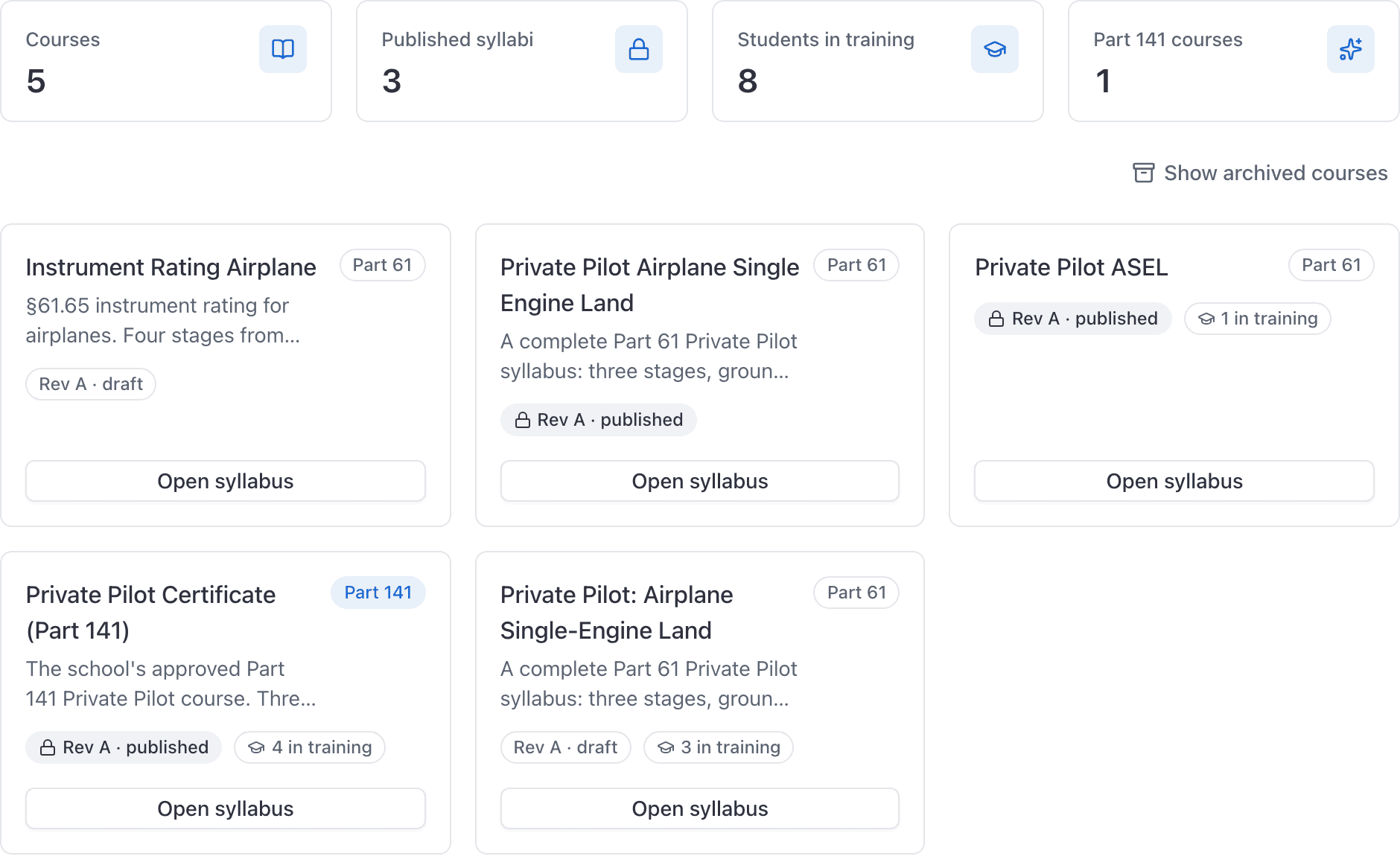
| Course | A thing your school teaches: Private Pilot, Instrument Rating, Tailwheel endorsement. It holds the name, the description, whether it is trained under Part 61 or Part 141, and the enrollment fee. It does not hold the lessons. | WebTraining → Courses |
| Syllabus version | One revision of that course's syllabus, named by you ("Rev A", "2026.1"). It owns every stage, lesson, task, requirement and the grading scale. It is a draft, published, or retired. | Course → Syllabus |
| Enrollment | One student on one syllabus version. It carries the enrollment date, the status, and a snapshot of the course fee as it stood the day they enrolled. | Course → Students |
| Lesson record | A lesson that actually happened: the grade, the flight and ground hours, notes, the instructor's signature and the student's countersignature. | The student's training record → Lessons |
| Requirement | Something the student must accumulate before graduating: 40 hours total, 3 hours night, 10 night landings. Measured in hours or in events, never both. | Course → Requirements |
A lesson is the template. A lesson record is the event. A student can fly the same lesson three times, and that is three records against one lesson.
Students are enrolled against a version, not a course#
This is the single most important idea in the module. Because the enrollment points at a version rather than at the course, revising your syllabus in March cannot change what a student who started in January is being trained against.
The trade is that publishing a version freezes it forever. There is no unpublish. To change a published syllabus you create a new version, edit that, publish it, and retire the old one. See Publish a syllabus version.
Lessons and hours are counted separately#
They are two different measures and they do not predict each other.
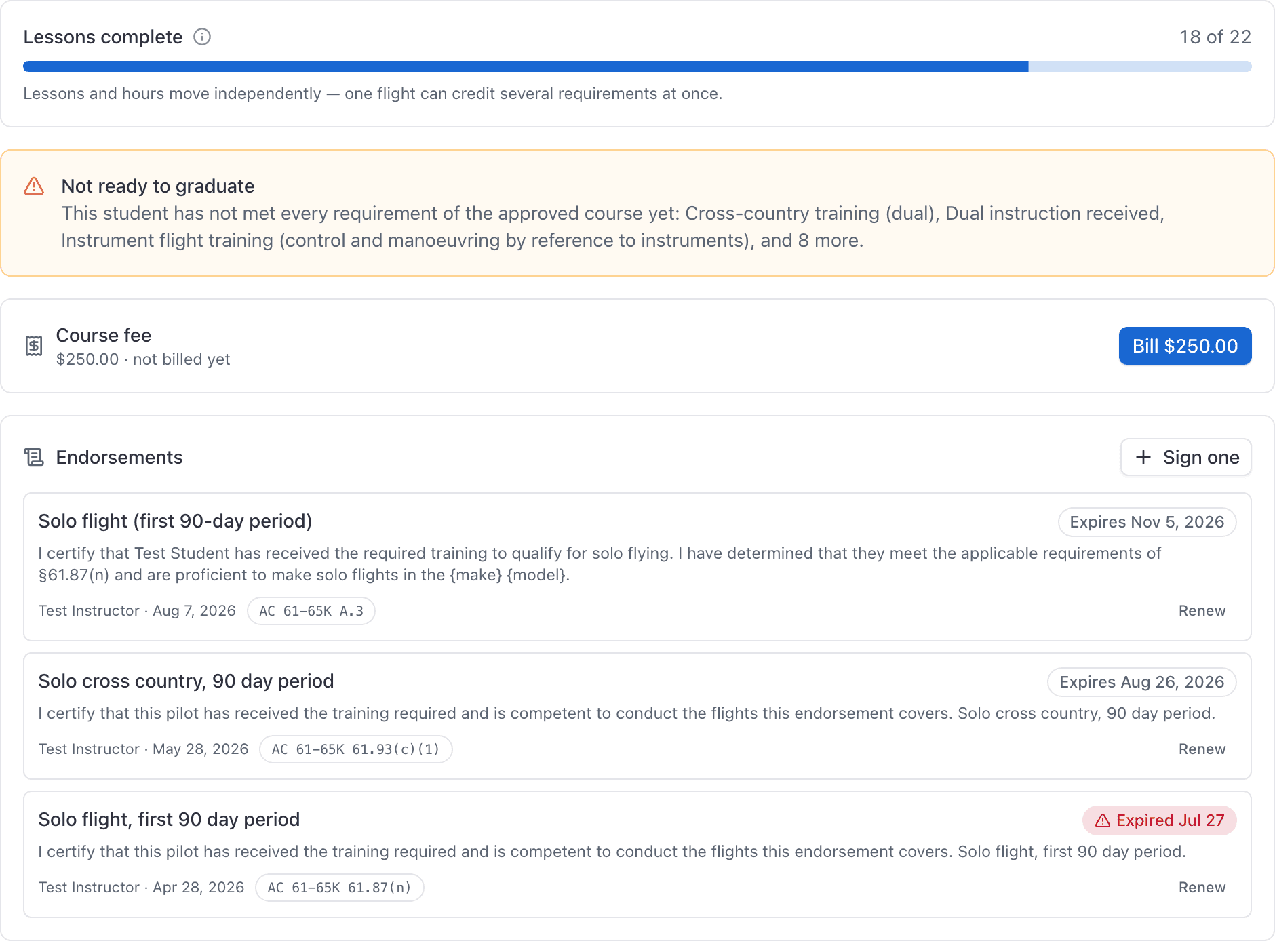
- Lessons complete says how far through the syllabus the student is. A lesson counts as complete when a record for it is signed and graded with a mark the course's scale says completes the lesson.
- Requirements say whether the student has the flight time to test. Hours arrive on a requirement because a signed lesson credited them, or because somebody posted prior training by hand.
So a student can be on lesson 19 of 21 and still be hours short, and that is exactly the question this module exists to answer.
What connects the two is Credits toward on each lesson: the list of requirements that lesson feeds, and from which clock (flight time, ground time, or a count per lesson). A lesson with nothing ticked is perfectly flyable and credits nothing at all.
A normal week#
Book the flight as usual
Nothing about training changes how you book. If the student is enrolled, the booking form shows a grey "Next up" strip naming the lesson the syllabus suggests (expandable when they are on more than one course). Nothing is committed there.
Fly it, then close the booking out
Enter the Hobbs readings and the briefing time the way you always do.
Grade and sign in the Training record section
The close-out sheet grows a Training record section for each enrolled student on the booking. The lesson is preselected, and Flight and Ground are already filled in from the Hobbs delta and the briefing time. See Grade a lesson when you close out the flight.
The hours fan out on their own
Signing freezes the record and posts a ledger credit to every requirement that lesson credits. The student's record updates immediately. On a lesson the syllabus marked sign-off optional, a passing grade is that signature: Save draft posts the hours the same way Sign does.
The student countersigns
If the lesson requires a student signature, they acknowledge the record from My training, or from the course record that opens when they click the course name. A lesson the syllabus marked sign-off optional finishes without that step. Their signature does not change the grade or the hours: those were already credited when you signed.
What to set up first#
Do it in this order, because each step needs the one before it.
Create the course
Start from one of the four built-in syllabi, or from an empty course. Choose Part 61 or Part 141 now: it cannot be changed afterwards. Create a course
Add the requirements
Do these before the lessons. The Credits toward box on a lesson is empty until requirements exist. Add hour and landing requirements
Build the syllabus
Stages, then lessons inside them, then the graded tasks inside a lesson, ticking Credits toward as you go. Build a syllabus
Publish the version
Read the warning first. Publishing is the one irreversible act in the module. Publish a syllabus version
Enroll your students
Check which version is selected before you do. Enroll a student
Where each screen lives#
| I want to | Go to |
|---|---|
| Build or publish a syllabus | WebTraining → Courses, then Open syllabus |
| See who is currently in training | WebTraining → Students |
| Read or grade one student's record | Training → Students → the row, or the person's page → Training |
| Grade the flight you just flew | The close-out sheet on WebSchedule |
| Grade at the aircraft with no signal | AppTraining |
| See your own progress as a student | WebMy training |
| Hand an inspector the log | WebReports → Compliance → Training records |
Which gates the setting turns on, and why it can only be chosen once.
What each tab means, and why credited hours can be lower than hours flown.
Roles, the four training grants, and where a button and a permission disagree.
Hours that will not count, buttons that are disabled, sections that never appear.
Still stuck on this?
Email support@aerscheduler.com and tell us what you were trying to do. We answer.