
Troubleshooting inspections and squawks
Most maintenance surprises come down to four things: hour-based reminders only fire when a meter reading is recorded, a countdown that started from the wrong point, a character limit the form does not show you, and a grounding reason that was typed by hand.
For owners, admins, technicians and dispatchers
Most maintenance surprises come down to four things: hour-based reminders only move when a meter reading is recorded, a countdown that started from the wrong point, a length limit the form does not show you, and a grounding reason that was typed by hand.
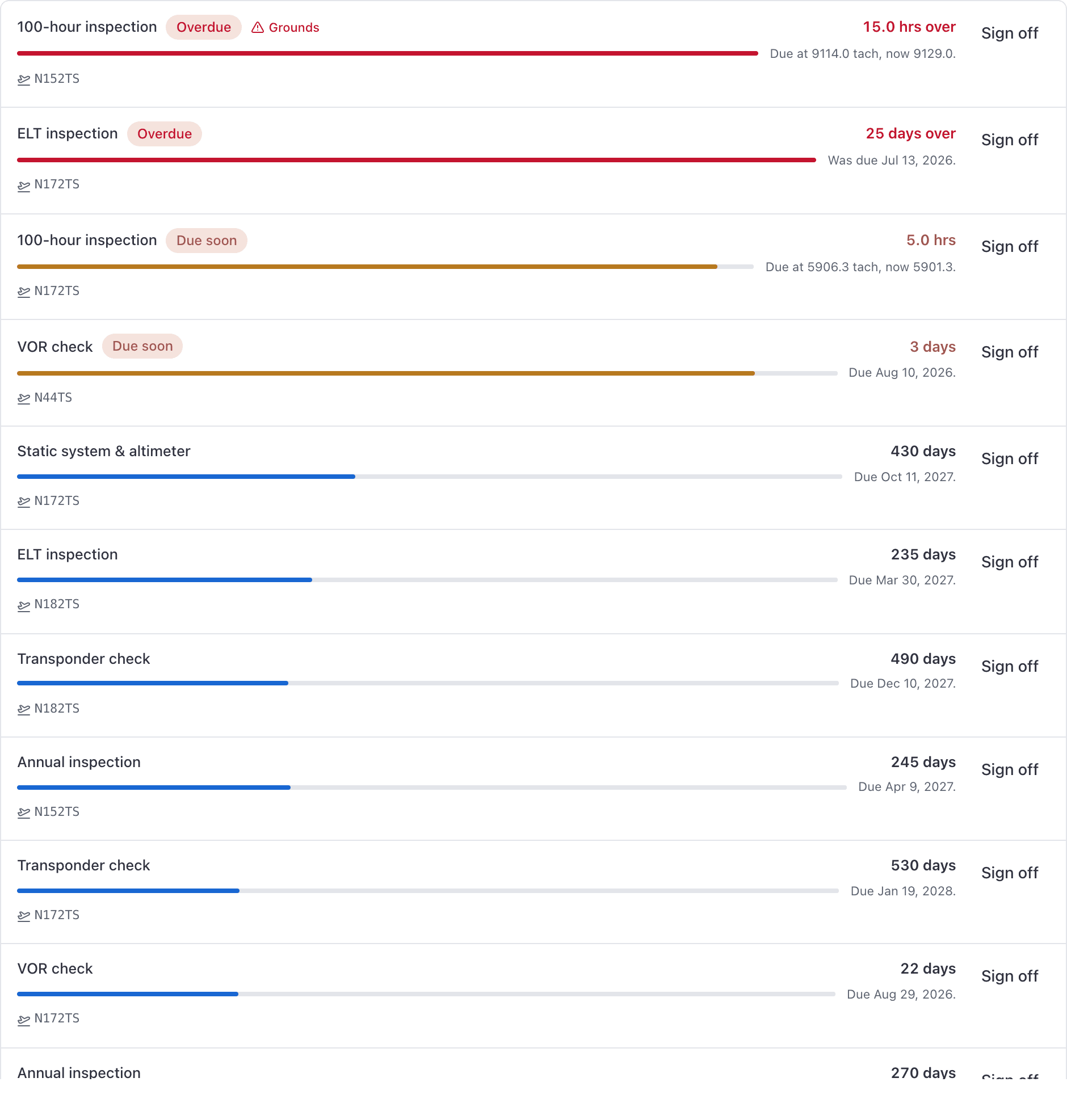
An inspection says Overdue but nobody was emailed#
Almost always an hour-based inspection.
The countdown you are looking at is calculated live from the aircraft's current meters, so the screen is right. The notification, and the automatic grounding that goes with it, only fire when a new reading reaches the aircraft: a flight closed out on it, Record a reading on its Overview, a work order's Hobbs and tach in or out, or, on a customer's aircraft, the owner's Update times. Meters changed under WebAircraft → the tail → Edit do not count.
Click Record a reading under Hobbs and tach on the aircraft's Overview and enter the meters as they are now, or close out the next flight on that tail. Everything catches up in one go: the email, the push, and the grounding if the inspection carries the flag.
An hour-based inspection never fires at all#
Check its starting meter reading. If it is exactly 0.0, the inspection will never fire, however far past due the aircraft gets. The countdown on screen still displays correctly, which is what makes this one hard to see.
This happens on a brand-new airframe delivered at 0.0 tach, and on inspections created before the aircraft's meters were entered. Give it a starting reading above zero, from AppMaintenance → Set up → the rule → edit which aircraft in the iOS app, or sign the inspection off with a real completed reading so the next interval counts from that number.
I corrected the meters and nothing happened#
Editing Hobbs or tach under WebAircraft → the tail → Edit moves every hour-based countdown with it, and notifies nobody.
The correction is recorded in the audit log as "Meters corrected", with both readings before and after. But no reminder is sent and no aircraft is grounded until the next reading is recorded on that tail. To correct the meters and have them checked, use Record a reading under Hobbs and tach on the aircraft's Overview instead: a reading lower than the one on record asks whether it was mistyped or the meter was replaced, and keeps the old one marked Correction.
The first reminder arrived late#
The inspection was attached to an aircraft that was already partway through its interval, and When was it last done? was left blank. The countdown then started from that day, at that day's meter, so the first reminder lands late by exactly how far through the interval the aircraft already was.
Nothing on screen says the starting point was wrong, and it stays wrong until the inspection is signed off. Fix it either from the app's edit sheet, or by signing the inspection off with the real completed date and meter reading. Full detail in Set when an inspection was last done.
"Unable to create squawk"#
The title is over 50 characters, or the description is over 500. The console's Log a squawk form has no counter and no field-level warning, so the failure names nothing.
Shorten the title first. Put the long version in the description, and if that is also too long, reference a work order.
"Description is required"#
The Log squawk button only greys out on a missing title, so the form lets you submit without a description. Write one sentence about what you noticed and when, and save again.
"Couldn't resolve that squawk"#
Notes over 500 characters. The console's Resolve squawk box counts up to 600, but the save fails above 500.
Trim to 500 and save. Copy the text out before you retry: a failed save does not always keep what you typed.
"Couldn't sign that off"#
Not the notes, if you are on the console. That box stops you at 500 characters, so it can never be too long. The app's sign-off sheet does let you type past 500 and then the save fails, so trim the notes if you are on the phone.
The aircraft is still grounded after I signed everything off#
Look at the grounding reason on the aircraft's page.
- If it reads exactly "Maintenance", something else is still holding it. Check WebMaintenance → Inspections filtered to that tail for anything still overdue. Any overdue inspection holds the grounding, not only the ones that ground.
- If it reads anything a person wrote ("Prop strike", "Annual in progress"), that is a hand grounding and no sign-off will ever lift it. An admin or a technician has to click Return to service.
That second case is by design: AerScheduler will not overrule somebody who took an aircraft off the line on purpose.
I filed a squawk and the aircraft is still bookable#
That is the normal behavior. A squawk is a note for the shop, not a no-go. Open squawks show as an amber warning on the booking form and never block the booking.
If the aircraft should not fly, either file the squawk with Grounds the aircraft switched on, or ground the tail from its own page. Both need somebody who can ground: filing a grounding squawk from the console is limited to the roles that can reach the Log button, and grounding by hand is for owners, admins and technicians. See Ground an aircraft.
Signed-off inspections are missing from Inspections#
They are meant to be. Inspections is the work queue, so it holds outstanding items only, and the Status filter there has no "Signed off" option.
Completed work is still on the record in three places: the aircraft's own Maintenance tab, the Maintenance due report with a Resolved status filter, and the audit log. The iOS app's Inspections board also offers a Signed off filter, which is the fastest way to prove a 100-hour was closed out.
I set up an inspection and it never comes due#
Open WebMaintenance → Inspection rules and find the rule. If it carries an On no aircraft tag, it is attached to nothing and will never fire. Press Choose on its row to add tails.
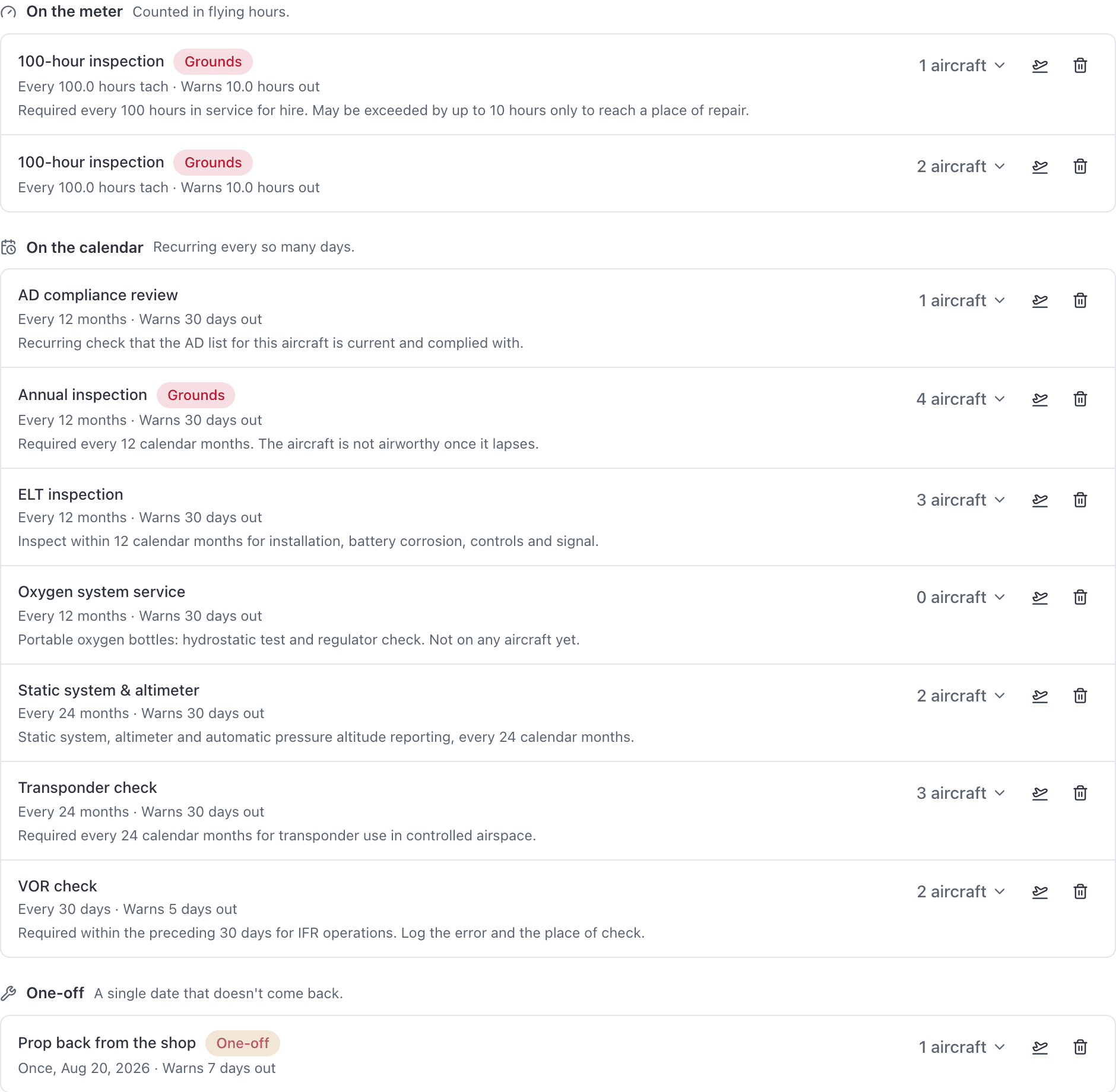
Two ways to get there. On the phone, Add inspection creates the rule first and then sends you on to pick the aircraft, so abandoning that second step leaves an empty rule. On either surface, editing which aircraft a rule covers replaces the whole list, so a save that left every tail unticked detaches all of them.
Attach the tails from AppMaintenance → Set up → the rule, or delete the rule and add it again from the console with Applies to filled in.
The numbers in the API are ten times too big#
Every meter figure in AerScheduler is stored in tenths of an hour. A 100-hour interval is stored as 1000, and a 10-hour warning lead as 100.
The screens divide before they display, so what you read in the console and the app is already in hours. Raw values from the API or an export are not, so divide by ten before you compare them to anything.
Still stuck on this?
Email support@aerscheduler.com and tell us what you were trying to do. We answer.