
Resolve a squawk
Maintenance, then Squawks, then Open. Click Resolve on the card, set Completed to the day the work finished, write what was done, then Resolve squawk. Verify is a separate second stamp, on both surfaces, and a squawk can be resolved without ever being verified.
For owners, admins and technicians
WebMaintenance → Squawks → Open. Click Resolve on the card, set Completed to the day the work finished, write what was done, then click Resolve squawk. Verify is a separate second stamp, on the same boards, and a squawk can be resolved without ever being verified.
Resolve it#
Open the Open board
WebMaintenance → Squawks → Open, newest first. Use the Aircraft filter or the search box to narrow it to one tail.
Click Resolve
Either on the card itself, or open the card and use Resolve squawk in the footer of the detail panel.
Set Completed
Defaults to today. Change it to the day the work was actually finished. It is required.
Write what was done
Part number, work order, what was found. Keep it under 500 characters.
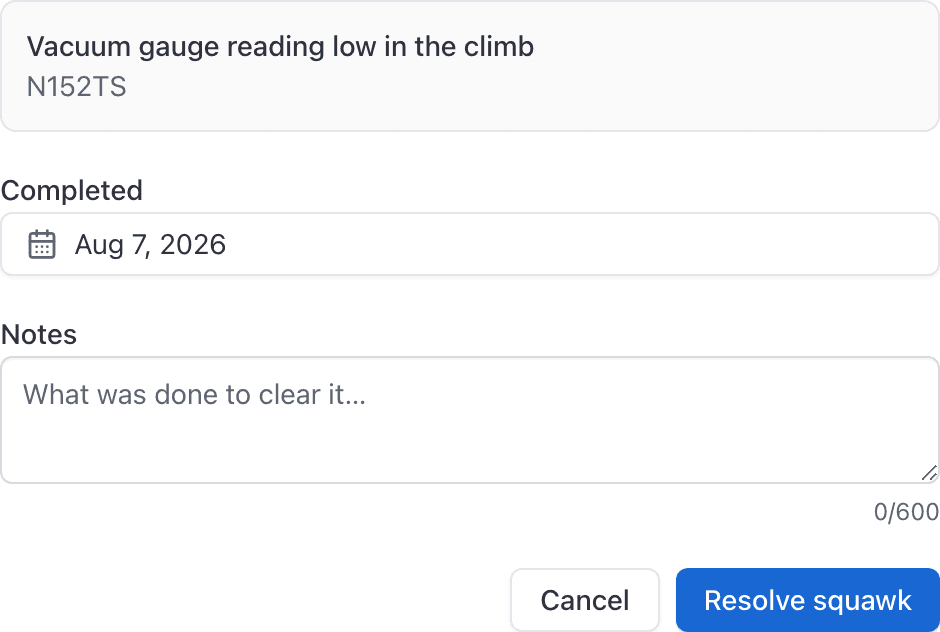
Click Resolve squawk
It moves to the Resolved tab with a Resolved badge and a timestamp.
What resolving changes#
- The squawk leaves the Open board and appears under Resolved, sorted by the date it was resolved.
- It stops appearing in the open-squawk warning on the booking form for that tail.
- A "Squawk resolved" line goes into the audit log, with your notes.
- It is counted as closed in the Squawks & downtime report, where "days open" runs from the reported date to the resolved date.
Verify is a second sign-off#
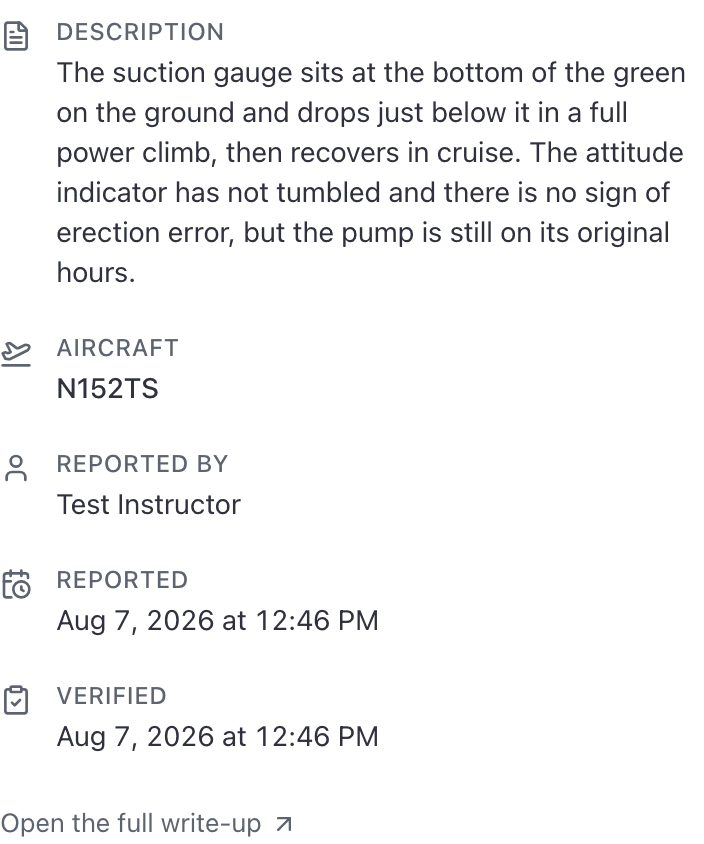
Two stamps, two different acts. Resolving records what was done. Verifying records that somebody reproduced or checked the fault. They are independent: a squawk can be resolved having never been verified, and nothing warns you about it.
Verify has no fields to fill in. It is offered wherever a squawk is, to the same people who can resolve one:
- WebMaintenance → Squawks → Open, in the footer of the squawk panel.
- WebAircraft → the tail → Maintenance, on the Open squawks card.
- The squawk's own page, at the top beside Resolve.
- In the app, on the squawk from the Squawks board.
Keep the notes under 500 characters#
The notes box counts up to 600 and the save fails above 500, on both surfaces, with "Couldn't resolve that squawk." If a long write-up will not save, that is why. Shorten it, or put the detail in the work order and reference the number.
Dispatchers cannot resolve a squawk#
A dispatcher can open the Maintenance page and read every board, including this one, but there is no Resolve button anywhere for them, and no Verify either. Reading the fleet's discrepancies and declaring one fixed are treated as different jobs.
If a dispatcher has been asked to "close out that squawk", they need an admin or a technician. See Who can do what in maintenance.
Resolving does not return a grounded aircraft to service#
Still stuck on this?
Email support@aerscheduler.com and tell us what you were trying to do. We answer.