
Ground an aircraft, and return it to service
Open the aircraft and click Ground, or use the overflow menu on the Aircraft list. Type a reason. The aircraft cannot be booked for anything except maintenance until an admin or a technician returns it to service.
For owners, admins and technicians
Open the aircraft and click the red Ground button, or use the overflow menu on the Aircraft list. Type a reason. The aircraft cannot be booked for anything except maintenance until an admin or a technician clicks Return to service.
Ground it#
Open the aircraft, or find it in the list
WebAircraft → the tail for the detail page, or stay on WebAircraft and use the overflow menu on the row or card.
Click Ground
On the detail page it is the red Ground button in the header. In the list it is Ground aircraft in the overflow menu. Both are visible to owners, admins and technicians.
Type a reason
The placeholder suggests the shape of it: annual inspection, oil leak, prop strike. Up to 60 characters.
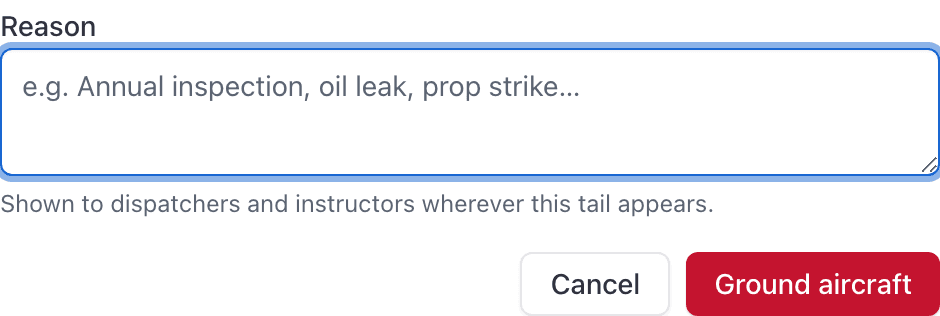
Click Ground aircraft
The tail immediately shows a Grounded badge everywhere it appears, and a red banner on its own page.

Write a reason people can act on#
The reason is not a private note. It is shown to dispatchers, instructors and students wherever the tail appears, including in the airworthiness notice on the booking form and in the refusal message when somebody tries to drag a flight onto it.
"Oil leak, in the shop Thursday" saves your front desk five phone calls. Grounding with no reason at all shows as "Grounded: No reason recorded."
What grounding stops#
| Action on a grounded aircraft | Result |
|---|---|
| Creating any booking except maintenance | Refused with "Resource is grounded." |
| Creating a maintenance booking | Allowed. This is the one exemption. |
| Dragging a booking onto it on the dispatch board | Refused, naming the tail and the reason. |
| Ramping out an existing booking | Refused. |
Bookings already on the aircraft stay where they are#
Return it to service#
Click Return to service
On the aircraft's page, or from the overflow menu on the Aircraft list. Owners, admins and technicians.
Confirm
The dialog asks to return the tail to service and warns that it will be schedulable again.
The grounded flag and the reason are both cleared, and a "Returned to service" line goes into the audit log with your name on it.
Why signing off an inspection did not lift your grounding#
Because you typed the reason. AerScheduler clears a grounding on its own in exactly one case: the reason is the single word "Maintenance", which only its own automatic grounding ever writes, and the last inspection holding it has been signed off.
Anything a person typed is treated as a human decision and left alone. See When AerScheduler grounds an aircraft by itself.
Technicians ground and release aircraft too#
A technician can ground an aircraft and return it to service, the same as an admin, so the mechanic who signs the work off can also put the tail back on the line without finding an admin. Dispatchers, instructors, students and renters cannot. See Who can do what in maintenance.
Still stuck on this?
Email support@aerscheduler.com and tell us what you were trying to do. We answer.