
Add the standard airworthiness inspections
Maintenance, then Add inspections, then leave the mode on Standard set. All seven AVIATES items are ticked to start. Untick what does not apply, say when each was last done, and pick the tails.
For owners, admins and technicians
WebMaintenance → Add inspections, and leave the mode on Standard set. All seven AVIATES items start ticked. Untick what does not apply to your operation, fill in when each was last done, pick the tails, and click Add.
Add the standard set#
Open Maintenance and click Add inspections
The button sits in the top right. You need at least one aircraft in the fleet first; the dialog says so if there are none.
Leave the mode on Standard set
This is the AVIATES airworthiness set. All seven items are ticked to start. Three extras, Oil change, ELT battery replacement and Registration renewal, sit under "Also common" and start unticked.
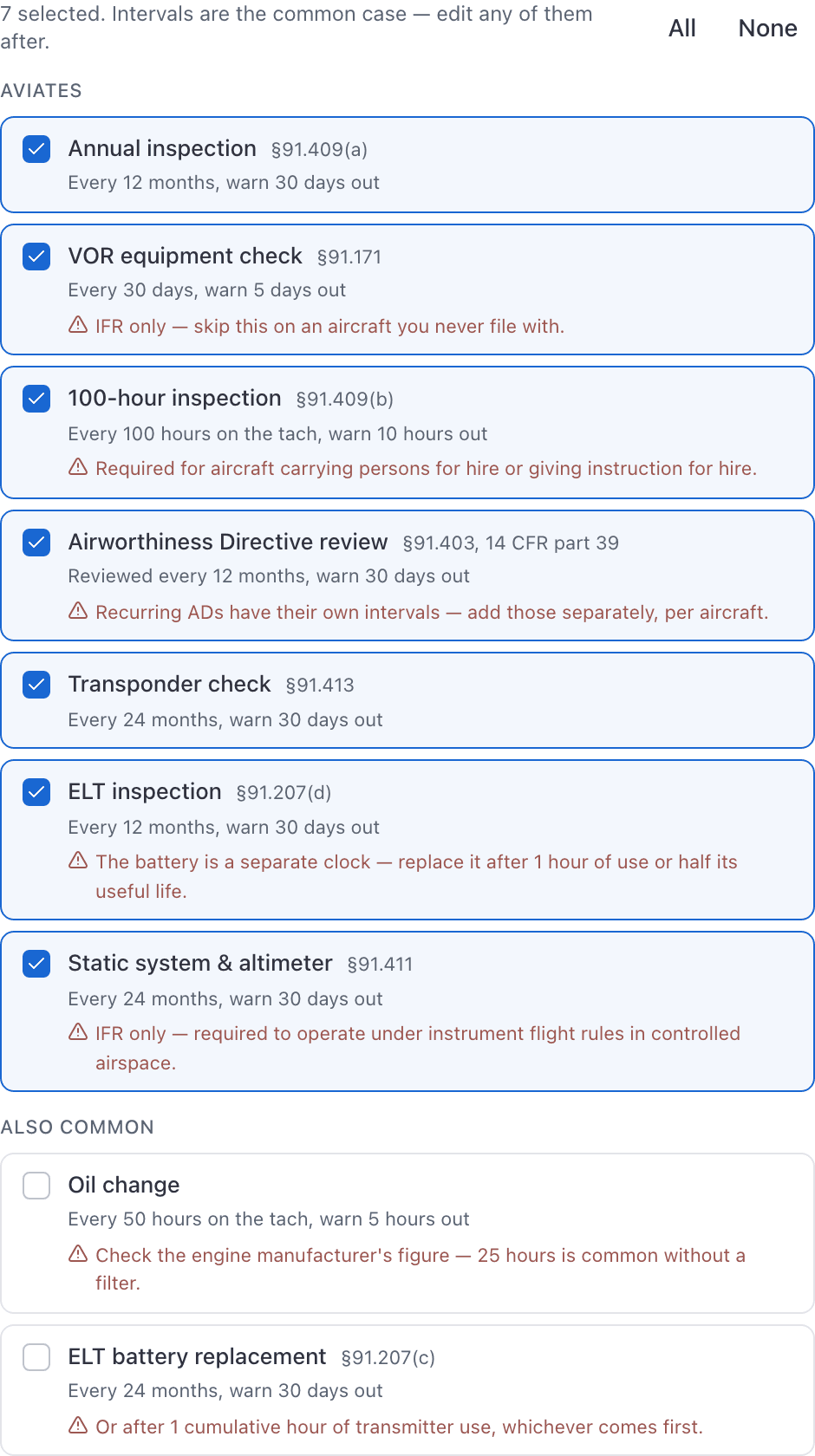
Untick anything that does not apply
Each row shows the regulation it comes from and a caveat line. See the table below.
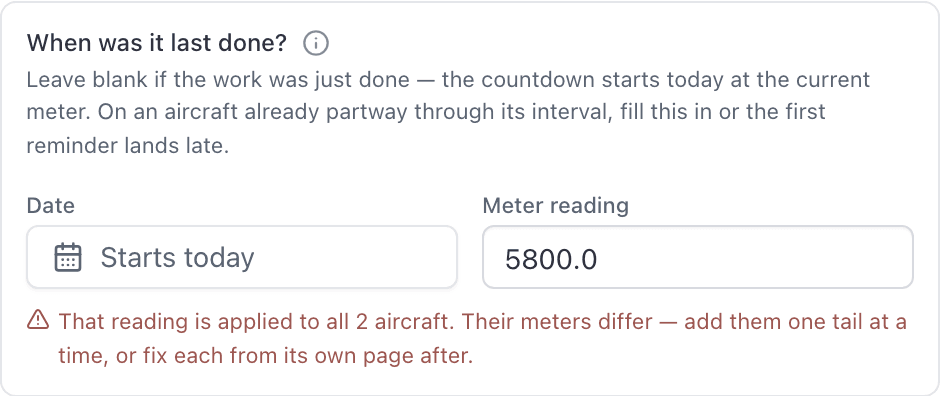
Fill in When was it last done?
Enter the Date the work was last performed and the Meter reading at that time. Leave both blank only if the work was just done.
Pick the tails under Applies to
Tap the tail numbers this should cover. Picking none leaves Add disabled: an inspection with no tails never comes due.
Click Add
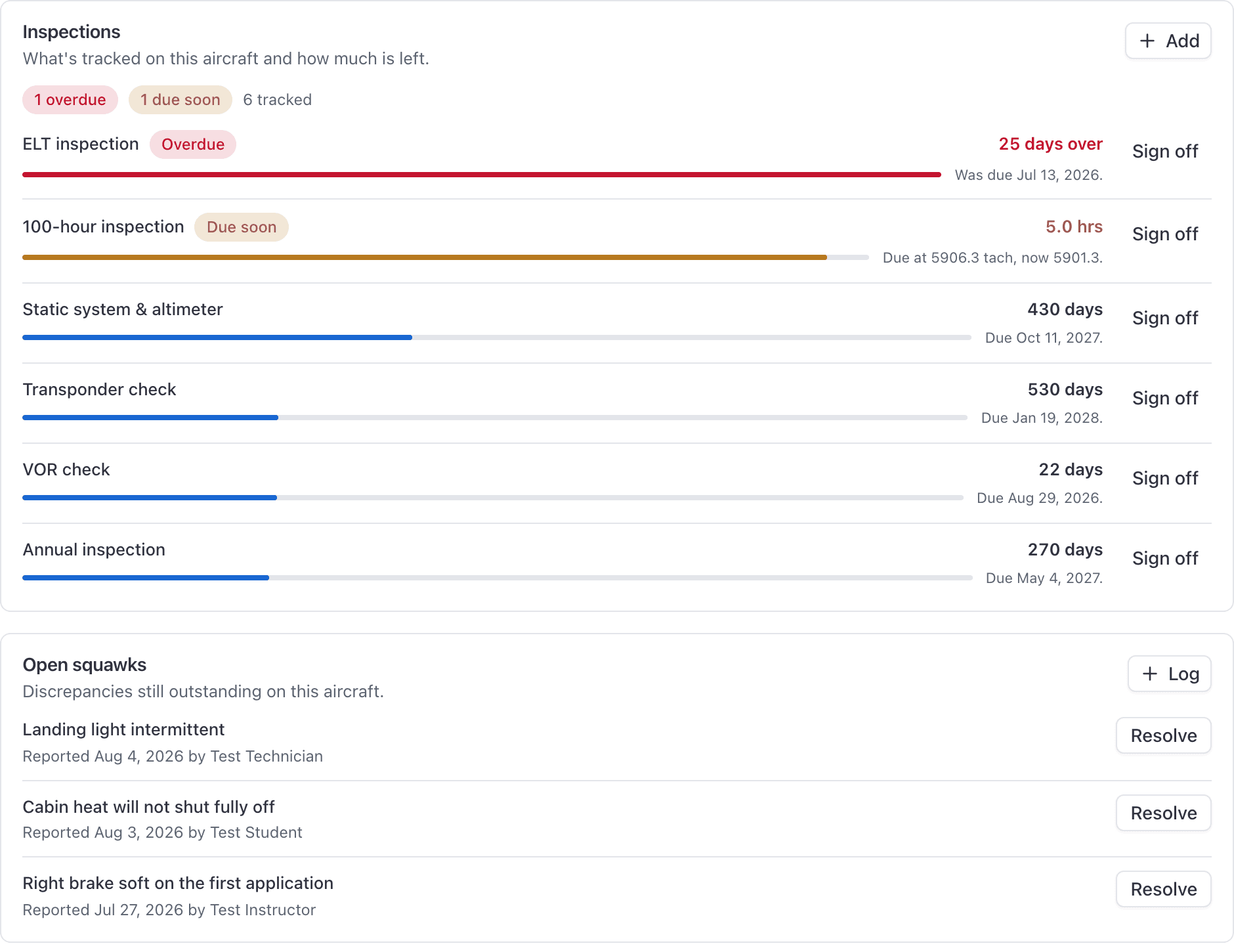
One rule per preset appears under WebMaintenance → Inspection rules, and a live inspection appears against each tail you chose, counting down straight away.
The standard set works the same on a customer's aircraft: its tail is in the Applies to list, and its owners are reminded too. See Choose when reminders go out.
Which ones to untick#
| Item | Untick it when |
|---|---|
| Annual inspection | Never. Every aircraft owes one. |
| 100-hour inspection | The aircraft does not carry persons for hire and is not used for instruction for hire. |
| VOR check | The aircraft is not flown IFR. |
| Static system and altimeter | The aircraft is not flown IFR. |
| Transponder check | Rarely. Keep it unless the aircraft has no transponder. |
| ELT | Never. |
| Airworthiness Directive review | Never. |
Track the registration's expiry#
A US certificate of aircraft registration expires seven years after the last day of the month it was issued in (14 CFR 47.40). Registration renewal tracks that like any other inspection: 84 calendar months, warned 180, 60 and 30 days out to the shop and, on a customer's aircraft, to its owners, because the owner is the one who renews it with the FAA. It never grounds the aircraft unless you turn that on.
Add it on its own, not ticked alongside the others, and put the issue date printed on the current certificate in When was it last done?. Left blank, it counts seven years from today. When the new certificate arrives, sign the renewal off with its issue date and the next seven years start from there. Keep a copy of the certificate itself under Aircraft papers.
Fill in when the work was last done#
This is the field people skip, and it is the one that decides when your first reminder arrives. Left blank, the countdown starts today at the aircraft's current meter, which is right for a brand-new aircraft and wrong for every aircraft a school already operates.
Pick the tails under Applies to#
Applies to is a multi-select. If you opened the dialog from an aircraft's own Maintenance card, the tail is already fixed for you and there is nothing to pick.
Adding a tail later works either way round: open that aircraft and use WebAircraft → the tail → Maintenance → Add, or edit the rule's list directly with Choose aircraft in its … menu under WebMaintenance → Inspection rules. See Change which aircraft an inspection covers.
Only the annual and the 100-hour ground the aircraft#
Of the standard set, only Annual inspection and 100-hour inspection carry the Grounds the aircraft flag. When one of those comes due, AerScheduler takes the tail off the line by itself.
The rest (VOR, AD review, transponder, ELT, static system and altimeter, oil change, ELT battery) come due, show as overdue, and notify the people who need to know, but the aircraft stays bookable. You can change that on any of them afterwards under WebMaintenance → Inspection rules. See When AerScheduler grounds an aircraft by itself.
If one of them fails to add#
The presets are applied one at a time rather than in a batch, so a partial failure names exactly what did not land: "Added 6. Couldn't add: Transponder check." Add the named item by hand with Add inspections → Recurring and you are done.
Doing it on an iPhone#
The app can apply the same standard set from an aircraft's page, for that tail only.
Common questions
- Can AerScheduler remind us when an aircraft's registration expires?
- Yes. Registration renewal, under Also common in the standard set, tracks the 7-year expiry of a US registration (14 CFR 47.40) as 84 calendar months from the issue date on the certificate, warned 180, 60 and 30 days out, to the owners of a customer aircraft too. It does not ground the aircraft unless you turn that on.
Still stuck on this?
Email support@aerscheduler.com and tell us what you were trying to do. We answer.