
Change which aircraft an inspection covers, or stop tracking it
To add a tail from the console, open that aircraft and use Maintenance, then Add. To change the whole list or delete the rule, use Maintenance, then Set up. Deleting a rule stops tracking on every aircraft it covers.
For owners, admins and technicians
To put an inspection on one more tail, open that aircraft and use WebMaintenance → Add. To rework the whole list at once, use Choose aircraft in the rule's … menu under WebMaintenance → Inspection rules. To stop tracking something altogether, delete the rule, which stops tracking it on every aircraft it covers.
Add one aircraft to an inspection#
From the console, work from the aircraft rather than from the rule.
Open the aircraft
WebAircraft → the tail → Maintenance.
Click Add on the Inspections card
The Add inspections dialog opens with this tail already fixed, so there is no Applies to list to get wrong.
Set it up and fill in When was it last done?
This tail has its own history and its own meter. Enter the date and reading from the last time the work was performed on this aircraft. See Set when an inspection was last done.
Change the whole list at once#
Open Maintenance, then Inspection rules
Find the rule. Rules are grouped into On the meter, Whichever comes first, On the calendar and One-off.
Open the rule's … menu and pick Choose aircraft
Tail numbers are chips: click one to attach it, click an attached one to detach it.
Set a starting point for any tail you just added
A When was it last done? box appears per newly added tail, for a meter reading or a date depending on how the rule counts. Leave it blank and that tail starts today. See Set when an inspection was last done.
Click Save coverage
Removals are named on screen before you save, and confirmed again after.
The same sheet is on the app, at AppMaintenance → Set up → the rule.
Editing the list replaces it, it does not add to it#
Removing a tail deletes its open inspection#
Detaching an aircraft removes the outstanding countdown for that tail and nothing else. Everything already signed off stays on the aircraft's record and in the audit log.
If that open inspection was the last thing holding an automatic grounding on that aircraft, the aircraft is returned to service at the same time.
Stop tracking an inspection entirely#
Open Maintenance, then Inspection rules
Rules are grouped into On the meter, Whichever comes first, On the calendar and One-off.
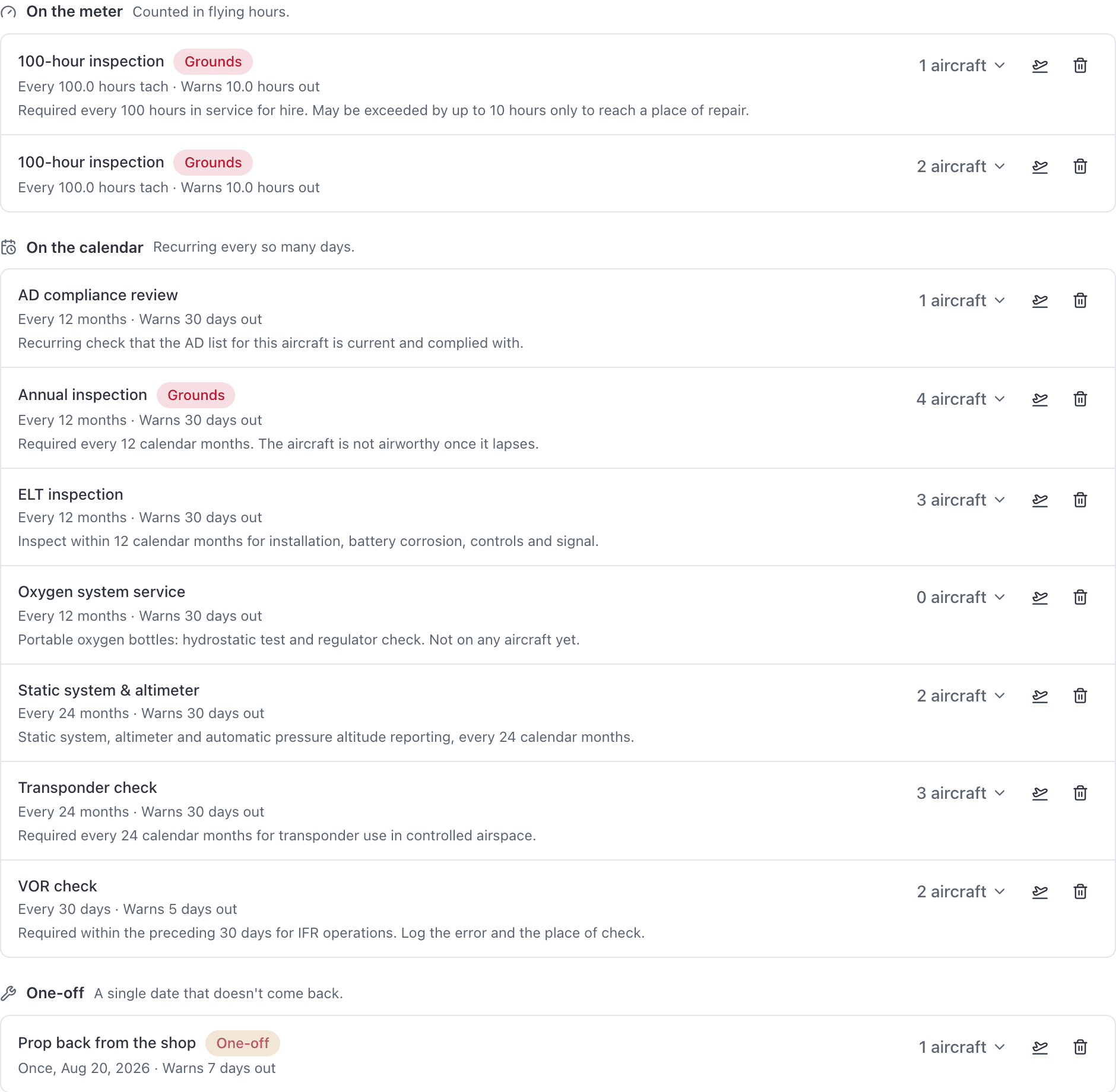
Unfold the rule first
Click the arrow beside the rule to list the aircraft it covers; the Aircraft column has the count. This is the one number that tells you how big the delete is.
Choose Delete from the rule's … menu and read the confirmation
It reads "This stops tracking it on N aircraft. Work already signed off stays on the record."
Click Delete
The rule and every outstanding inspection under it are removed, across the whole fleet.
What deleting keeps#
- Every signed-off inspection stays on the aircraft's record.
- One "Inspection removed" line is written to the audit log per affected aircraft, so you can see exactly what stopped being tracked and when.
- Any aircraft that this rule had grounded automatically, with nothing else outstanding, is returned to service.
A rule on no aircraft never comes due#
A rule with no tails attached is easy to miss under Inspection rules: it carries an amber On no aircraft tag and a Choose button where the aircraft count would be. Nothing will ever fire from it and nobody will ever be emailed about it.
The usual way to end up with one is on the phone, where Add inspection creates the rule first and then sends you on to pick the aircraft. Abandon that second step and the rule survives with no tails. Attach them with the Choose button on its row, as above.
Still stuck on this?
Email support@aerscheduler.com and tell us what you were trying to do. We answer.