
Sign off a completed inspection
Click Sign off on the inspection row, set Completed on to the day the work actually finished, correct the meter reading, add notes, then Sign off. A repeating inspection immediately starts counting again from those numbers.
For owners, admins and technicians
Click Sign off on the inspection row, set Completed on to the day the work actually finished, correct the meter reading, add your notes, then click Sign off. A repeating inspection starts counting again immediately, from exactly those two numbers.
Sign it off#
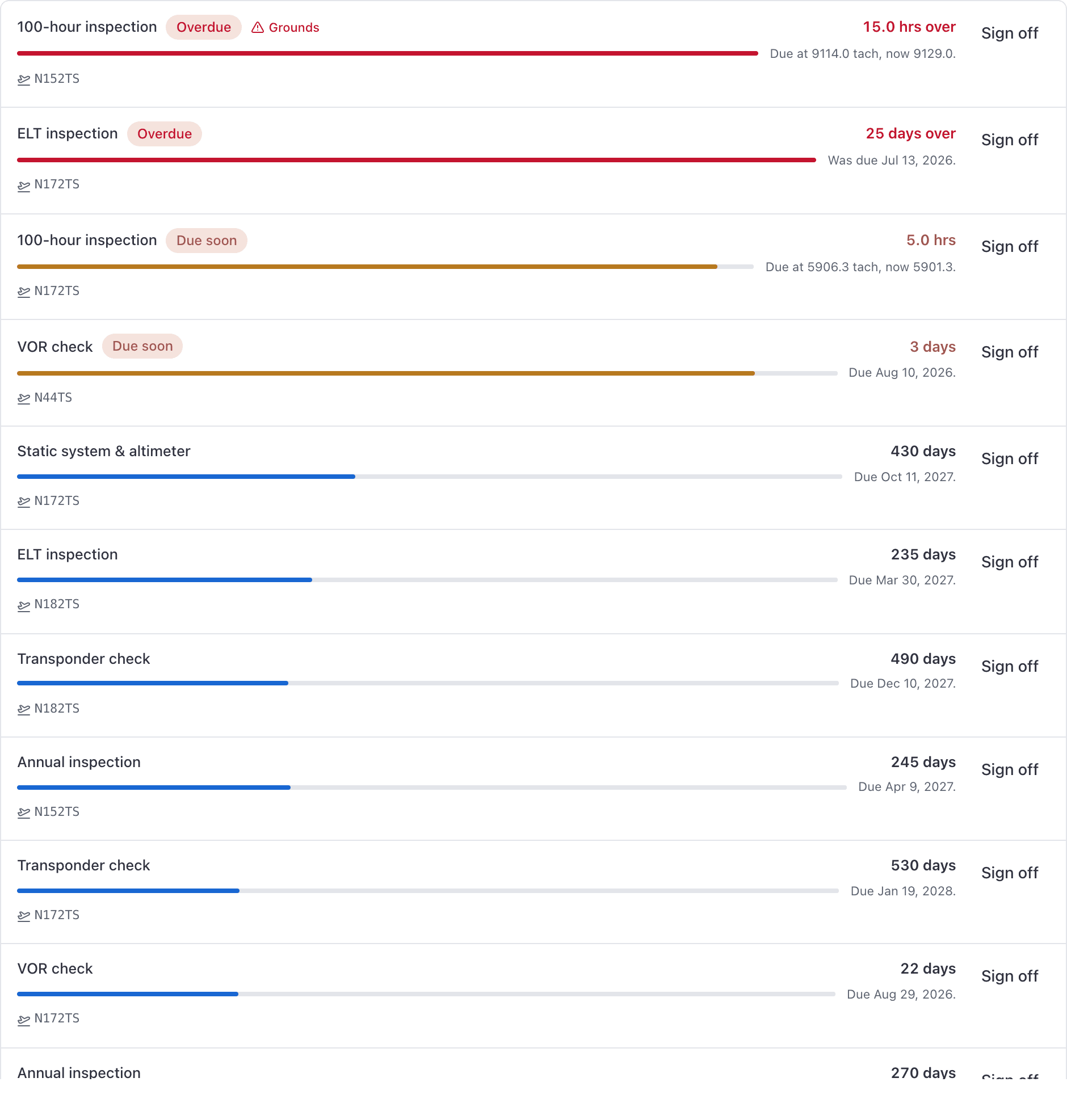
Find the inspection
WebMaintenance → Inspections, grouped by Status, is the work queue for the whole school, worst first. Or open the tail and use its Inspections card at WebAircraft → the tail → Maintenance. On the phone: AppMaintenance → Inspections, which is where technicians usually work.
Attach files while the work is open (optional)
Tap Files on the row. Photos and PDFs sit on this open inspection (a packing slip, an in-progress photo). On the phone that is Take photo, Choose from Photos, or Browse Files. When you sign off and keep a compliance record, they copy onto that record. They do not follow the next cycle. If you sign off without a record, they come off this inspection and are not stored.
Click Sign off on the row
Dispatchers do not see this button. Only admins, owners and technicians can sign work off.
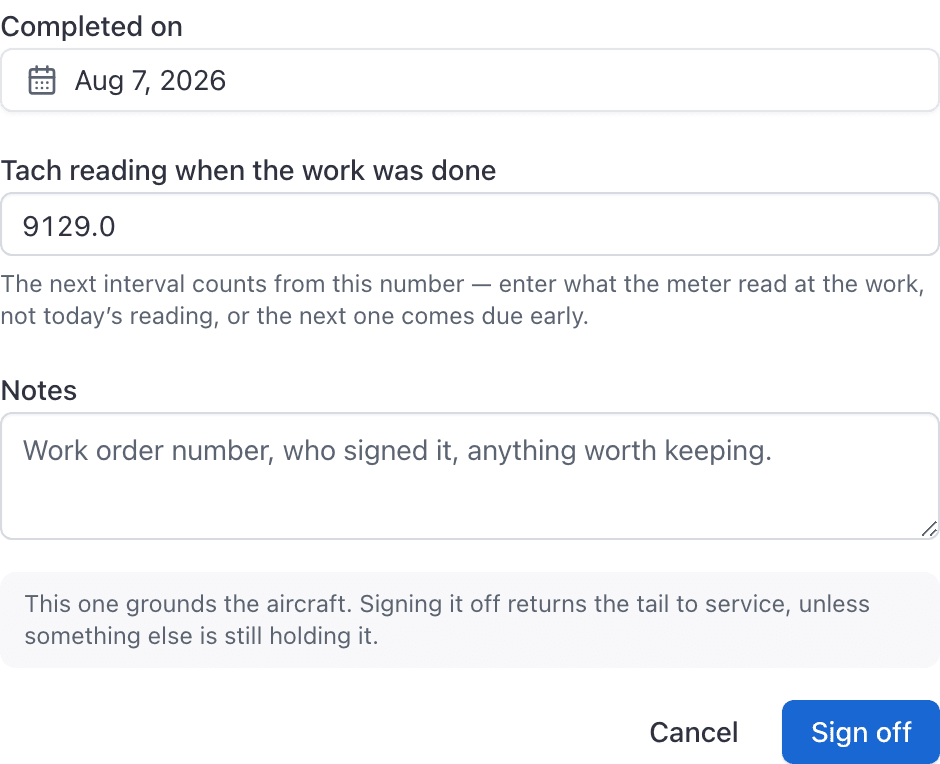
Set Completed on
The day the work was actually finished. It cannot be in the future.
Correct the meter reading
On an hour-based inspection you are asked for the tach or Hobbs reading when the work was done. It defaults to today's meter, which is usually not the right number.
Add notes and click Sign off
Work order number, who did it, what was found. Up to 500 characters.
Enter the meter reading from the day the work was done, not today#
This is the field that matters most. It is filled in from the aircraft, so the usual answer is to confirm the number rather than type it, and to change it when the work was done earlier at a lower reading.
An inspection counted in hours will not sign off without it. That is deliberate: the next interval counts from the number you type. Sign off a 100-hour with today's tach when the work was actually done six hours ago and the next 100-hour comes due six hours late. Permanently, on every cycle after that, with nothing on screen to say so.
Keeping a compliance record#
Under the notes there is a Keep a compliance record switch. Turn it on and the sign-off also writes a permanent entry: what was done, both meter readings, and who certified it.
It is already on for an inspection marked as an Airworthiness Directive, because for those the record is the point of signing off at all. For an oil change, leave it off; nothing about signing off has changed.
See Track Airworthiness Directives for what goes in each field and where to read the history back.
What happens next#
- The item leaves Inspections. That view is a work queue and only holds outstanding work.
- If the rule repeats, a fresh inspection is created straight away, counting from your completed date and completed meter reading.
- A one-off does not come back. Once it is signed off on every tail it covers, the rule disappears from Inspection rules entirely.
- An "Inspection signed off" line is written to the audit log with your name on it.
When the aircraft comes back on the line automatically#
If the aircraft was grounded automatically by an inspection coming due, its grounding reason is the single word "Maintenance". Sign off the last outstanding item holding it and AerScheduler returns the aircraft to service by itself. The dialog says as much before you confirm.
Every overdue inspection on that tail has to be signed off first, not only the ones that ground. An overdue VOR check or oil change is enough to keep the aircraft grounded.
When it does not#
Notes, and the 500 character limit#
Both the console and the app stop you at 500 characters, so you cannot type a note that will not save. Notes are a working record for the shop; the method of compliance on an Airworthiness Directive is the field an inspector reads, and it holds 2,000.
Signing off happens once#
An inspection that has already been signed off answers "That inspection has already been signed off" rather than recording the work twice. If two people sign the same inspection at the same moment, or a phone retries a request on a bad connection, exactly one record is kept.
To correct a sign-off, add a new one. See Track Airworthiness Directives.
Where signed-off work goes#
It stays on the aircraft's record and in the audit log. It just leaves the queue.
The console's Inspections view can never show completed work, and the Status filter there (Overdue, Due soon, Needs a reading or date, Not yet due) has no "Signed off" option on purpose. The app's Inspections board does have one, behind the filter glyph, so reach for the phone when somebody asks you to prove a 100-hour was signed off.
Common questions
- Can I attach a packing slip before I sign off?
- Yes. Tap Files on the inspection row, on the phone or the desk. Those photos and PDFs copy onto the compliance record when you sign off, then come off the open inspection so they do not follow the next cycle. If you sign off without a record, they come off the inspection and are not stored.
Still stuck on this?
Email support@aerscheduler.com and tell us what you were trying to do. We answer.