
Set when an inspection was last done
When you attach an inspection to an aircraft, fill in When was it last done? with the date and the meter reading from the last time the work was actually performed. Leave it blank only if the work was just done.
For owners, admins and technicians
When you attach an inspection to an aircraft, fill in When was it last done? with the date and the meter reading from the last time the work was actually performed. Left blank, the countdown starts today at the aircraft's current meter, and the first reminder arrives late.
Why this field decides everything#
An inspection counts forward from a starting point. That starting point is whatever you put in When was it last done? when the inspection is attached to the tail.
Blank means "start now". On an aircraft delivered yesterday that is correct. On an aircraft that has been flying for eleven months since its annual, it means AerScheduler thinks the annual was done today, and the first warning lands eleven months late.
Nothing on screen ever says the countdown started from the wrong point. The row looks healthy, the progress bar looks healthy, and it stays wrong until somebody signs the inspection off.
Fill it in when you add the inspection#
The box sits in the middle of WebMaintenance → Add inspections, below the interval fields and above Applies to. It is shown for the standard set and for recurring inspections, and hidden for one-offs.
| Field | What to enter |
|---|---|
| Date | The day the work was actually finished. Not the day you are typing. |
| Meter reading | What the counting meter read that day. Tach for a tach-based inspection, Hobbs for a Hobbs-based one. |
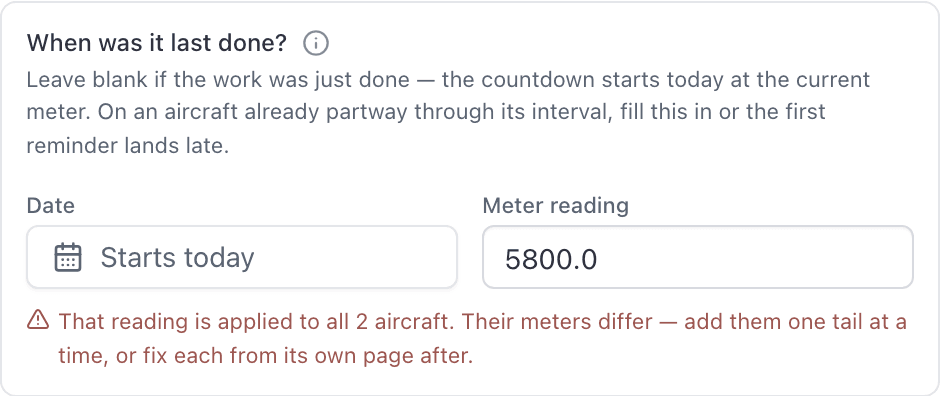
For a calendar inspection the date is all that matters. For an hour-based inspection the meter reading is all that matters, and it is the number the whole interval is measured from.
What happens if you leave it blank#
The countdown starts today, at the aircraft's current meter. The fields even say so: "Starts today" and "Current reading".
That is the right default exactly once, on an aircraft that has just come out of the work you are now tracking. Every other time it pushes the first reminder out by however far through the interval the aircraft already was.
One meter reading, several aircraft#
Applies to lets you attach the inspection to the whole fleet at once, but there is only one Meter reading box, and whatever you type in it is applied to every tail you selected. Their meters are not the same number.
The form shows an amber warning as soon as you type a reading with more than one aircraft selected. Take the hint and add the aircraft one tail at a time.
Dates are safer. If every aircraft genuinely had its transponder check on the same day in the same shop visit, one date across the fleet is fine.
Set it on a tail you attach later#
You do not have to get it right at the moment the rule is created. Open WebMaintenance → Inspection rules, open the rule's … menu, choose Choose aircraft, and add the tail. A When was it last done? box appears for each tail you just added, and it takes the same date or meter reading as the create form. The same sheet is on the app, at AppMaintenance → Set up → the rule.
Or let the next sign-off correct it#
On a repeating inspection there is a gentler fix. Sign it off with the real numbers: set Completed on to the day the work was actually finished and correct the meter reading. The next interval counts from exactly those values, so the following reminder lands in the right place. See Sign off a completed inspection.
The iOS app never asks for it#
Neither the app's Add inspection sheet nor its standard-set picker has a When was it last done? field. Anything created on the phone starts from today at the current meter, every time.
Still stuck on this?
Email support@aerscheduler.com and tell us what you were trying to do. We answer.