
Set the grading scale for a course
Every course version has its own marks and decides which of them mean the lesson is complete. The default is S, U and I. Read the limits before you change it.
For owners and admins
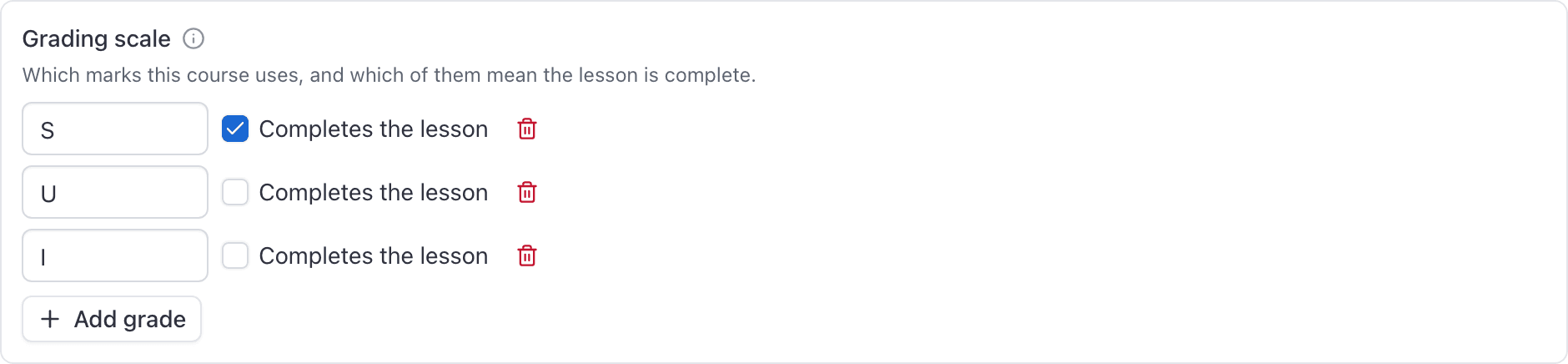
Open the course and go to Requirements. The Grading scale card at the top holds the marks this course version uses and which of them mean the lesson is complete. It defaults to S, U and I with S completing the lesson. It freezes when the version is published, and on a Part 61 draft it also freezes the moment a training record exists on that version.
The scale belongs to the syllabus version, not to the school, so two courses can grade differently and a revision can change the marks without touching students on the old version.
Edit the scale#
Course → Requirements
The Grading scale card sits above the requirement list. The version has to be a draft, and it cannot already have training records. Changing which marks complete the lesson after someone has been graded would silently rewrite their progress.
Edit the codes
One row per mark.
Tick Completes the lesson
On every mark that means the student may move on.
Add or remove marks
Add grade for another row, the trash icon to drop one.
Click Save scale
The button only appears once something has actually changed.
Two rules are enforced on save:
- At least one mark has to complete the lesson, or the save is refused with "At least one grade has to mean the lesson is complete."
- Two marks cannot share a name.
Which marks complete the lesson#
"Complete" on a lesson means the record is signed and carries a mark this card says completes the lesson. Both halves are required.
That is what fills the lessons-complete bar on a student's record, and what the syllabus uses to work out which lesson is Next up. Distinct lessons are counted, never records, so a student who flew the same lesson three times before passing counts as one lesson done.
What a U does to the record#
An unsatisfactory grade is a real record, not a failure to record anything.
- It is signed, frozen and permanently on the student's training record.
- It appears on the Training records report for an inspector to read.
- It never moves the lessons-complete bar, so the lesson stays outstanding and stays Next up.
- Its hours are still credited to every requirement the lesson credits. The student flew them.
Your marks follow the course everywhere#
Every place that grades reads the course's own scale: the Grade dropdown in the close-out Training record section, the grading dialog on the training record, the per-task buttons, and the phone. A course graded 1 to 4, or Introduced / Practiced / Perfected, is graded with those marks wherever an instructor happens to be standing.
A mark the course does not use is refused, with a message naming the ones it does:
"S" is not one of this course's grades (1, 2, 3, 4). In practice you only see that from an
integration posting its own grade, since the screens offer nothing else.
The scale freezes when records exist, and when you publish#
A signed lesson is complete only if its mark is one this card says completes the lesson. Flipping that after records exist would move the lessons-complete bar with no amendment. So Save scale is refused, with "This syllabus has training records on it," the same way deleting a lesson is refused.
Publishing the version also locks the grading scale along with the lessons, the tasks and the requirements. There is no unpublish.
To change the marks on a published course, create a new version, edit its scale, publish that, and retire the old one. Students already enrolled stay on their version and keep grading against the marks they started with. See Publish a syllabus version.
Still stuck on this?
Email support@aerscheduler.com and tell us what you were trying to do. We answer.