
Grade a lesson when you close out the flight
The intended path. Close out the booking as usual, then grade and sign the lesson in the Training record section. Flight and ground hours are already filled in from the Hobbs and the briefing time.
For instructors and admins
This is the intended path. Close the booking out the way you always do, then scroll to the Training record section on the close-out sheet, click Grade this lesson, check the lesson and the grade, and click Sign lesson. Flight and Ground are already filled in from the billed meter (Hobbs or tach, whichever that aircraft invoices on) and the briefing time.
Close out the flight as usual#
Nothing about training changes the close-out. Enter the meter readings and the briefing time exactly as you would on a rental. See Close out a flight and bill it.
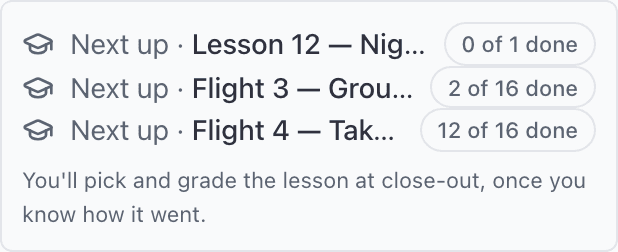
If the student is enrolled on a course, you will already have seen a grey Next up strip on the booking form when the flight was made, naming the lesson the syllabus suggests and how far through they are. If they have finished every matching lesson, the strip says Syllabus complete instead of naming one. If they are on more than one course, the strip starts as one line with a link to show the others. Nothing is committed there: you pick and grade the lesson at close-out, once you know how it went.
Find the Training record section#
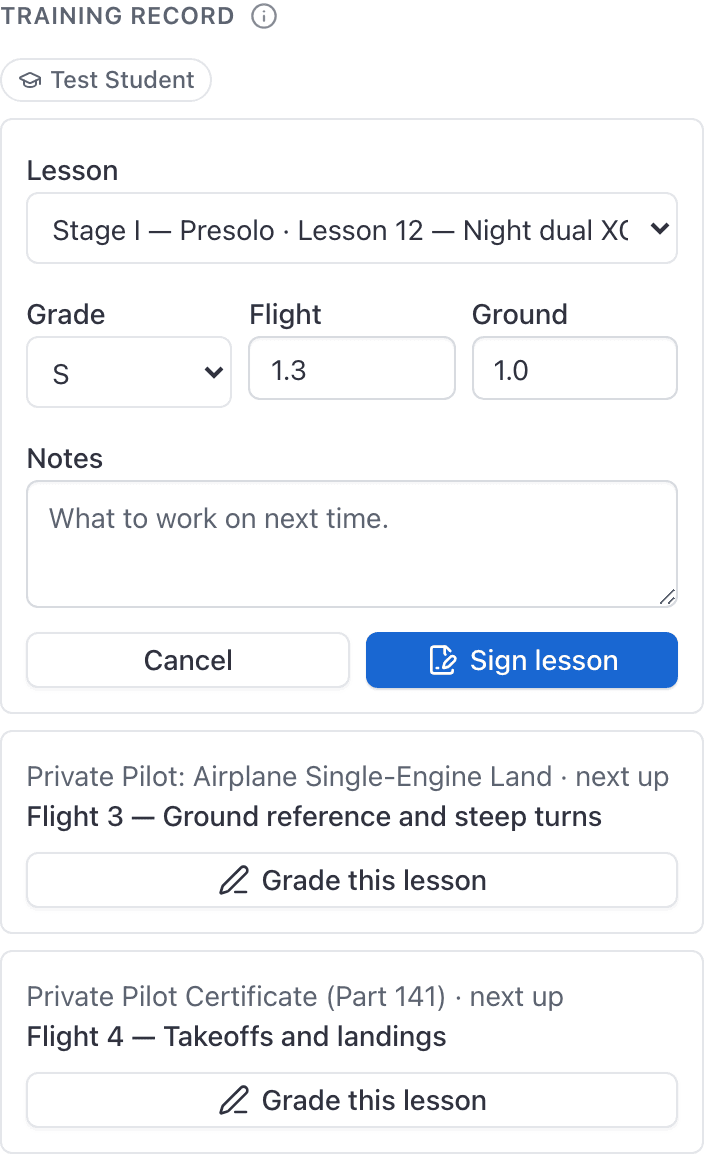
Scroll down the close-out sheet. There is one block per student per enrollment, headed with the course name and the lesson the syllabus suggests next.
Check the lesson, the grade and the hours#
Click Grade this lesson
Check the Lesson dropdown
The first unfinished lesson is preselected. Lessons that have already been flown are prefixed with a tick and cannot be selected: Sign is for a new grade, not a correction. To fix a signed lesson, amend it from the student's training record.
Set the Grade
The dropdown offers this course's own marks, the same scale the training record and the phone use. On a template course that is S, U and I.
Check Flight and Ground
Flight is prefilled from the billed meter delta (Hobbs, or tach if that is how the aircraft is billed) and Ground from the briefing time. Both are editable, so trim them if the numbers on the sheet are not the numbers you taught.
Type Notes
What the student did, and what to work on. This is what an inspector reads. If you already saved a draft on the phone, those notes, hours, the grade and any task marks are already in the form. Do not wipe them: Sign writes whatever is on screen.
Sign the lesson#
Click Sign lesson. In one action the record is saved, signed, frozen, linked to this booking, and its hours fan out into a ledger credit for every requirement the lesson credits. The section then reads "<Lesson> signed and credited to <Course>." Reopening the booking later still says that, and the folded header says signed (or 1 of 2 graded on a two-student flight).
If every matching lesson on the course is already finished, the section says Syllabus complete instead of offering a grade. There is nothing left to sign on that booking.
The student's countersignature is a separate step they do themselves from WebMy training. The record sits at Awaiting student until they do, with its hours already counted.
Two students on one booking#
Every student on the booking gets their own block, with their own lesson, grade, hours and notes. Two students in one aircraft are graded separately, and each signature credits only that student's record.
When the section does not appear at all#
The Training record section is hidden unless all of this is true:
- the booking type is dual, ground, sim or solo
- at least one student is on the booking
- that student is enrolled on a course
- the course has a lesson whose type matches the booking (dual and solo offer flight lessons, ground offers ground lessons, sim offers sim lessons)
- you are an instructor or an admin at the school
A rental, a guest flight or a maintenance booking shows no trace of it rather than guessing. So does a dual flight for somebody who is on no course. If you expected the section and it is not there, work down that list: the usual answer is that the student was never enrolled, or the booking was made as a rental.
Simulator hours#
On a lesson your syllabus marks as a sim, the grader adds Of the flight hours, in a simulator.
It is a part of the flight figure beside it, not an extra. That is what makes your course's simulator allowance apply to the time: hours typed only into Flight are credited as aircraft time, and the ceiling never sees them.
Per-task grades#
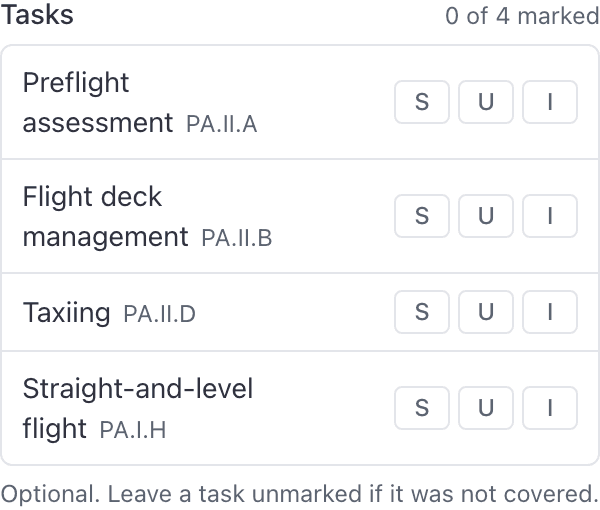
If the lesson has tasks, each one gets a row with its ACS code and your course's own marks as buttons, and a count of how many you have marked.
Marking them is optional and nothing is marked for you. A syllabus lesson routinely covers tasks that were not attempted, so leave those alone: the record should say what you assessed, not tick everything the lesson could have covered. Press a mark a second time to clear it. Clearing every chip and signing writes that the tasks were unmarked, including on a draft that already had marks from the phone.
What close-out grading cannot do#
| Not here | Where instead |
|---|---|
| Save as a draft. The close-out signs in one action. | Grade from the student's training record, which has Save draft. |
| Grading offline. The console needs a connection. | The iPhone app queues lessons graded with no signal. |
If the lesson already has an unsigned draft on another flight, Sign takes that draft over for this booking and fills hours from this close-out. If the lesson is already signed, you can still pick it and Sign again: that records another dual on the same lesson.
Your course's own marks are offered here, whatever scale you set. A lesson your syllabus marks Notes required will not sign until the Notes box has something in it, on this screen and on every other.
Under Part 141, grading out of syllabus order shows a warning and does not stop the signature.
Common questions
- Can I sign a lesson that already has a draft on another flight?
- Yes. Sign takes that unsigned draft over for this booking and uses this flight's hours. The other close-out will show the lesson signed here.
- The syllabus is already finished. Can I still sign this flight?
- Yes. Pick the completed lesson and Sign again. That records another dual on the same lesson, the same way a U retake does.
Still stuck on this?
Email support@aerscheduler.com and tell us what you were trying to do. We answer.