
Enroll a student in a course
Open the course, check which version is selected, then Enroll a student. The student is pinned to that exact version for the whole course.
For owners, admins and instructors
Open the course from WebTraining → Courses, check which version the page has selected, then click Enroll a student and pick the member. The student is pinned to that exact version for the whole course, so the version is the part to get right.
Check the version first#
An enrollment points at a syllabus version, not at the course. Whichever version the course page has selected is what the student will be trained, graded and graduated against, for the whole course. The page opens on the current published, non-retired version, and a version dropdown appears in the header once the course has more than one.
They are never migrated to a later revision, and there is no supported way to move a student from one version to another. If you pick the wrong one, the fix is to end the enrollment and enroll them again on the right version.
Enroll from the course page#
Open the course
WebTraining → Courses, then Open syllabus on the course card.
Check the version
The page opens on the current published, non-retired one. If the course has more than one version, change it in the header dropdown.
Click Enroll a student
Choose the member
Students are listed first. Staff appear further down with (staff) beside their name.
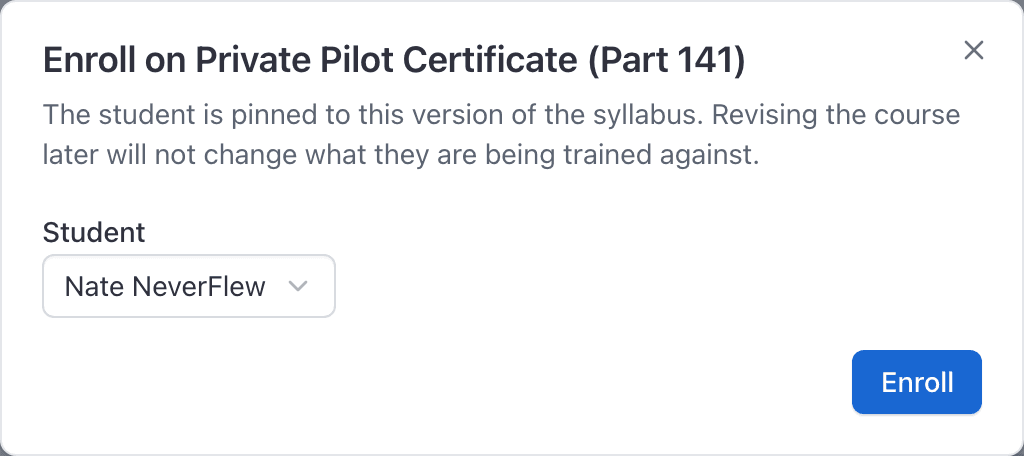
Click Enroll
If the course has an enrollment fee, the amount as it stands today is recorded as owed against this student on the spot. Changing the price later never re-prices them. See Charge a course enrollment fee.
Where the enrollment then appears#
| Screen | What it shows |
|---|---|
| WebTraining → Students | Everyone whose enrollment is currently In training |
| The course's Students section | Everyone ever enrolled on this course, at any status |
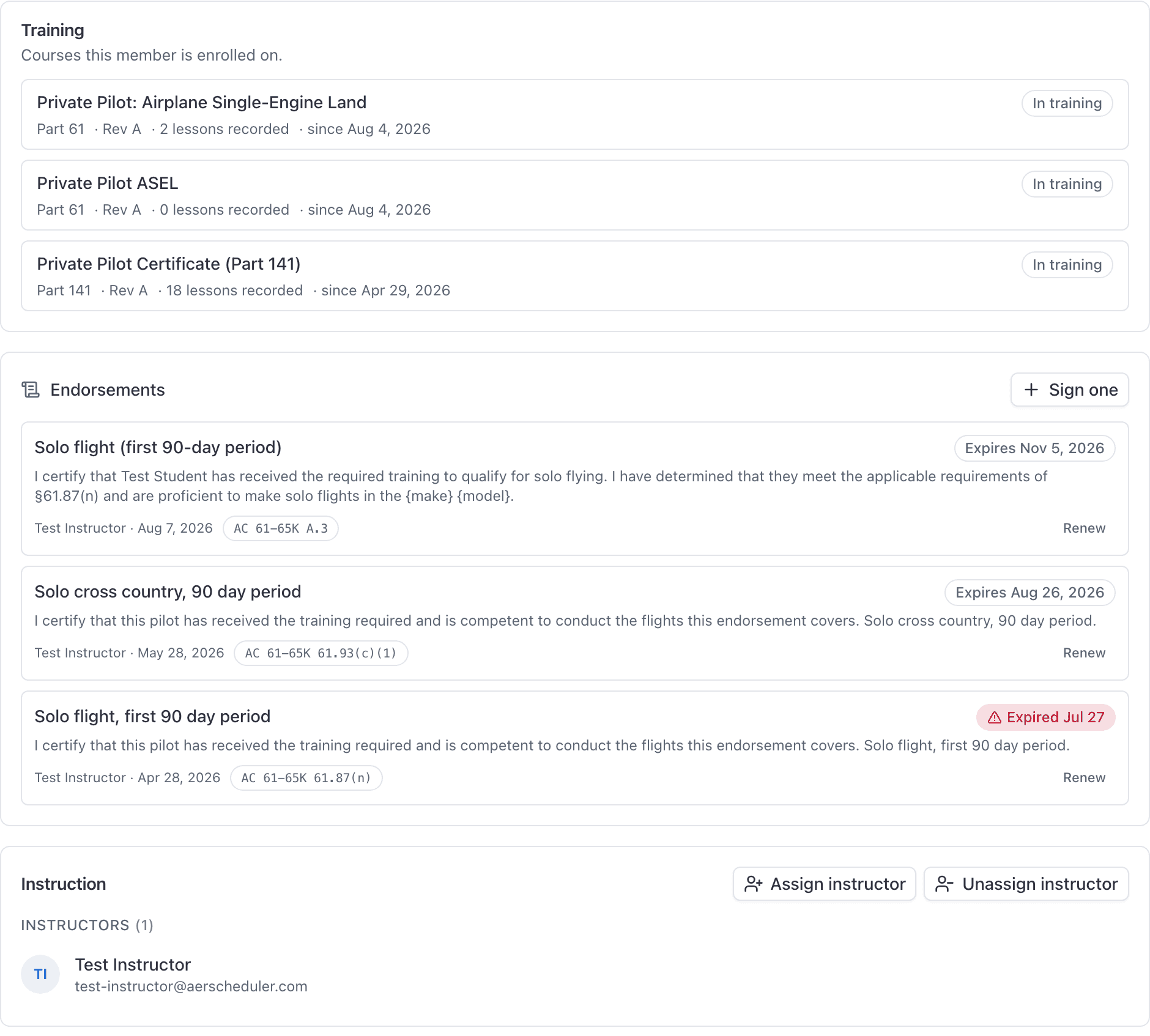
| The person's page → Training | Their enrollments, in-training first |
| WebMy training | The student's own view of it |
| AppTraining | On the instructor's list of students they can grade, and on the student's own list |
One active enrollment per version#
A student may hold only one active enrollment per version. A second attempt is refused with "That student is already enrolled on this version."
Re-enrolling after a termination is allowed, and is the normal way to restart somebody who quit and came back. The old enrollment and everything on it stays exactly as it was.
Somebody doing a Private and an Instrument at the same time simply has two enrollments, on two different courses, and appears twice in the reports.
Messages that stop an enrollment#
| Message | What to do |
|---|---|
| "A Part 141 course must be published before anyone can be enrolled on it." | Publish the draft first. Part 141 does not allow enrollment against a draft. See Publish a syllabus version. |
| "This version has been retired. Enroll on the current version instead; students already on this one finish on it." | Select the current version in the header dropdown and try again. |
| "That student is already enrolled on this version." | They have an active enrollment. Open their record instead. |
| "That member is archived. Restore them before enrolling them." | Restore them on the People page first. |
Enrolling an instructor#
The picker is deliberately not students-only. A CFI adding an instrument rating is a normal thing, so instructors and other staff appear in the list with (staff) beside the name.
Their record works exactly like a student's: they countersign their own lessons from WebMy training, and another instructor grades them.
What happens next#
The intended path. Close the booking out, then grade and sign in the Training record section.
Post hours from another school or a device, dated when they were actually flown.
Overview, Lessons, Requirements and Ledger, and what each of them counts.
One click from the student's record, and only ever once.
Still stuck on this?
Email support@aerscheduler.com and tell us what you were trying to do. We answer.